



Most guides online just tell you to leave everything on default. That is fine for a casual user, but it leaves a few settings in a weaker state than they need to be, especially on a machine that also runs a VPN client and a Hyper-V lab network. Below is my full configuration for Bitdefender Total Security in 2026, section by section, matching the actual layout of the app.
Bitdefender Total Security scored a perfect 18 out of 18 (6/6/6 across protection, performance, and usability) in AV-TEST’s December 2025 Windows 11 evaluation, earning the “Top Product” award.
I already have a full guide on the site comparing Bitdefender against Norton, Kaspersky, and the rest of the antivirus field on price, AV-TEST scores, and jurisdiction. This article sticks strictly to configuration inside the app itself, not vendor comparison, so I am not repeating that table here.
If a setting doesn’t match what you’re seeing, you’re probably on a different version than this guide. Leave a comment and I’ll do my best to help.
ON: enable it.
OFF: disable it.
DEPENDS: the right call depends on your setup (VPN, home lab, other security tools running).
TEST: worth confirming on your own machine before you trust it long term.
Dashboard
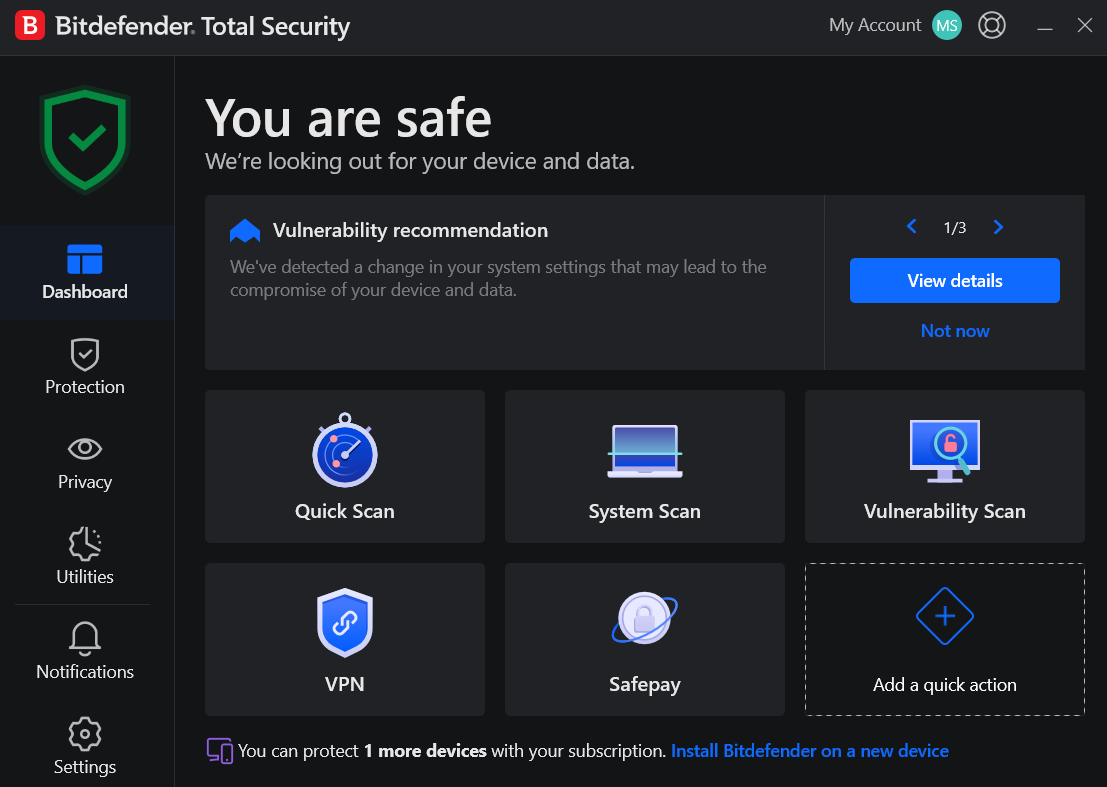
The main window is a status overview, not a settings screen. The “You are safe” banner reflects every module combined, so it flips the moment any single one, Firewall included, reports a problem.
Vulnerability recommendation carousel: read it before dismissing. Most flagged items are a real five-minute fix, usually an outdated app or a weak local password.
Quick action tiles: shortcuts into the modules below. I skip the VPN tile since NordVPN already covers that traffic.
Protection
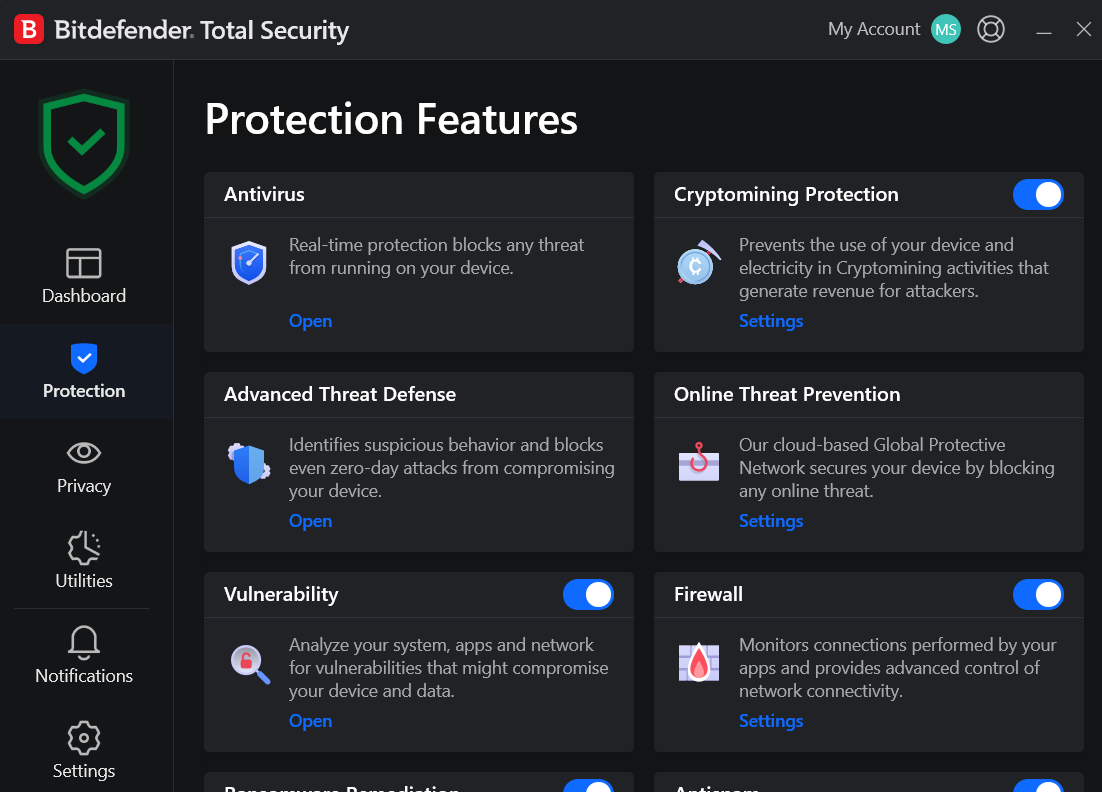
- Antivirus: Open – no toggle on this screen, it’s core enough that Bitdefender won’t let you kill the whole module from here, go in and disable individual components instead.
- Cryptomining Protection: On – stops malware from hijacking your CPU/GPU to mine currency for someone else while it quietly inflates your power bill.
- Advanced Threat Defense: Open – no card toggle, the actual behavioral detection settings live one level in.
- Online Threat Prevention: Open – no card toggle, web and network protection settings live one level in.
- Vulnerability: On – flags outdated apps, missing Windows patches, and weak local passwords before they become the way in.
- Firewall: On – your only network-layer control beyond Windows’ own, don’t turn this off from here or anywhere else.
- Ransomware Remediation: On – automatically restores files encrypted by ransomware, one of the only settings on this whole screen where turning it off has no real upside.
- Antispam: On – filters junk from Outlook or Thunderbird only, does nothing for webmail read in a browser.
Antivirus
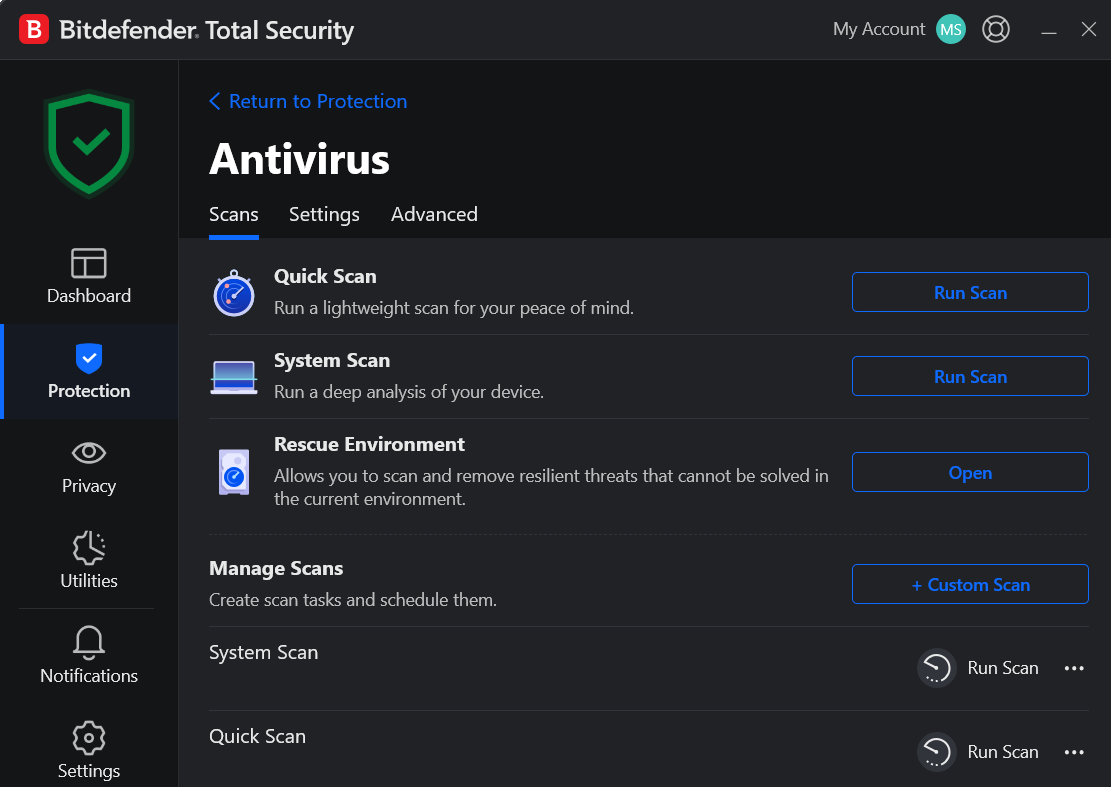
1. Scan
- Quick Scan: run manually anytime, checks the common infection points in a couple of minutes.
- System Scan: Full deep scan, can take an hour or more depending on data volume.
- Rescue Environment: reboots into a pre-Windows environment to clean rootkits and bootkit malware that can’t be fully removed from inside a running OS.
Manage Scans: use this to scan a specific folder or a freshly attached drive without triggering a full System Scan.
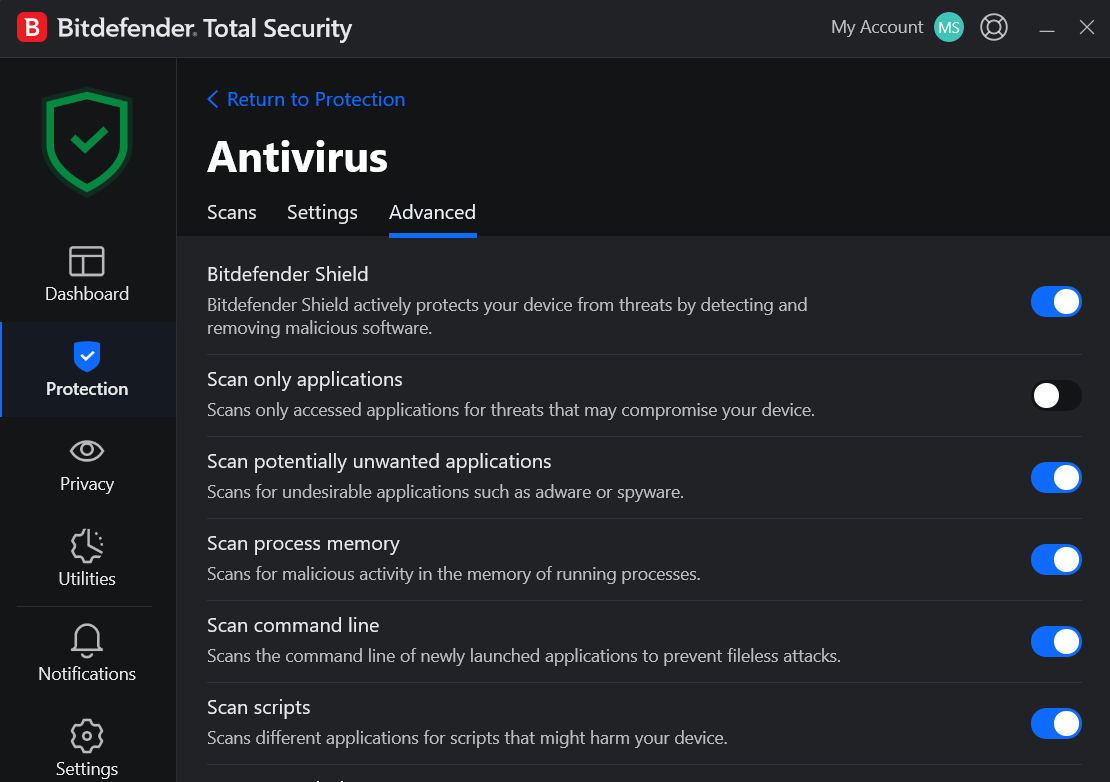
2. Advanced Settings
- Bitdefender Shield: ON. Core real-time engine, everything else here depends on it.
- Scan only applications: OFF. Off means broader real-time coverage, not narrower. Only turn this on if you’re chasing performance on old hardware.
- Scan potentially unwanted applications: ON. Catches adware and bundled installer junk.
- Scan process memory: ON. Catches fileless malware running entirely in RAM.
- Scan command line: ON. Catches attacks that abuse legitimate tools like PowerShell via command-line arguments.
- Scan scripts: ON. Covers PowerShell, VBScript, and JS files, a common initial-access vector.
- Scan network shares: ON. Confirm this stays on if you pull files from a NAS or home server regularly.
Scan archives: ON, ignore threshold set to 0MB. At 0, nothing gets skipped for size. Raise it only if very large archives are hurting scan performance and you accept the coverage trade-off. - Scan boot sectors: ON. Catches bootkit-style infections.
- Scan only new and modified files: ON. Applies to the real-time layer only, doesn’t reduce System Scan coverage.
- Scan keyloggers: ON. Small check, big consequence if missed, given what a keylogger can capture.
- Early boot scan: ON. Runs before most malware gets a chance to establish itself for the session.
- Threat actions: “Take proper actions.” Automatic remediation (disinfect, then quarantine, then delete) instead of prompting every time. Switch to manual only if you want to review each detection yourself.
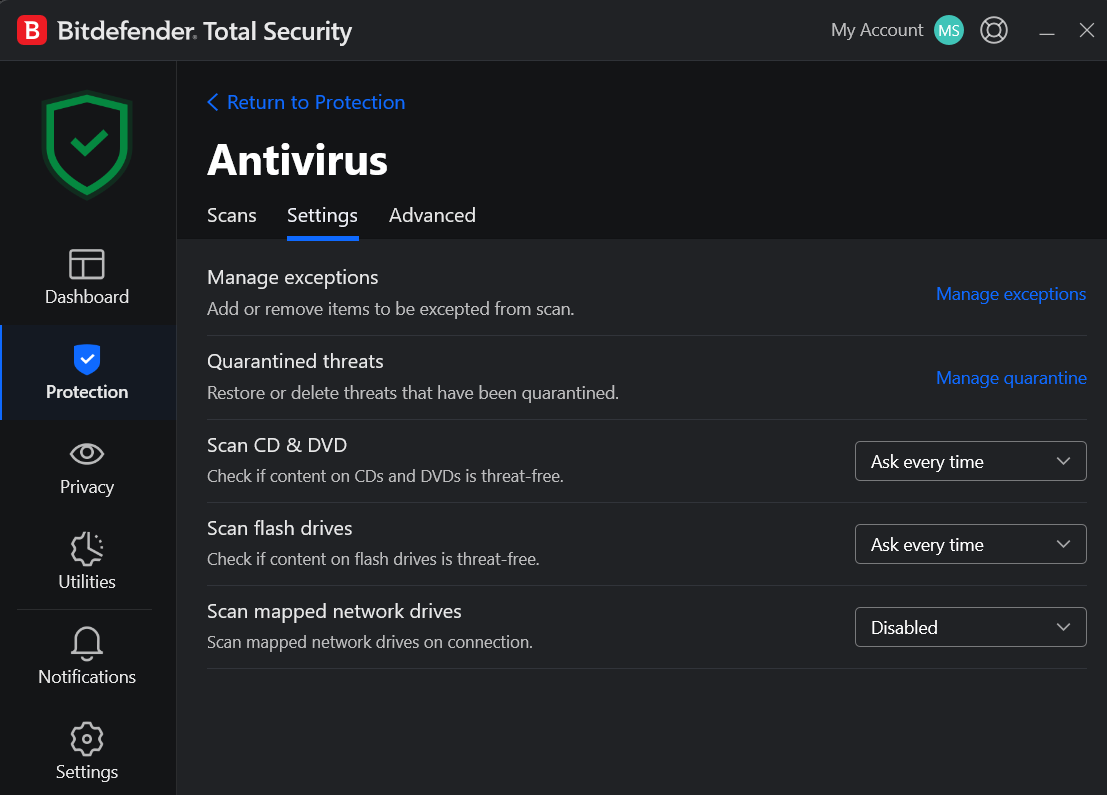
3. Scan
- Scan CD & DVD / Scan flash drives: “Ask every time.” Middle ground between always-scan (slows a quick file copy) and never-scan (defeats the point).
- Scan mapped network drives: DEPENDS. Disabled on my machine since network shares are already covered in real time. Enable it if you connect to unfamiliar shares often.
Manage exceptions / Manage quarantine: check quarantine periodically. A false positive on a legitimate dev tool isn’t rare, and Bitdefender won’t restore it on its own.
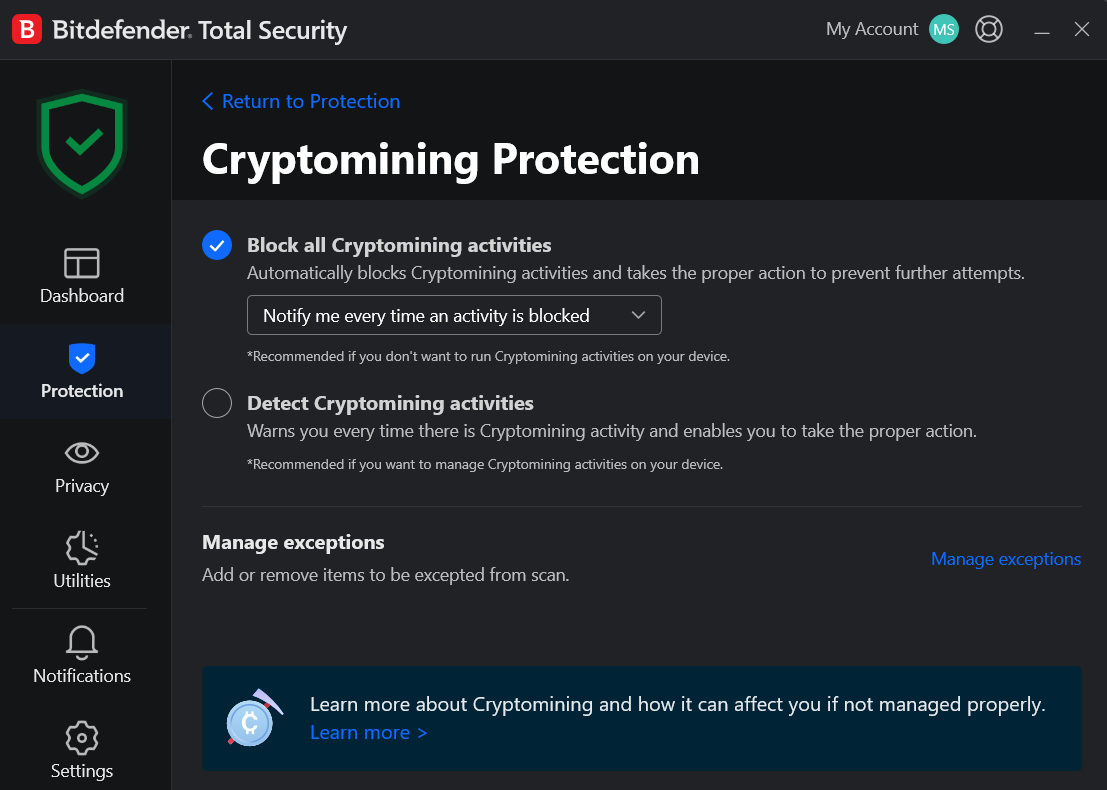
Cryptomining Protection
- Block all Cryptomining activities: ON, with “Notify me every time an activity is blocked” also ON. Cryptomining malware runs quietly, eats CPU or GPU cycles, and shows up mainly as a slower machine and a higher power bill. Block outright.
- Detect Cryptomining activities: only switch to this mode if you intentionally run legitimate mining software yourself.
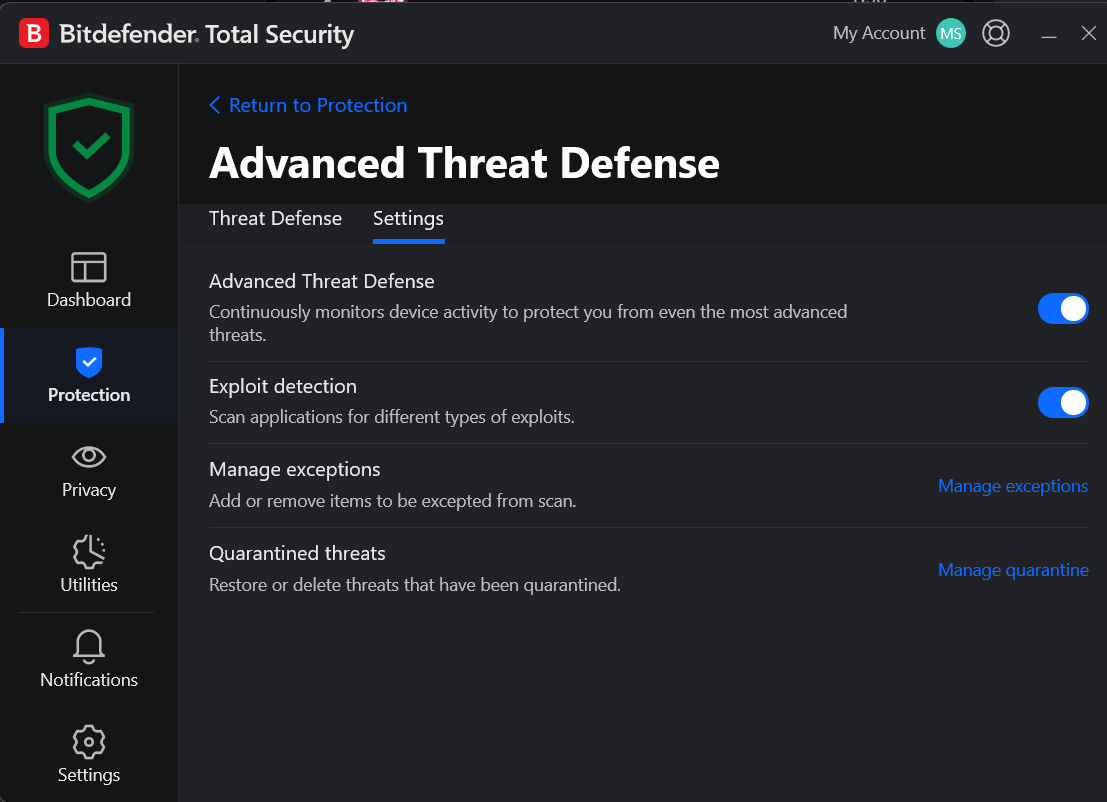
Advanced Threat Defense
- Advanced Threat Defense: ON. Behavioral detection, separate from the signature-based Antivirus module. Watches how apps actually behave, which is how it catches ransomware and zero-days with no existing signature.
- Exploit detection: ON. Watches for memory-corruption techniques used to hijack legitimate software. Pairs well with Advanced Threat Defense, different stage of the same kind of attack.
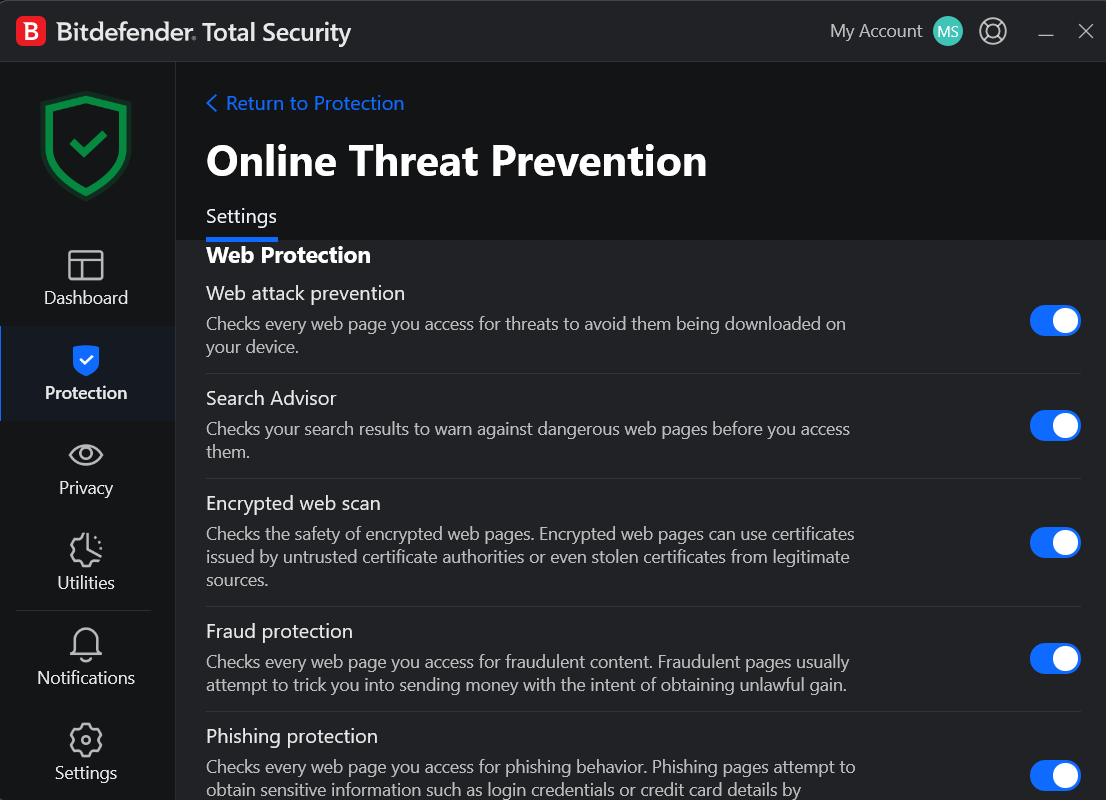
Online Threat Prevention
- Web attack prevention: ON. Checks pages against known malicious sites before content loads.
- Search Advisor: ON. Flags dangerous links directly in search results.
- Encrypted web scan: ON. Inspects HTTPS traffic, which means Bitdefender installs its own root certificate to intercept and re-encrypt TLS. Worth knowing how it works, not just that the toggle exists. Disable it temporarily if you’re doing certificate-pinning or TLS debugging work.
- Fraud protection / Phishing protection: ON. Standard, leave both on.
- Network threat prevention: ON. Network-layer protection, separate from the Firewall module. Blocks exploitation attempts, botnet C2 traffic, and brute force before it reaches the application layer.
- Local Email Protection, Scan emails: “Incoming and outgoing emails.” Only covers desktop clients (Outlook, Thunderbird). Webmail in a browser is covered by Web Protection above, not this.
Vulnerability
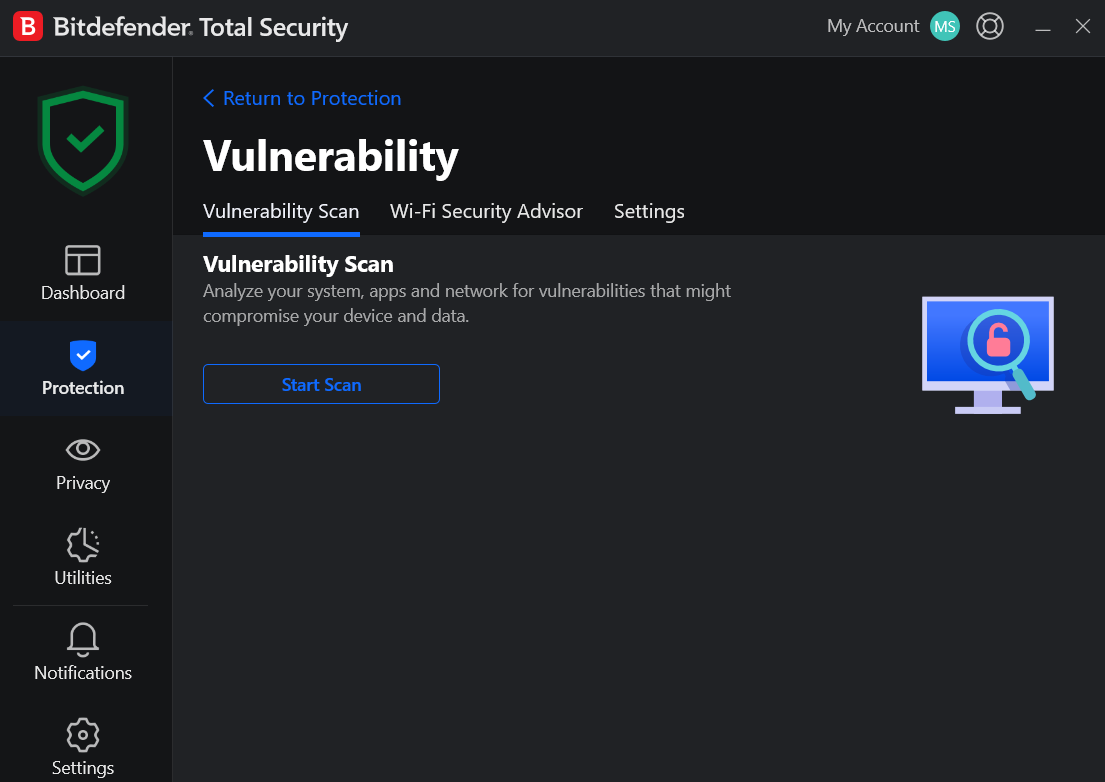
1. Vulnerability Scan
On-demand trigger for the checks above. Passive checks catch most things automatically, but I still run this manually once a month.
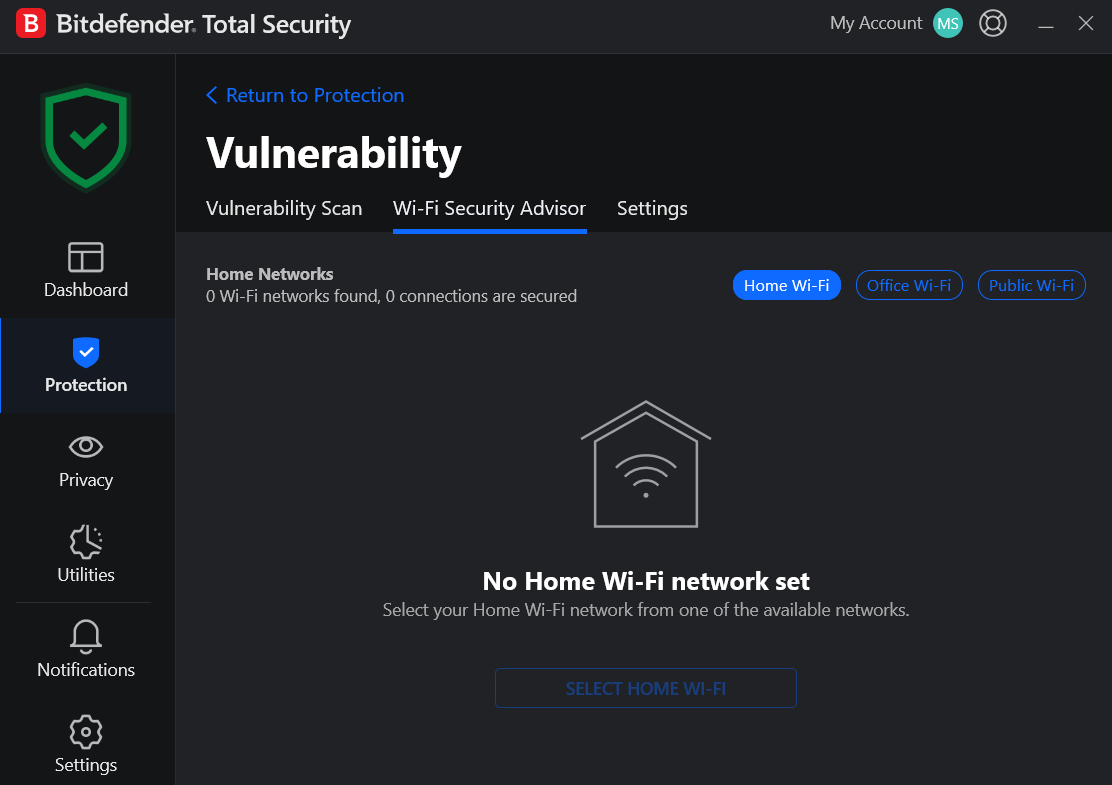
2. Wi-Fi Security Advisor
Set your actual Home Wi-Fi network here. It feeds into how Bitdefender treats that network elsewhere, not just this screen. Mine still shows “No Home Wi-Fi network set,” because I do use an Ethernet connection.
3. Scan
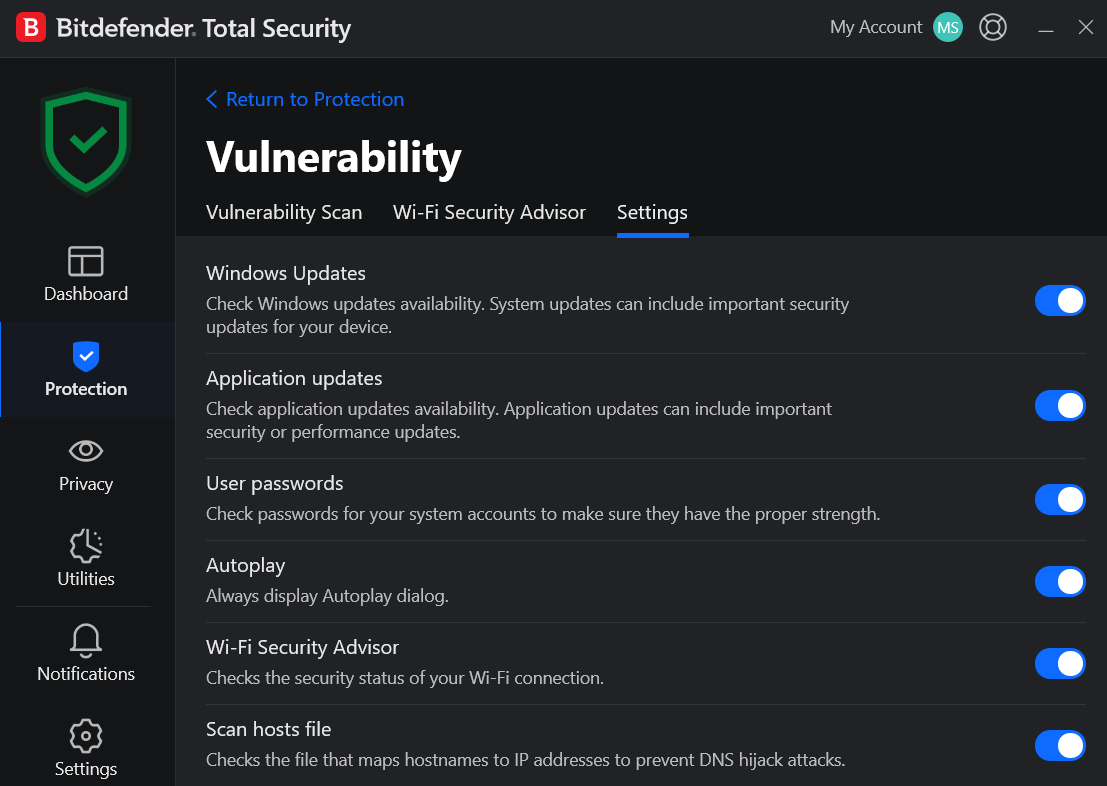
- Windows Updates / Application updates: ON. Flags outdated software, still one of the most common ways attackers get initial access.
- User passwords: ON. Checks local Windows account password strength.
- Autoplay: ON. Misleading label, this means “always show the Autoplay dialog,” forcing a confirmation before anything runs automatically. On is the safer state, not the riskier one.
- Scan hosts file: ON. Catches DNS hijacking via hosts file tampering, a classic way to silently redirect you to a fake site.
Firewall
1. Application Access
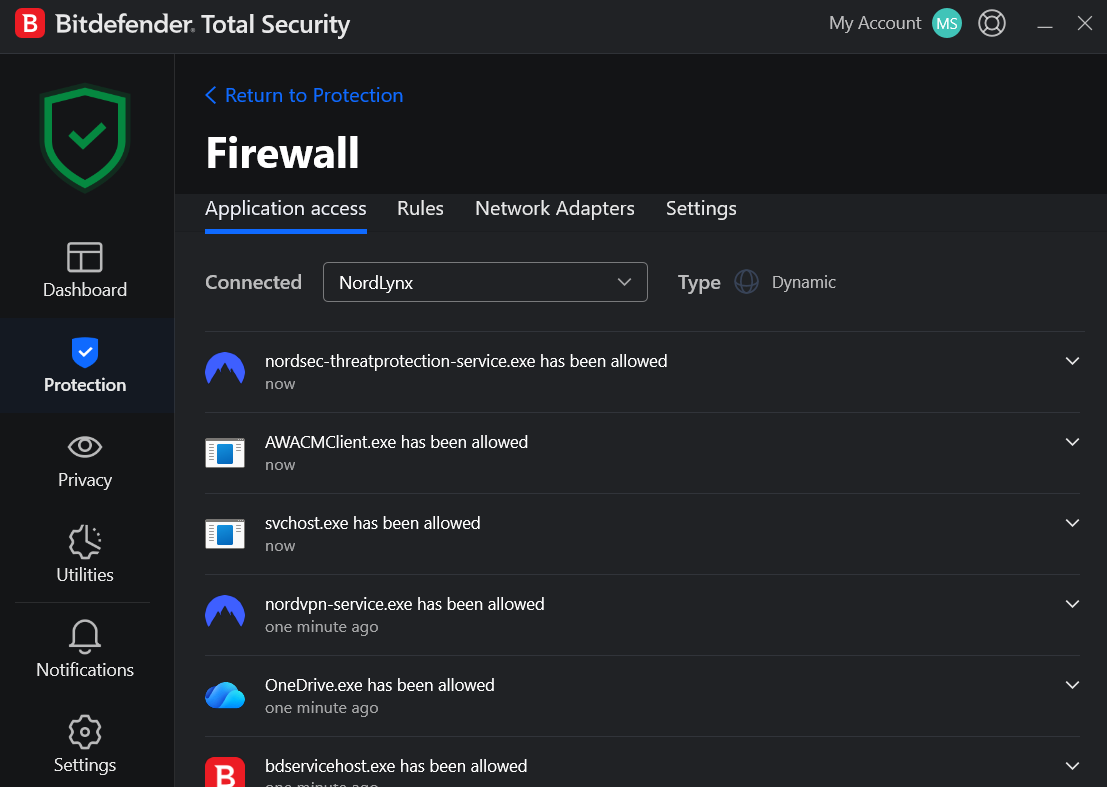
Logs which apps requested network access and whether Bitdefender allowed them. On my machine it correctly picked up NordLynx and auto-allowed the processes each app needed. TEST: auto-allow is convenient but means new processes get network access without a prompt. Review this list periodically, don’t assume everything on it was manually approved.
2. Rules
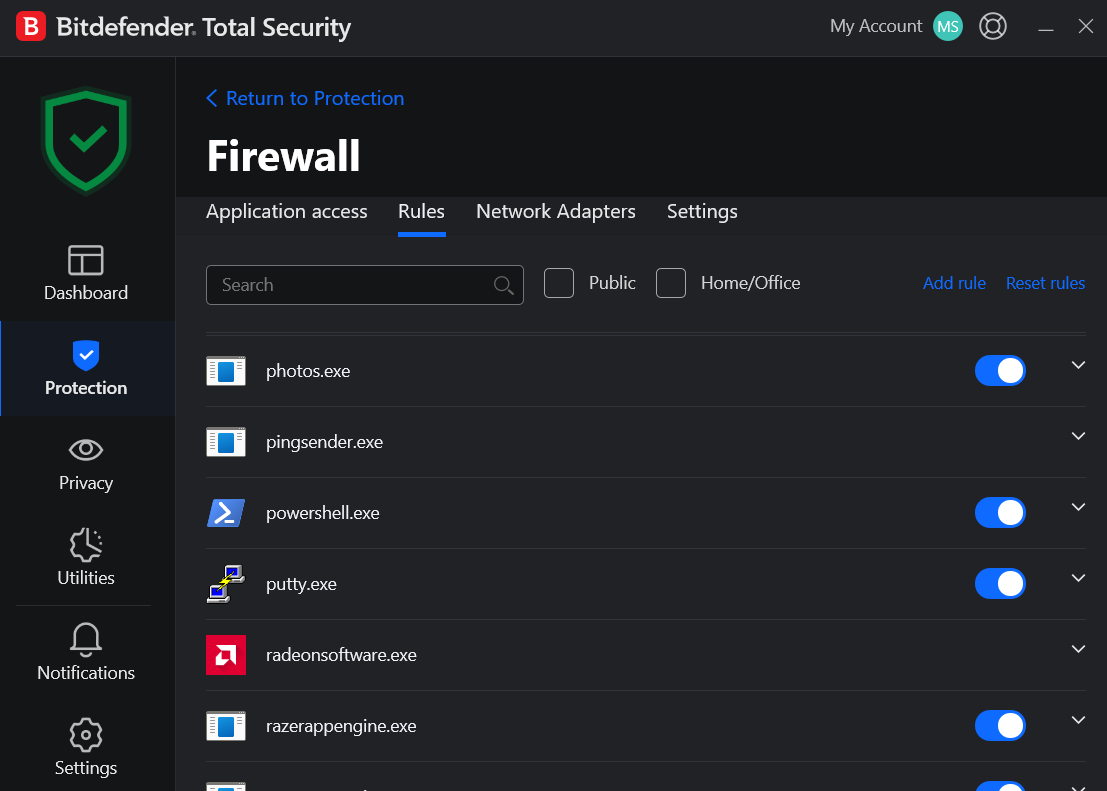
Granular, one entry per executable that’s requested network access, each with its own Public and Home/Office toggle. Use the search bar rather than scrolling. Reset rules if you want to rebuild allow decisions from scratch. An unexpected new entry here after installing something unfamiliar is one of the more reliable early warning signs something wasn’t supposed to be there.
2.1 Creating a manual rule
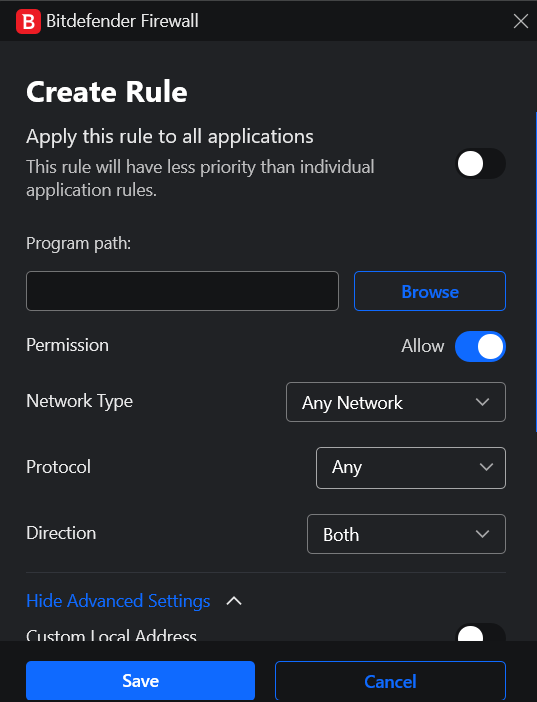
Honestly this whole Create Rule screen is advanced-use only. For normal use, leave it alone entirely, Bitdefender’s automatic per-app rules already cover what most people need, and the default configuration handles this correctly out of the box. Reach for manual rules only when you know exactly what you’re restricting and why. A wrong entry in Custom Local or Remote Address doesn’t throw an error, it just quietly breaks the app’s connectivity, and Bitdefender’s UI gives you no direct way to see which rule caused it, so you’re troubleshooting blind if you get it wrong.
- Apply this rule to all applications: OFF by default, and I’d leave it off. On turns this into a blanket rule instead of an app-specific one, and the dialog itself warns it gets lower priority than any individual app rule that already exists, so a global rule can get silently overridden without telling you.
- Program path: Browse to the executable you’re writing the rule for. This is how you build a rule for an app that hasn’t triggered an automatic entry yet, or how you override one that has.
- Permission, Allow: ON by default, this is the actual decision. Flip it off to write a block rule instead of an allow rule, useful for an app you want installed but never want touching the network.
- Network Type: “Any Network” by default, narrow it to Public or Home/Office if you want the rule to apply on one profile only. Same profile logic as the Network Adapters tab covered above.
- Protocol: “Any” by default, restrict to TCP or UDP if you’re locking a rule down to exactly what the app actually needs.
- TCP is the protocol most normal apps use, web browsers, email clients, anything that needs a reliable back-and-forth connection where data has to arrive complete and in order.
- UDP is faster but less reliable, used for things like video calls, online gaming, and DNS lookups, where a dropped packet here and there matters less than speed.
- ICMP is the protocol behind tools like ping, it’s how devices check whether another device on the network is reachable, not something regular apps use for actual data.
- IGMP handles multicast traffic, one device sending the same stream to a group of others at once, mainly relevant to things like IPTV or some smart home setups, not something most users will ever touch.
- GRE is a tunneling protocol, it wraps other traffic inside itself to send it across a network, you’d only see this in VPN or site-to-site networking contexts.
- Direction: “Both” by default, restrict to Inbound or Outbound if you only want to control traffic one way.
- Show advanced settings expands to Custom Local Address and Custom Remote Address, each with an IP and Port(s) field, both OFF unless you enable them. This is where the rule stops being “allow or block this app entirely” and becomes “allow or block this app, but only talking to this specific IP and port.” Useful for something like a dev tool you want restricted to localhost, or a service you want reaching one internal server and nothing else.
3. Network Adapters
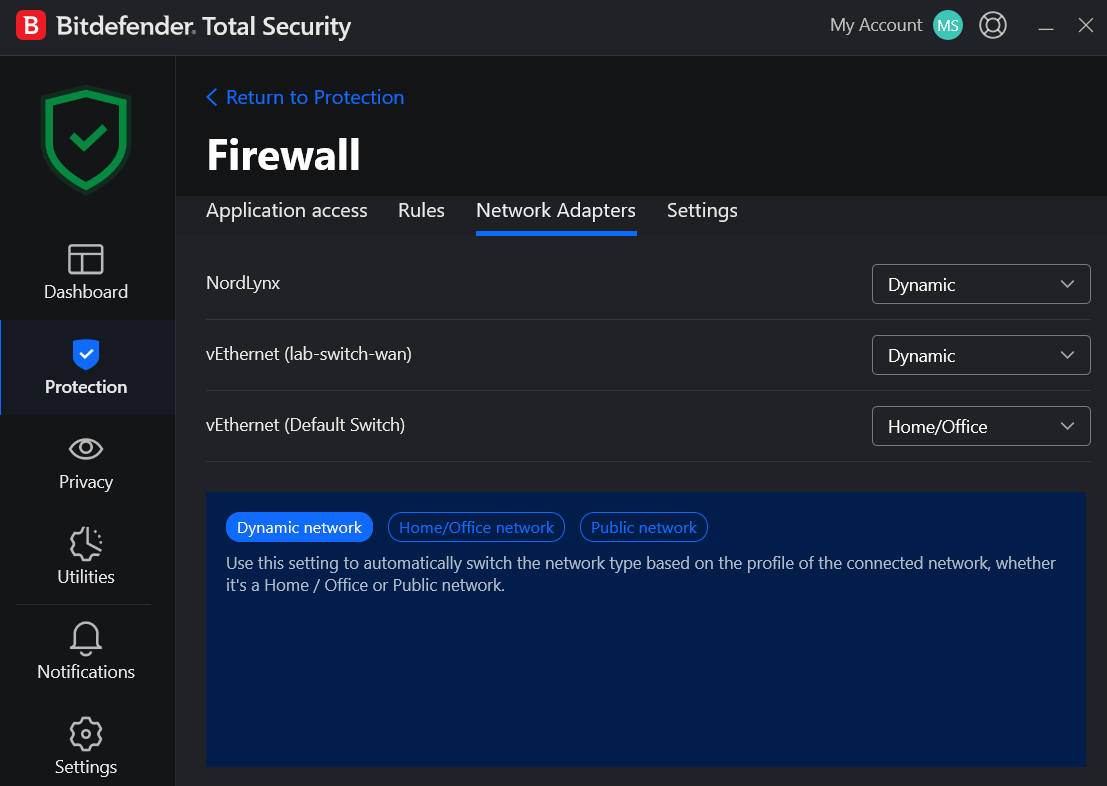
Each adapter gets classified Dynamic, Home/Office, or Public, and the firewall applies a different rule set per classification. Public is strictest. Home/Office trusts the network for local sharing.
- NordLynx: Dynamic. Right call for a VPN adapter, the traffic behind it is the open internet, not a trusted LAN.
- Hyper-V lab switch (vEthernet lab-switch-wan): Dynamic.
- Hyper-V Default Switch: Home/Office. Traffic never leaves the machine, so trusting it is fine.
DEPENDS: if you run any kind of home lab or virtualization setup, check this tab specifically. Windows sometimes misclassifies virtual adapters on its own.
4. Settings
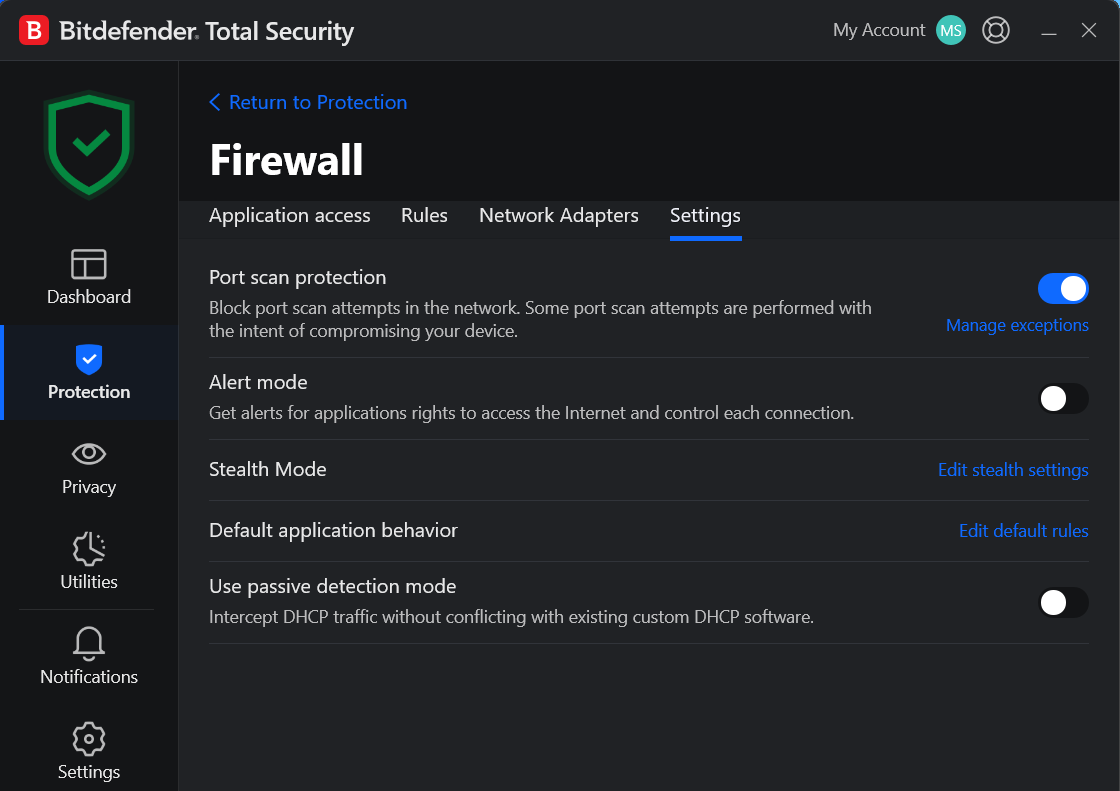
- Port scan protection: ON. Blocks reconnaissance attempts against your device.
- Alert mode: OFF. On would prompt you before every new app’s first connection. Automatic rule application handles most cases correctly, and constant prompts get ignored rather than read. Flip this on only if you want full manual control and can tolerate the interruptions.
- Stealth Mode: on for Public networks.
- Default application behavior: Block for Public networks. Sets the baseline policy for unrecognized new apps.
- Use passive detection mode: OFF unless you run your own DHCP server. If you manage your own network infrastructure (router, home lab), turning this on stops Bitdefender’s DHCP interception from conflicting with it.
Ransomware Remediation
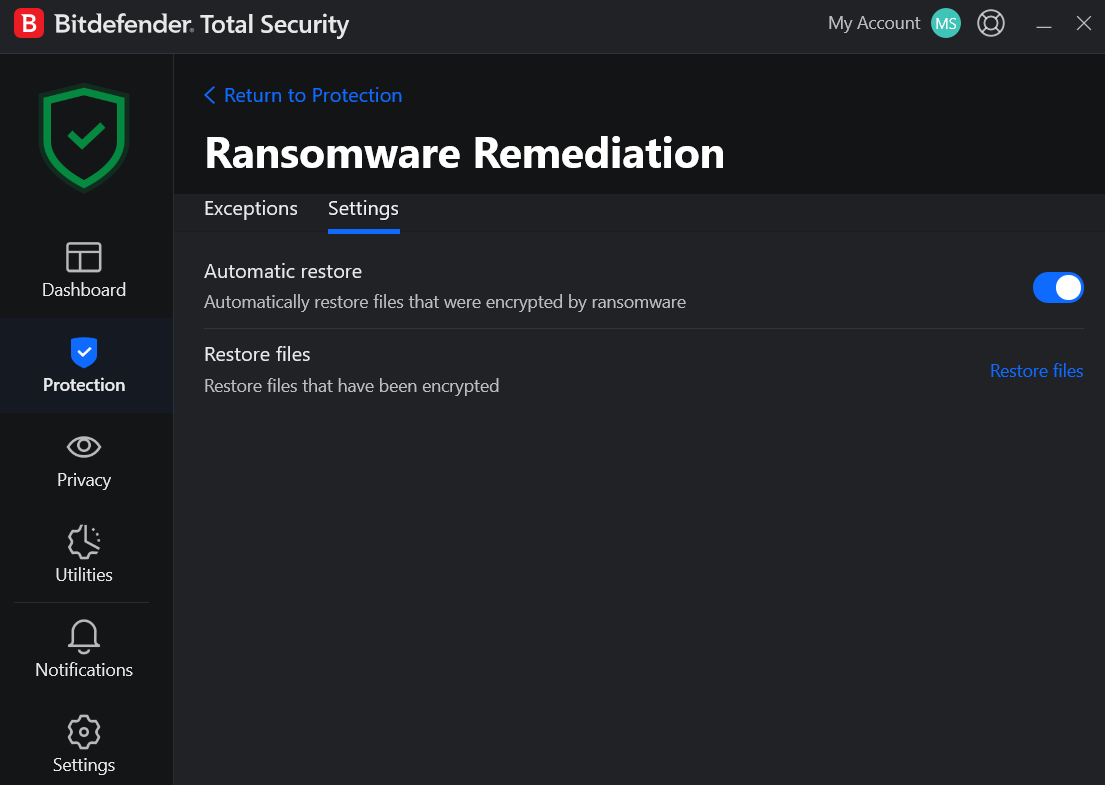
- Exceptions: empty by default, only touch this if a specific app keeps getting blocked from legitimately modifying your files (a backup tool or an encryption tool you trust, for example) and you’ve confirmed it’s not actually ransomware. Adding an app here means Bitdefender won’t block it from altering your files even if it later starts behaving like ransomware, so keep this list short and only add software you’re certain about.
- Automatic restore: ON. This is the actual point of the module, when ransomware does get caught, Bitdefender automatically restores the files it encrypted instead of leaving you to deal with the damage manually. One of the settings on this entire screen where turning it off has no real upside.
- Restore files: not a toggle, a manual trigger. Use this if you want to restore encrypted files on demand rather than waiting for the automatic process, useful if you’re checking the outcome after an incident.
Antispam
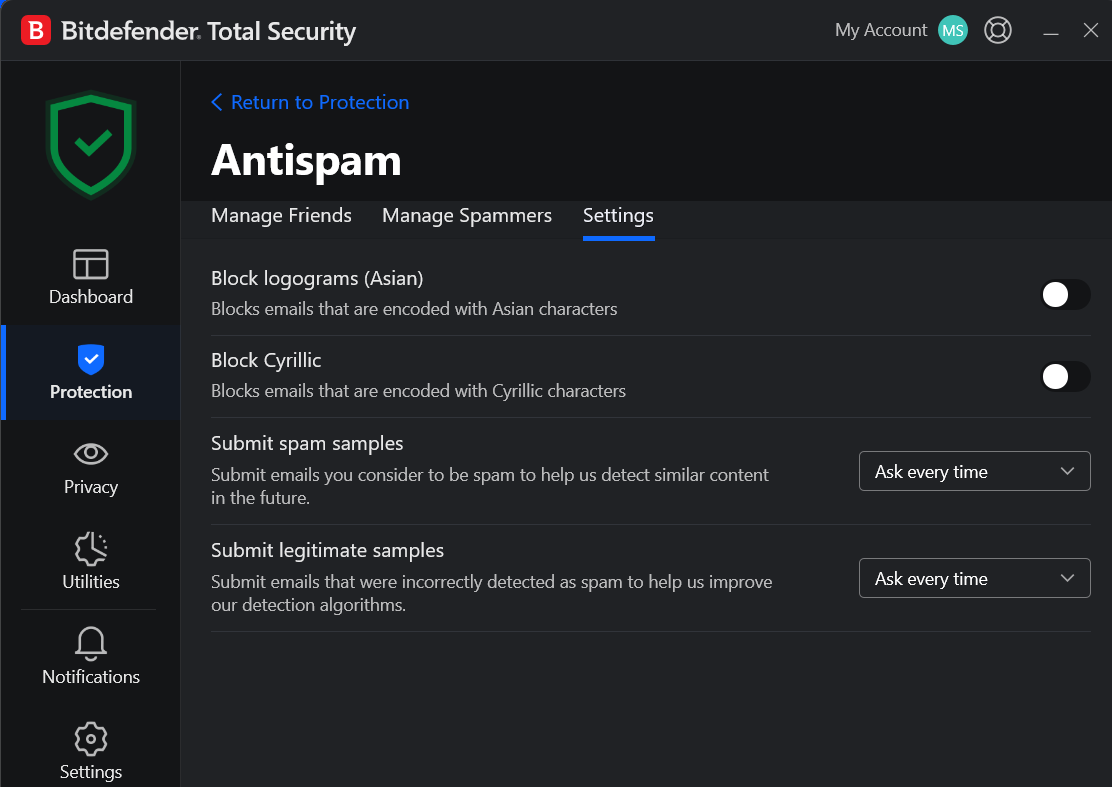
- Manage Friends / Manage Spammers: whitelist and blacklist by email address or domain. Save / Load / Clear List at the bottom lets you export and re-import, useful on reinstall.
- Block logograms (Asian) / Block Cyrillic: OFF. Blocks entire emails purely by character set, too blunt. Also catches legitimate mail from contacts writing in those scripts. Leave off.
- Submit spam samples / Submit legitimate samples: “Ask every time.” Costs nothing, helps the filter improve, doesn’t give Bitdefender a standing rule to forward your inbox.
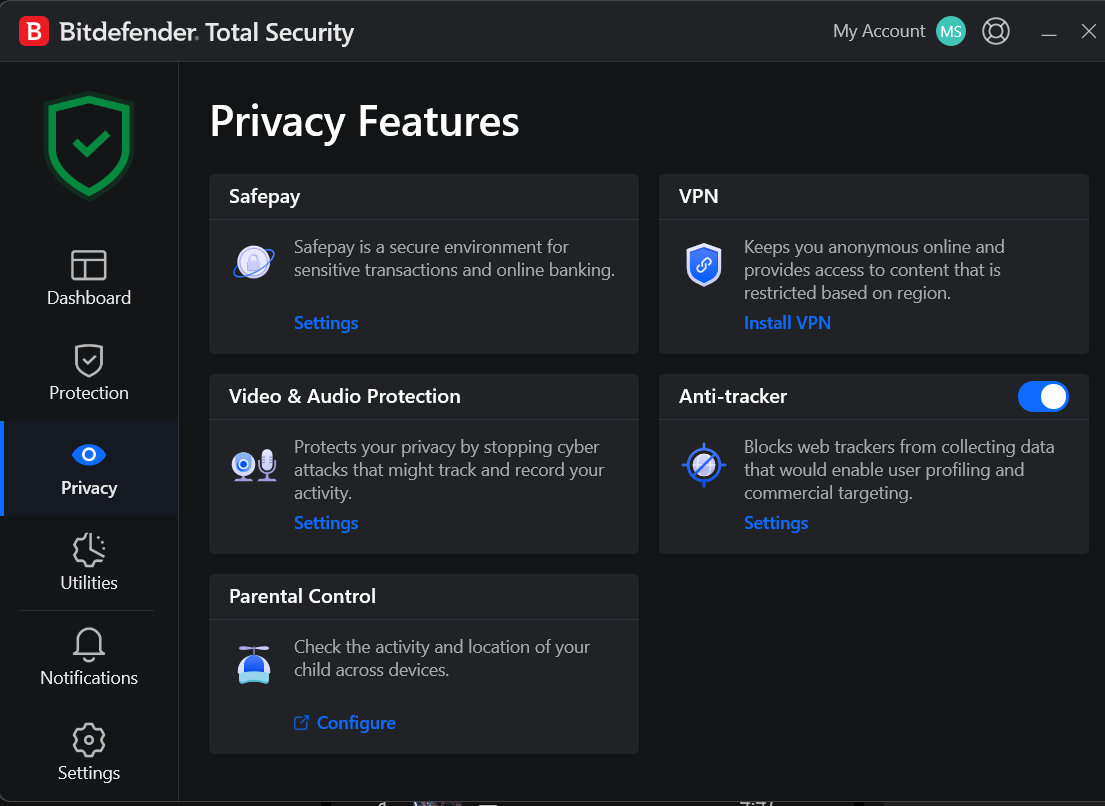
Privacy
- Safepay: Settings – opens an isolated browser for banking and payments.
- VPN: Install VPN – Bitdefender’s own bundled VPN, capped at 200MB/day/device. I don’t run this; NordVPN already covers that traffic full-time. See my NordVPN settings guide or Mullvad VPN settings if you need one.
Video & Audio Protection: Settings – covers webcam and microphone monitoring.
Anti-tracker: ON. Blocks web trackers from profiling you across sites, the toggle here just reflects whether it’s installed on any browser at all.
Parental Control: Configure – separate product entirely, opens Bitdefender Central to set up a device profile for a child, not configured from this app directly.
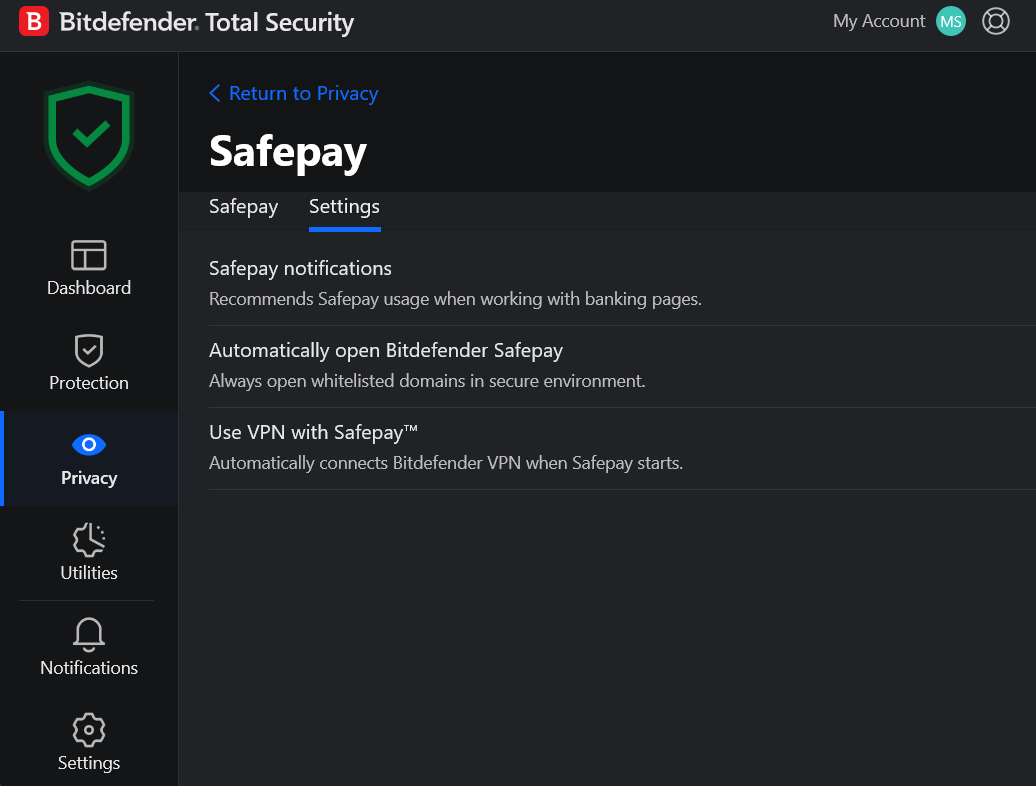
Safepay
- Safepay notifications: OFF. Recommends Safepay when it detects you’re on a banking page. I leave it off since I open Safepay manually when I need it, but this is a reasonable one to turn on if you’d rather be reminded than remember yourself.
- Automatically open Bitdefender Safepay: OFF. Forces whitelisted banking domains straight into Safepay instead of your normal browser. Off because I prefer deciding per-site rather than having it forced automatically.
- Use VPN with Safepay: OFF. Auto-connects Bitdefender’s VPN the moment Safepay launches. Off for me specifically because NordVPN already runs full-time, so a second VPN connecting on top would be redundant. If you don’t already run a separate VPN, turning this on is a reasonable default, it’s actual protection during a banking session rather than nothing.
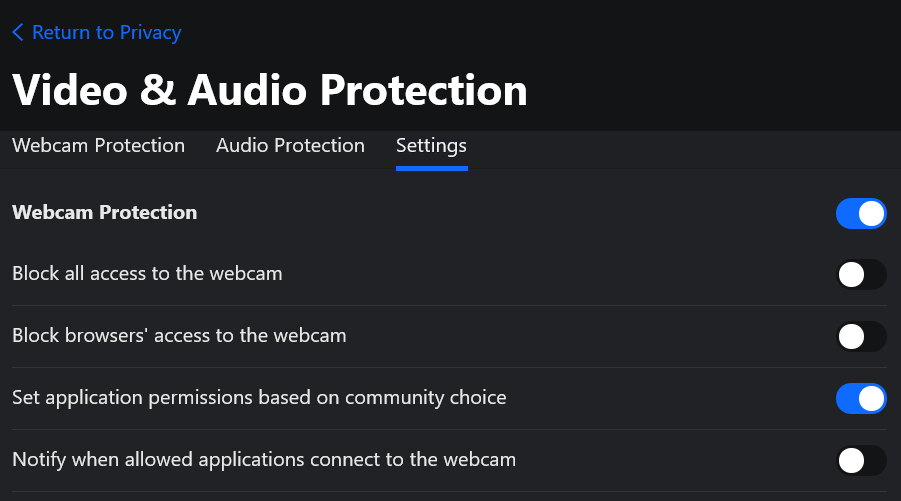
Video & Audio Protection
- Webcam Protection: ON. Master switch for the module, everything below depends on it.
Block all access to the webcam: OFF. A full blanket block, no app gets webcam access at all, not even ones you trust. Off because this is too aggressive for a machine you actually use for video calls. - Block browsers’ access to the webcam: OFF. Same blanket idea narrowed to browser-based access specifically. Off for the same reason, it would break legitimate browser-based video calls too.
- Set application permissions based on community choice: ON. Uses Bitdefender’s crowd-sourced trust data to auto-approve well-known apps like Zoom or Teams without prompting you every time. Reasonable default for usability.
- Notify when allowed applications connect to the webcam: OFF. Would alert you every time an already-approved app uses the webcam. TEST, worth turning on if you want a real audit trail of webcam access rather than trusting the community allow-list silently.
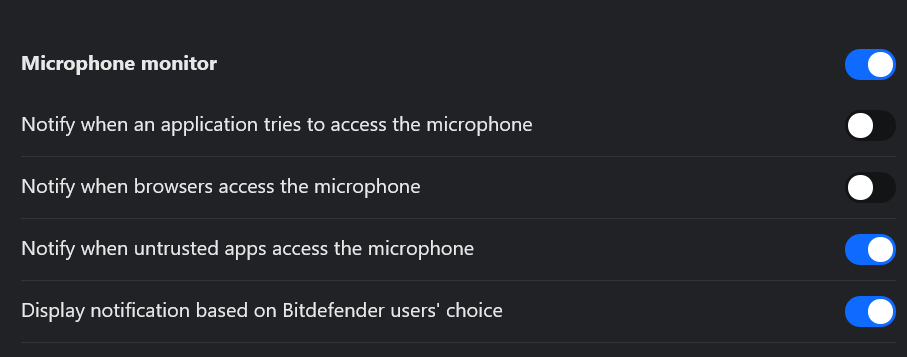
- Microphone monitor: ON. Master switch for this half of the module, everything below depends on it.
- Notify when an application tries to access the microphone: OFF. Would alert you every single time any app touches the mic. Off because that’s a lot of noise on a normal machine, most apps requesting mic access are ones you already approved.
- Notify when browsers access the microphone: OFF. Same idea narrowed to browser tabs specifically, a video call site or a site with an embedded recorder. Off for the same reason, too frequent to be useful as a standing alert.
- Notify when untrusted apps access the microphone: ON. This is the one worth keeping on, it only fires for apps outside Bitdefender’s trusted community list, so you get a real signal instead of constant noise.
- Display notification based on Bitdefender users’ choice: ON. Lets Bitdefender’s crowd-sourced data decide whether a notification fires at all for a given app, rather than a blanket rule. Works alongside the untrusted-apps setting above rather than replacing it.
Parental Control
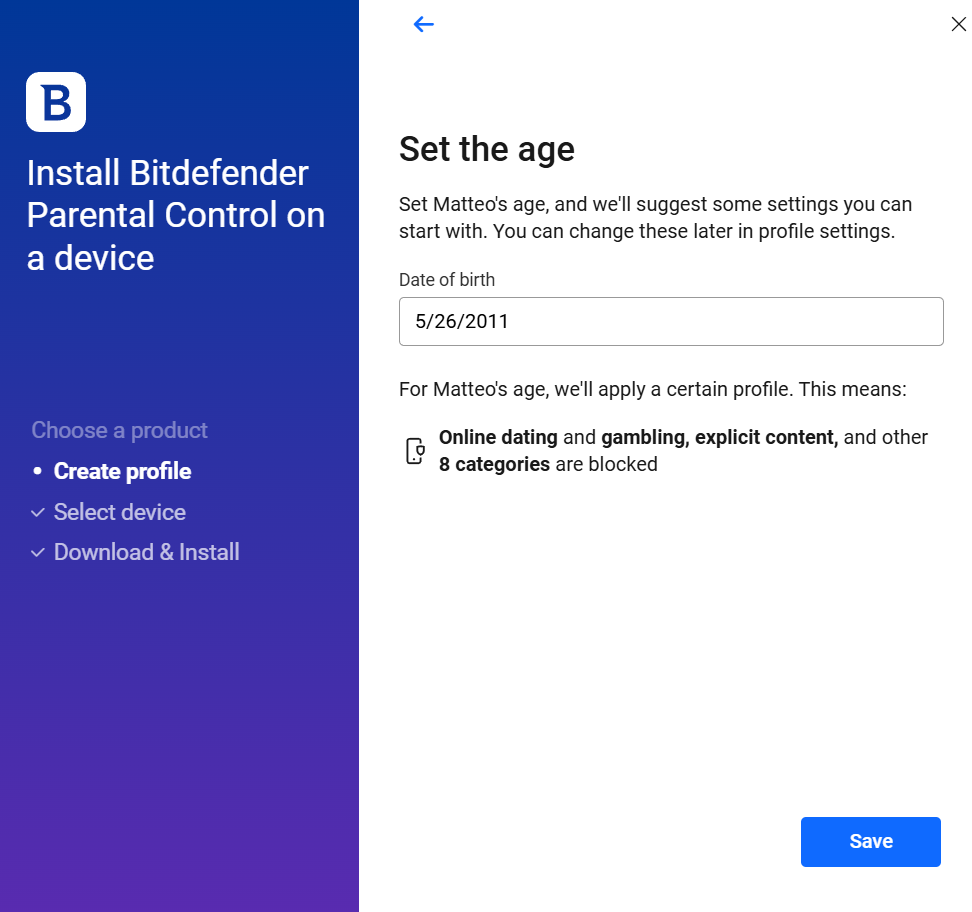
Managed entirely through Bitdefender Central, not this app, hence “Configure” instead of Settings on the hub screen. Setup is create profile, select device, then download and install on the child’s device. The “Set the age” step asks for the child’s date of birth, and Bitdefender auto-suggests a starting set of blocked categories based on age (dating, gambling, and explicit content are blocked by default alongside several others), so you’re not picking from a long list manually on day one. DEPENDS: the suggested defaults are a reasonable starting point, but go back into profile settings afterward and adjust categories for the specific child, the age-based defaults are broad strokes, not a tailored policy.
App-Wide Settings
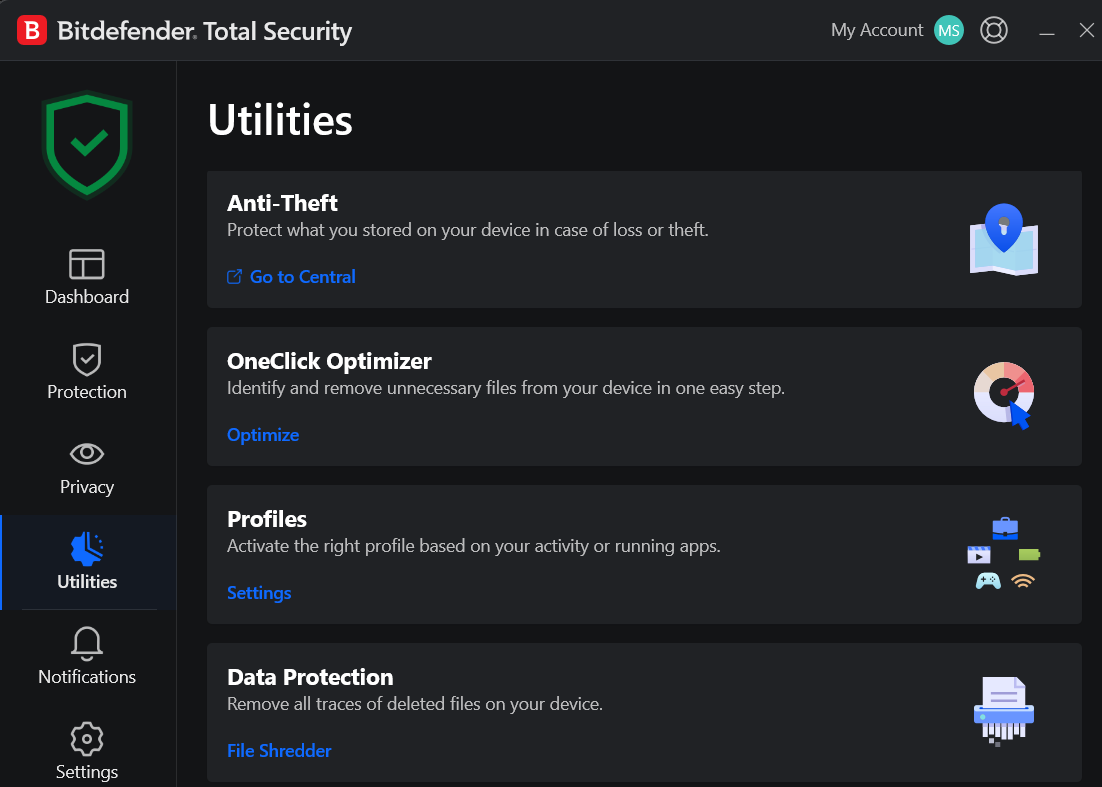
- Anti-Theft: ON. managed through Bitdefender Central, not the local app, hence “Go to Central.” Used to locate, lock, or wipe the device remotely if it’s lost or stolen.
- OneClick Optimizer: used to reclaim disk space, scans for junk files (temp files, cache, leftover installer data) and removes them in one pass, nothing to configure beyond running it.
- Profiles: used to reduce interruptions during specific activities, auto-adjusts background behavior (work, movie, gaming, battery) by pausing non-essential notifications and scans while that profile is active.
- Data Protection, File Shredder: used to permanently delete sensitive files beyond normal recovery, useful before disposing of or selling a drive, since a regular delete leaves the data recoverable.
Utilities
1. General
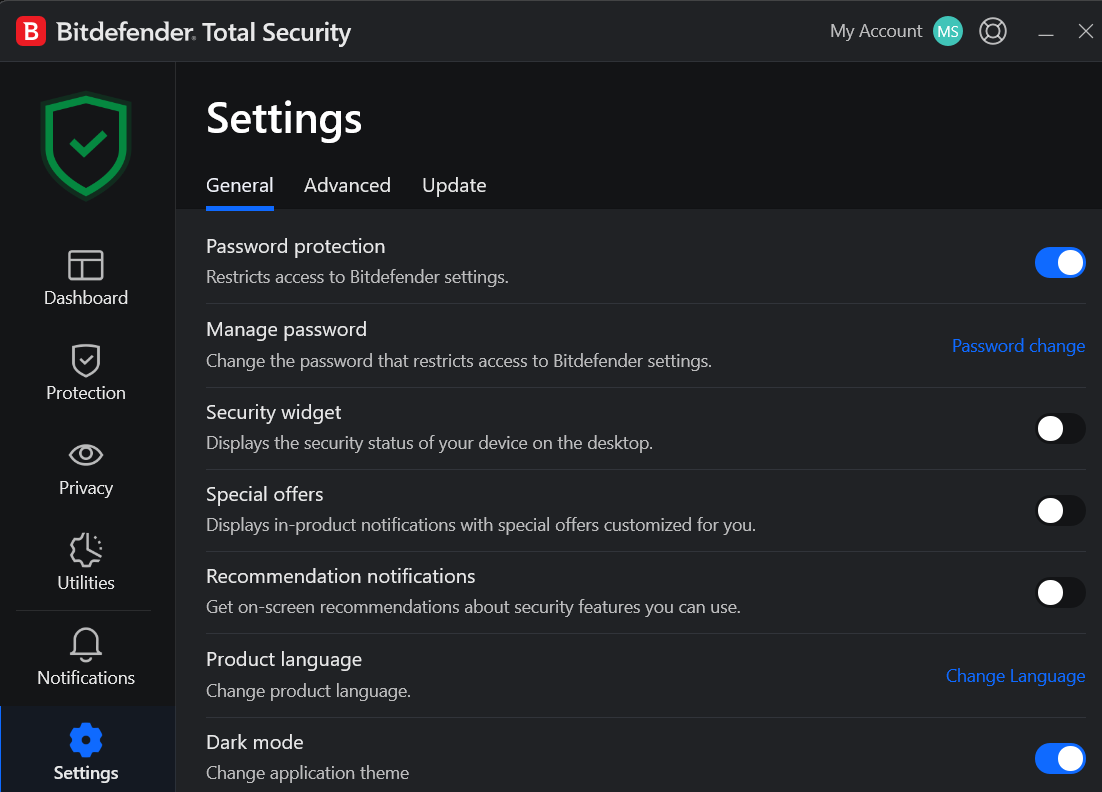
- Password protection: ON. Requires a password before anyone, malware included, can change Bitdefender’s own settings. One of the more important toggles in the whole app.
- Security widget: OFF. Cosmetic, no security function either way.
- Special offers / Recommendation notifications: OFF. First is marketing, second is feature suggestions.
- Dark mode: Preference.
2. Advanced
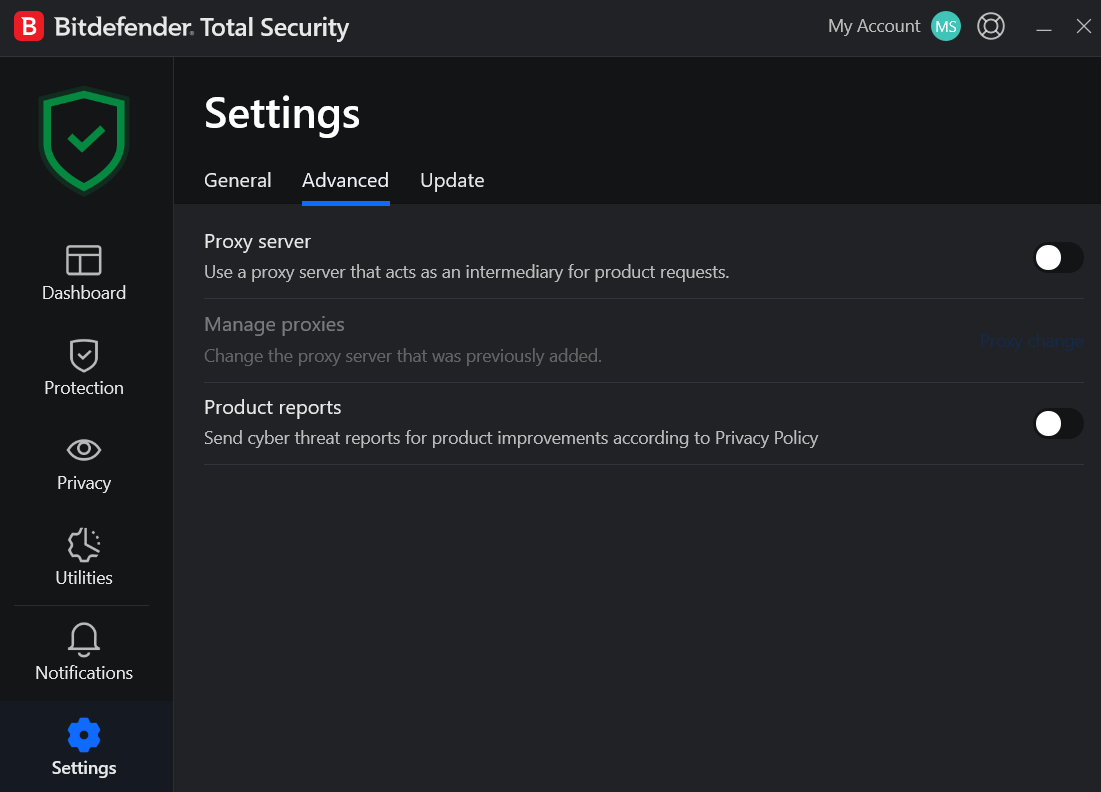
- Proxy server: OFF unless your network requires one for outbound traffic (common in some corporate environments).
- Product reports: OFF. Privacy trade-off, not a security one, has no effect on how well Bitdefender protects this specific machine.
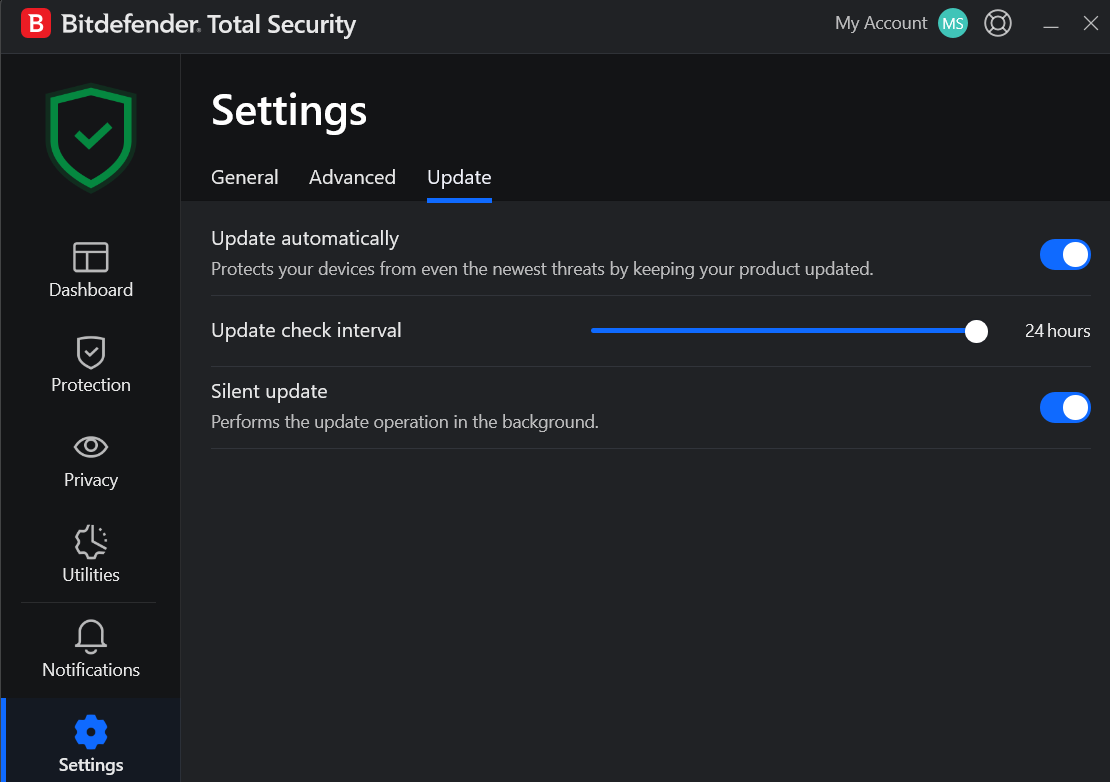
3. Update
- Update automatically: ON. Do not turn this off. Stale definitions is close to running no antivirus.
Update check interval: 24 hours, default cadence, no real reason to extend it. Bitdefender’s real-time cloud lookups already cover the gap between cycles. - Silent update: ON. Applies in the background without interrupting active work.
Did I Miss Anything?
I’m always looking to improve my guides and will update this one as Bitdefender rolls out changes.
Cheers,
Mefat