




Getting Mullvad VPN set up correctly is simple because the app is already configured for privacy out of the box. But there are settings worth understanding and adjusting depending on how you use your connection. Below you will find my recommended configuration for Mullvad VPN in 2026, covering every setting in the app.
Mullvad is a privacy-first VPN based in Sweden. It does not ask for your email, name, or any personal information. You get a 16-digit account number and that is your identity. No account creation forms, no password resets, no marketing emails. You pay EUR 5 per month, flat rate, no discounts for longer plans, no upsells. That pricing has not changed since Mullvad launched in 2009. If privacy is your priority and you do not care about streaming or a massive server network, Mullvad is one of the best options available.
In January 2026, Mullvad dropped OpenVPN support entirely and now runs exclusively on WireGuard. This is a bold move, but it makes sense. WireGuard is faster, lighter, and has a smaller attack surface. Mullvad was one of the earliest VPN providers to adopt WireGuard, so this transition was a long time coming.
If you want to compare Mullvad with other VPN providers, check out my best VPN services guide for a full breakdown.
My current setup includes:
- WireGuard with quantum-resistant tunneling enabled
- Kill Switch always active (it cannot be turned off)
- Lockdown Mode on for full leak prevention
- DAITA enabled for AI traffic analysis protection
- DNS content blockers for ads, trackers, and malware
- Auto-connect on app launch
Mullvad VPN Dashboard
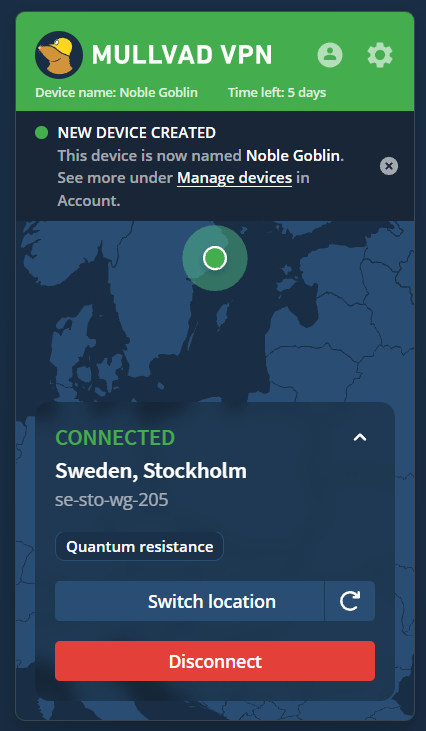
Mullvad window shows a map with your connection status. At the top you see your device name (Mullvad assigns a random two-word name like “Noble Goblin”) and how much time is left on your account.
When connected, you will see a green circle on the map and the text “CONNECTED” with the country, city, and server name (for example, “Sweden, Stockholm, se-sto-wg-205”). If quantum-resistant tunneling is active, a “Quantum resistance” label appears below the server name.
The “Switch location” button opens the server list where you can pick a country and city. Next to it, a refresh icon reconnects you to a different server in the same location. This is useful if your current server feels slow or if a website is blocking that specific IP.
The “Disconnect” button drops the VPN connection. If you have Lockdown Mode enabled, disconnecting will block all internet access until you reconnect. Keep that in mind before pressing it.
Unlike NordVPN or ExpressVPN, Mullvad does not have a favorites list or recent connections panel. The interface is minimal on purpose. You pick a location, connect, and you are done.
VPN Settings
This is where most of the configuration happens. Click the gear icon in the top-right corner of the app, then go to VPN settings.
Auto-connect: ON – When enabled, Mullvad connects to a VPN server automatically when the app launches. Combined with “Launch on startup” in the app preferences, this means your device is protected from the moment you turn it on There is no reason to leave this off unless you want to manually choose a server every time.
Local Network Sharing: OFF – When turned off, your device is invisible to other devices on the local network. This is the most secure option. Turn this ON only if you need to access printers, shared folders, smart TVs, or other devices on your home network while connected to the VPN.
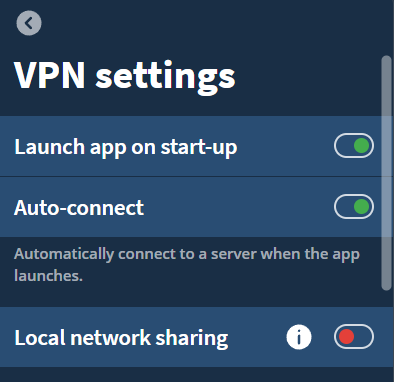
DNS Content Blockers – Mullvad includes built-in DNS-level content blocking. These work by filtering DNS queries through Mullvad’s own DNS servers. When a blocked category is detected, the DNS request is simply not resolved, so the content never loads.
- Ads: ON. Blocks ad-serving domains at the DNS level. You will notice cleaner pages and faster loading times. This does not replace a full browser-based ad blocker like uBlock Origin, but it adds a network-level layer that covers all apps on your device, not just the browser.
- Trackers: ON. Stops tracking scripts and analytics domains from loading. This reduces how much data companies collect about your browsing habits across the web.
- Malware: ON. Blocks domains known to host malware or phishing content. This is a solid baseline layer of protection. It will not replace a proper antivirus, but it catches a good portion of known bad domains before they even load.
- Gambling: Depends on your needs. If you or someone in your household wants to block access to gambling sites, turn this on. Otherwise, leave it off.
- Adult content: Depends on your needs. Turn it on if you want to block adult websites at the DNS level. Useful for shared devices or parental controls.
- Social media: OFF for most users. When enabled, this blocks social media platforms at the DNS level. That means Facebook, Instagram, X (Twitter), and similar sites will not load. This is a blunt tool. If you use social media for work or personal communication, keep it off. If you want a distraction-free environment, it can help.
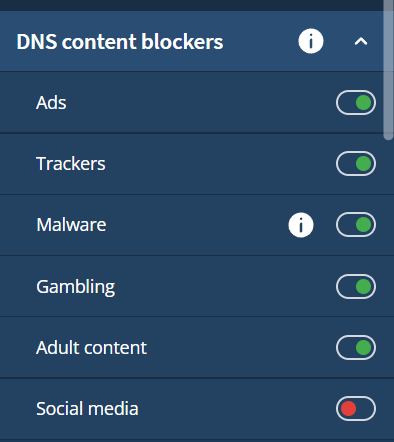
In-tunnel IPv6: OFF – Controls whether IPv6 traffic is allowed inside the VPN tunnel. When turned off, Mullvad blocks all IPv6 traffic and only uses IPv4. When turned on, your device can send and receive IPv6 traffic through the encrypted tunnel.
Kill Switch: Always ON by default – Kill Switch is always enabled and cannot be turned off. This is different from most VPN apps where you can choose to enable or disable the Kill Switch. Mullvad decided to keep it permanently active because a Kill Switch that can be turned off defeats its purpose.
Lockdown Mode: ON – Lockdown Mode blocks all internet access even when you manually disconnect or quit the app. With regular Kill Switch only, if you click “Disconnect,” your internet goes back to normal through your ISP. With Lockdown Mode, clicking “Disconnect” blocks everything. You must reconnect to Mullvad or turn off Lockdown Mode to get internet access again.
One thing to keep in mind: if you have split tunneling enabled, excluded apps will still have internet access even with Lockdown Mode on. So do not assume Lockdown Mode covers everything if you are using split tunneling.
Anti-Censorship: Automatic – This section is for users who connect from networks that actively block VPN traffic. If you are on a regular home or office network, you do not need to touch these settings.
Mullvad offers several anti-censorship methods to get through restrictive firewalls and deep packet inspection (DPI):
The default option. The app tries all available methods until one works, so you don't need to know which method suits your network.
Lets you manually select which port WireGuard uses. Some networks block the default port (51820). Switching to port 53 (DNS) or 443 (HTTPS) can sometimes get through basic firewalls.
A lightweight obfuscation method that wraps WireGuard traffic to make it harder to detect.
Disguises VPN traffic as QUIC protocol traffic (used by modern browsers for HTTP/3). Since QUIC is widely used legitimate traffic, blocking it would break many websites, making this effective against some firewalls.
A proxy protocol originally designed to bypass censorship in China. It wraps your VPN traffic inside Shadowsocks, making it look like regular encrypted web traffic. One of the more reliable methods for heavily restricted networks.
Wraps WireGuard's UDP traffic inside a TCP connection. Helps in networks that block UDP entirely. Adds some overhead and latency, but gets the connection through.
Quantum-resistant tunnel: ON – This adds post-quantum key exchange to your WireGuard connection. In simple terms, it protects your encrypted data against future quantum computers that could potentially break current encryption standards.
Mullvad was one of the first VPN providers to implement this. NordVPN also supports post-quantum encryption through NordLynx, but Mullvad’s implementation works across all servers without restrictions.
Device IP version: Automatic – This lets Mullvad decide whether to use IPv4, IPv6, or both.
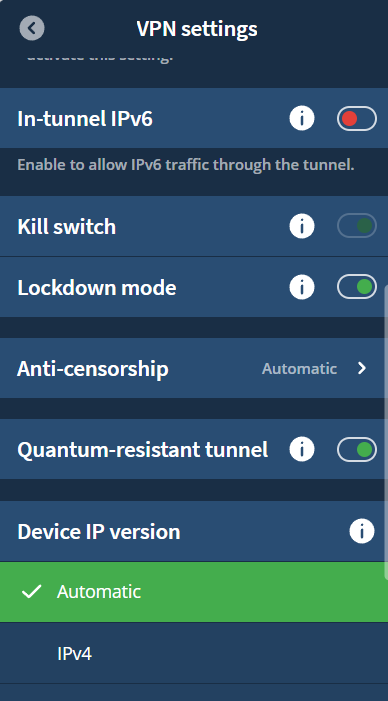
DAITA (Defense Against AI-Guided Traffic Analysis)
DAITA: ON– if you want maximum privacy. This is a feature you will not find in any other VPN app.
Even when your traffic is encrypted through a VPN, your internet service provider (or any network observer) can still see the size, timing, and frequency of data packets going in and out of your device. Using AI and machine learning, it is possible to analyze these traffic patterns and determine which websites you visit, even without seeing the actual content. Every website has a unique “fingerprint” based on how its elements (images, text, scripts) generate network packets.
DAITA fights this by doing three things: It makes all packets the same size by padding them, removing size-based fingerprinting. It injects dummy (fake) packets into your traffic to mask real activity patterns. And it distorts the overall traffic pattern so that two visits to the same website produce different-looking traffic.
Direct Only: Off – When enabled, you must manually connect to a server that supports DAITA. If your selected server does not support DAITA, the connection will be blocked. You do not need this.
Multihop
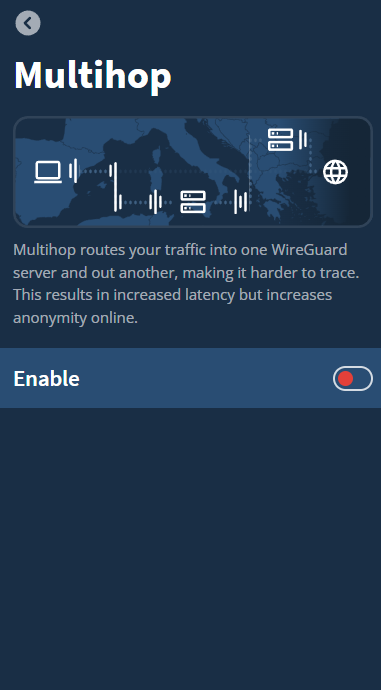
Multihop: Off – Multihop routes your traffic through two WireGuard servers instead of one. Your connection enters one server and exits through another in a different location. This makes it harder to trace your traffic back to you because the entry and exit points are separated.
The cost is higher latency and lower speeds since your data travels through two servers. For everyday browsing, streaming, or gaming, Multihop is not necessary. It adds complexity without much practical benefit for the average user.
Split Tunneling
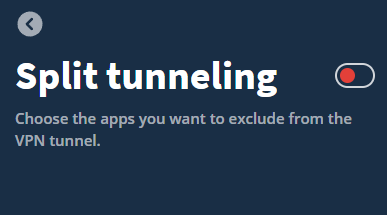
Split Tunneling: Off – Keep split tunneling OFF. All your traffic should go through the VPN for consistent protection. The only reason to use split tunneling is if a specific app breaks when the VPN is active (like some banking apps or smart home apps that require a local IP). In that case, exclude only that specific app and keep everything else in the tunnel.
Who Is Mullvad For?
Mullvad is built for users who prioritize privacy above everything else. If you want a VPN that does not know your name, does not track your usage, and gives you tools like DAITA and quantum-resistant tunneling, Mullvad is hard to beat.
It is not the right choice if you need a VPN for streaming (it struggles with Netflix and similar platforms), if you want a large server network with thousands of locations, or if you need more than 5 simultaneous connections without router setup.
For streaming and a broader feature set, check out my NordVPN settings guide. For a comparison of all the top providers, see my VPN comparison guide.
Did I Miss Anything?
I am always looking to improve my tutorials and will listen to any suggestions you have in the comments.
Cheers,
Mefat

What about what Android does to DNS? With that Private DNS setting I noticed on Mullvad.net & Check for leaks I was NOT using Mullvad’s DNS I was using Cloudfare. Once I switched over to Mullvad DNS it has gotten way, way slower though. On my CachyOS laptop though they all passed and I was using Mullvad’s DNS and it is very fast still.
I think talking about this would be good as I missed this somehow myself. Maybe it’s because I’m on GrapheneOS on Goog Pixel 9 Pro?
Good catch, and sorry for the late reply :). Two separate things may be involved here. First, Android Private DNS can override the DNS path you expect, so if it is set to a provider like Cloudflare, a leak test may show that resolver instead of Mullvad’s. Mullvad’s own docs say to turn off Android Private DNS and Secure DNS in your browser if you want the Mullvad app’s DNS settings to apply, and the app can also use a custom DNS server setting, though only a plain IP address, not a DoH or DoT server. Second, Mullvad has documented Android DNS leak edge cases where traffic can briefly escape the tunnel during tunnel reconfiguration or similar OS-level events. That is an Android behavior issue, not just a Mullvad setting issue. On speed, resolver performance can vary by routing and network path, and anycast DNS does not always land on the closest server. You can check exactly which DNS server you are using and whether it is leaking at mullvad.net/check. I’m going to add a troubleshooting note for Android because this is easy to miss.