

There is no such thing as a truly secure operating system, browser, or device. The only way to be 100% safe online is to build a treehouse and go off-grid. Security isn’t something you buy or install once and forget about. This guide covers what I actually use and recommend, based on years of testing different approaches and not the theoretical frameworks you’ll find in corporate training slides or the marketing claims from security vendors, but practical steps that make a measurable difference against the threats remote workers actually face.
- Rule 1: Use a Password Manager
- Rule 2: Never Reuse Passwords
- Rule 3: Enable Two-Factor Authentication Everywhere
- Rule 4: Use Ad Blocker
- Rule 5: Use a Privacy-Focused Browser
- Rule 6: Force HTTPS Everywhere
- Rule 7: Protect Your Identity Online
- Rule 8: Keep Your Operating System Updated and Secure
- Rule 9: Encrypt Everything You Reasonably Can
- Rule 10: Protect Yourself Against Ransomware
- Rule 11: Use a VPN on Every Network You Do Not Control
- Rule 12: Think Before Opening an Email
- Rule 13: Secure Your Phone
- Rule 14: Use Encrypted Messaging for Sensitive Conversations
- Rule 15: Lock Down Your Home Network
- Rule 16: Be Careful with QR Codes
- Rule 17: Dispose of Old Devices Properly
- Rule 18: Know the Common Scams Beyond Email
- The Quick Reference Checklist
Rule 1: Use a Password Manager
Passwords are your main security tool, but they become useless when you try to remember them all yourself. When you start reusing passwords across different sites (and most people do this), one data breach can give attackers access to all your accounts.
I wrote a detailed comparison of password managers that covers all the options, but the most important one is to get a password manager, and to let it create unique random passwords for every site, and only remember your master password. Your brain cannot create truly random passwords even when you think you’re being smart about it, and attackers already know the common patterns people use when they try to make “random” passwords.
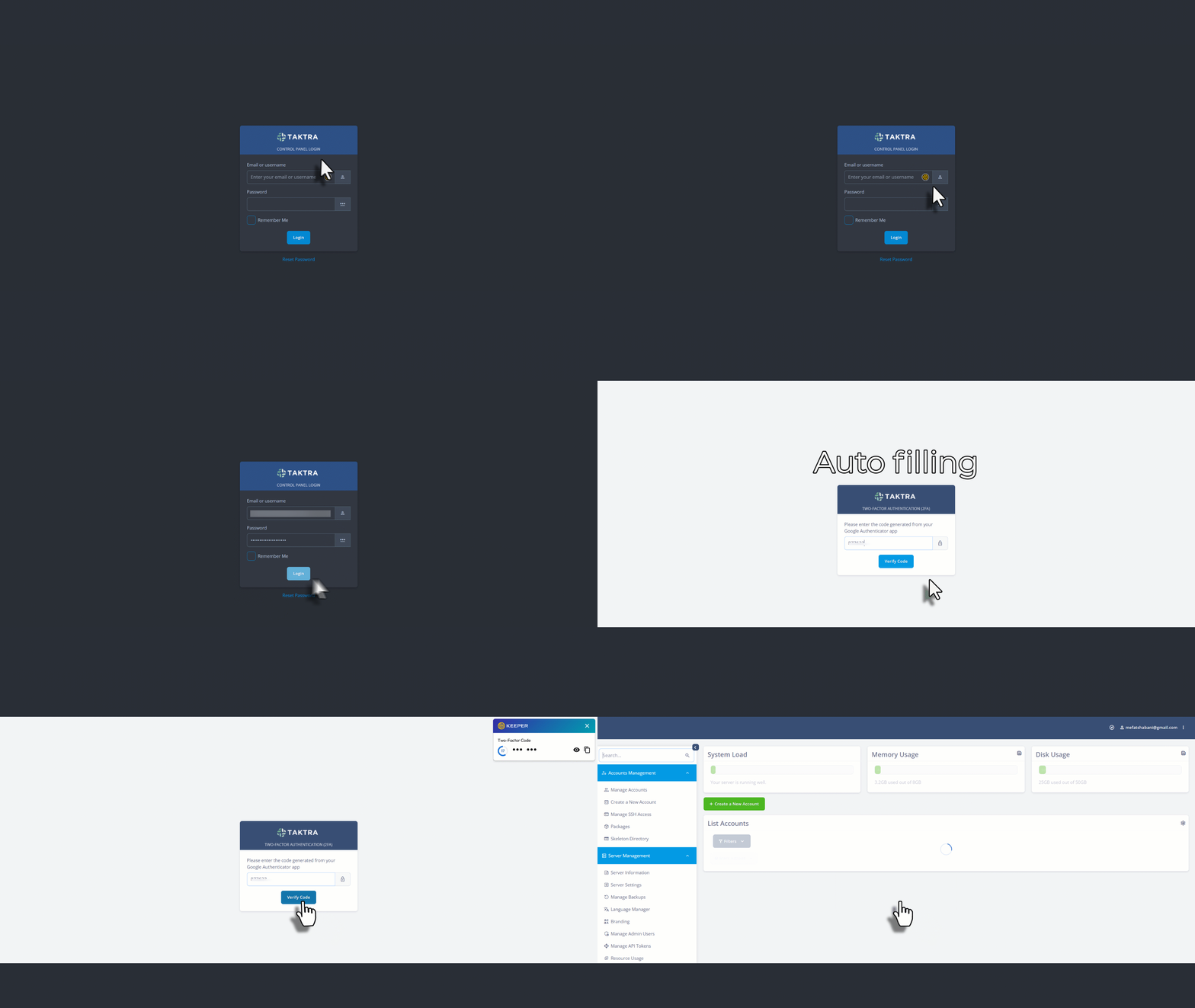
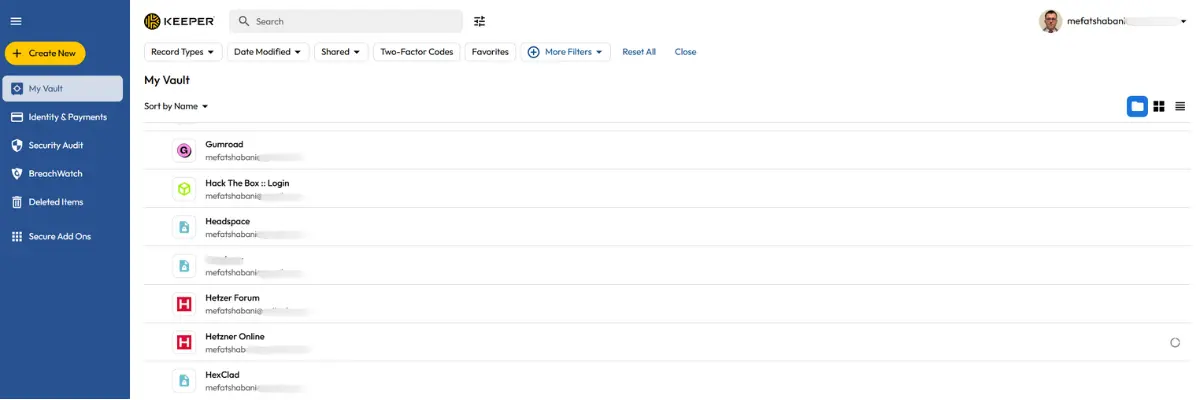
Personally, I have been using Keeper for over four years after testing Bitwarden, 1Password, and LastPass. The built-in TOTP authenticator made my work much easier because when I log in to a site with 2FA enabled, Keeper automatically fills both the password and the 6-digit code, so I do not need to switch to a separate authenticator app.
If you do not feel like paying for a password manager, then Bitwarden is a good free option with unlimited passwords on unlimited devices and open-source code that Cure53 has audited. The $10/year premium version is cheaper than other password managers and still excellent.
LastPass is no longer safe to use. In 2022, hackers stole backups from about 30 million users, and three years later, people are still losing money because those attackers have been working through the vaults and emptying accounts. If you stored cryptocurrency seed phrases, private keys, or important credentials in LastPass before August 2022, you should consider them compromised and move anything valuable to a different password manager right away.
One more important point: when you set up your password manager, replace any real answers to security questions with fake ones and store those fake answers inside your password manager. Real security question answers (like your mother’s maiden name or first school) can often be found through social media or public records. Random fake answers stored in your vault are impossible to guess.
Rule 2: Never Reuse Passwords
This point needs special attention because it is the most common mistake people make. When LinkedIn gets breached and your password ends up in a stolen database, attackers do not just try to access your LinkedIn account. They test that same email and password combination on every bank, email provider, and service they can find. Automated tools do this work at massive scale, testing millions of stolen credentials across thousands of websites within hours.
A password manager solves this problem completely because every password it creates is unique and randomly generated. You cannot reuse passwords even if you wanted to because you do not actually know what most of them are.
You can check whether your email has appeared in known breaches by visiting haveibeenpwned.com. If your email shows up (and there is a good chance it will, given the number of breaches over the past decade), that is not a reason to panic. It is a reason to make sure every account connected to that email has a unique password and 2FA enabled.
Rule 3: Enable Two-Factor Authentication Everywhere
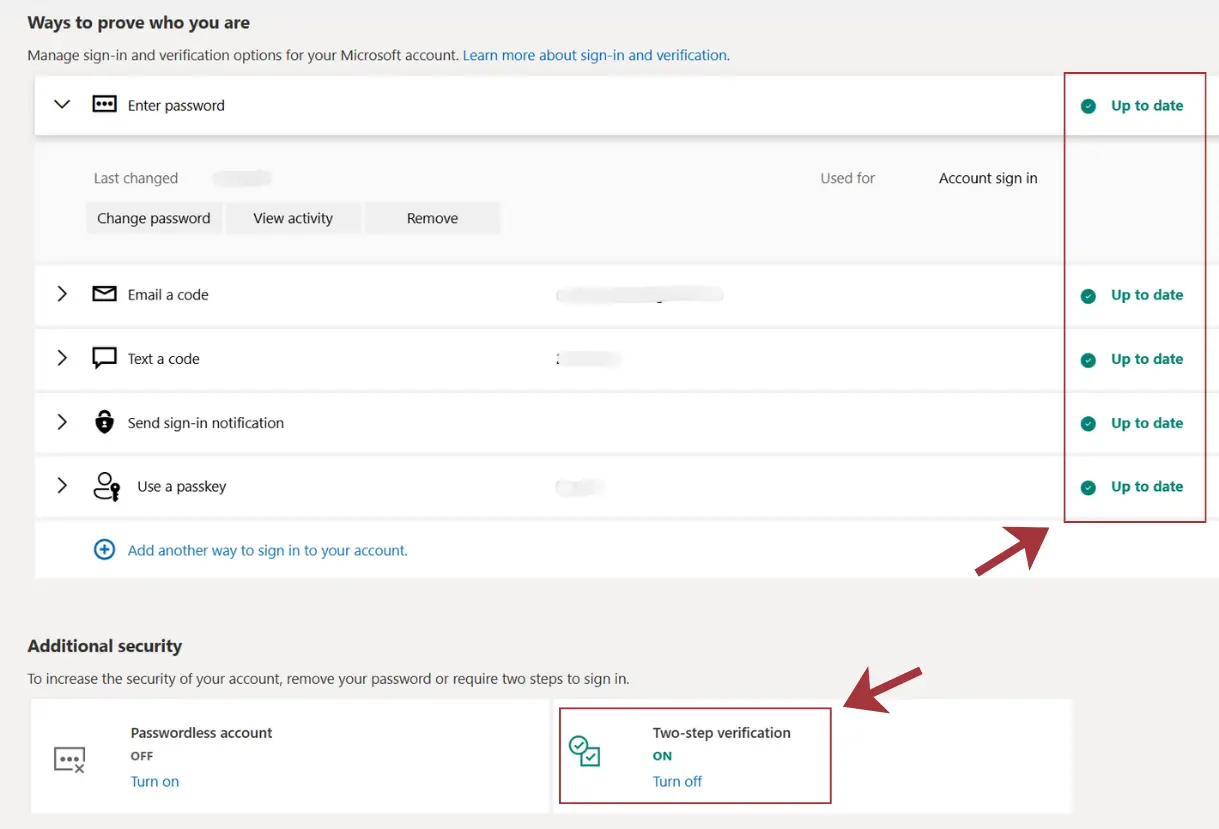
Passwords alone are not enough anymore, and this has been true for years. Two-factor authentication (2FA) requires proof beyond just your password, meaning that even if someone steals your login details through a data breach or phishing attack, they still need the second factor to access your account. Turn on 2FA for every account that allows it, but start with the accounts that control everything else first: your email (because password reset links go there), your password manager, any financial accounts, and work-related systems.
Authenticator apps are much better than SMS codes, and the reason is that SMS codes can be stolen through SIM swapping attacks, where criminals convince your mobile carrier to transfer your phone number to their SIM card. Authenticator apps generate codes directly on your device, removing the mobile carrier from the process entirely. Most password managers include authenticator features, or you can use a separate app like Google Authenticator or Microsoft Authenticator.
For the accounts you care about most (email, password manager, financial accounts), consider getting a hardware security key like a YubiKey. These physical keys plug into a USB port or connect via NFC, and they are almost impossible to phish because the key verifies it is communicating with the legitimate website before responding. A YubiKey costs between 25 and 60 euros depending on the model, and it is one of the strongest forms of protection available to individuals.
Rule 4: Use Ad Blocker
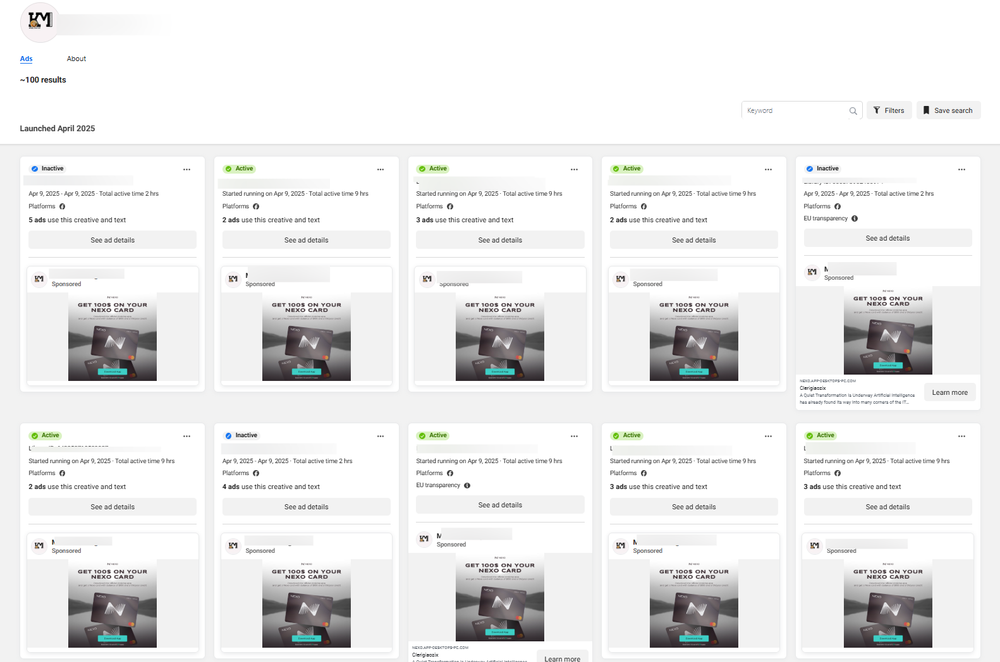
Most people see ad blockers as tools that make websites less annoying, but they are actually important security software. Malicious ads (called malvertising) are among the most common ways malware spreads online, and these dangerous ads can appear on legitimate websites that have been compromised or on sites that run ads from networks that do not properly vet their advertisers. Meta (Facebook’s parent company) was recently caught allowing their ad network to play a role in delivering infostealer malware, which should tell you everything about how seriously ad platforms take the security of their users.
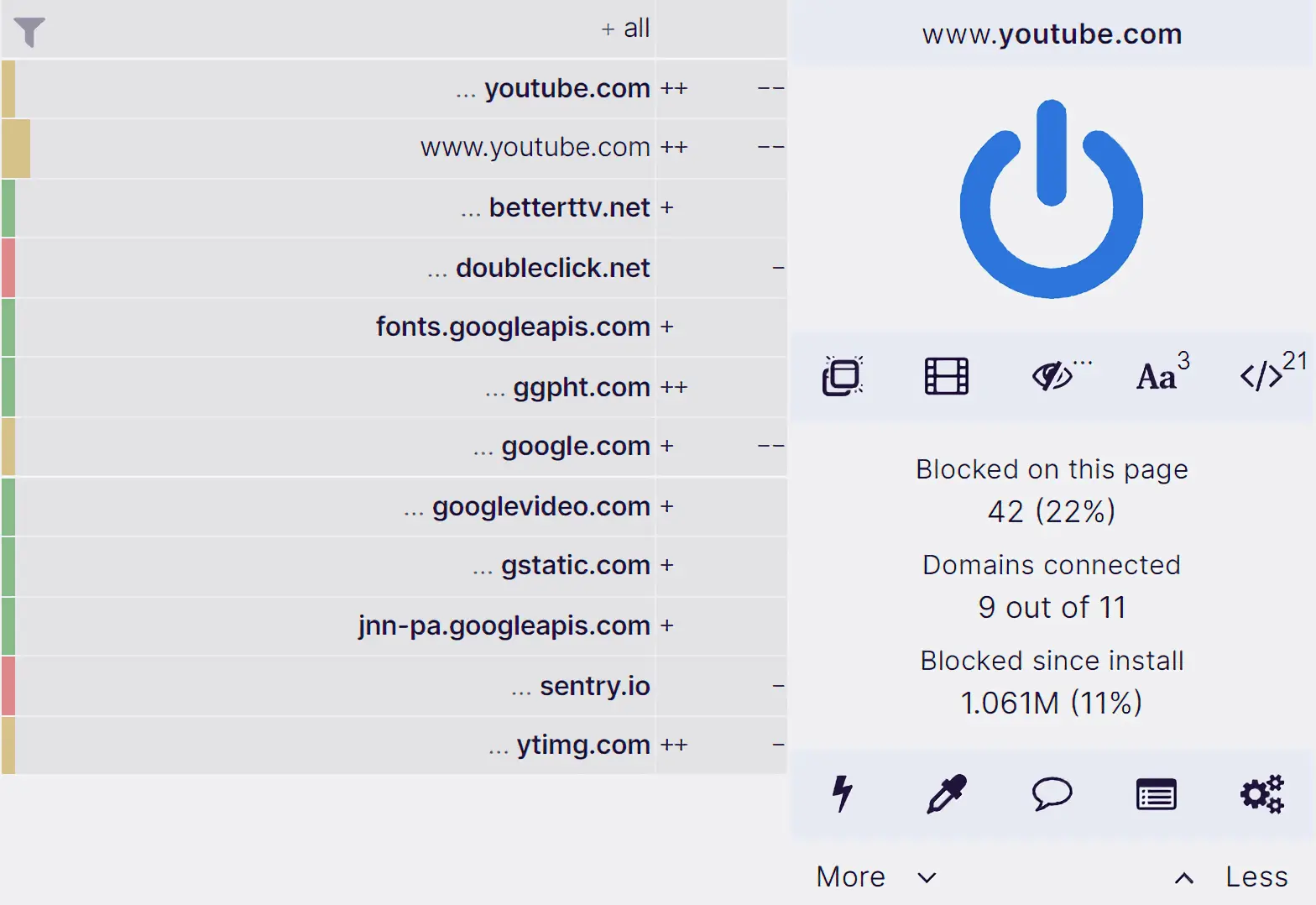
I recommend uBlock Origin because it is open-source, uses very little system resources, and blocks far more than just ads. It stops trackers, known malware domains, and various other threats before they even load on your computer. Install it in your preferred browser and keep it running.
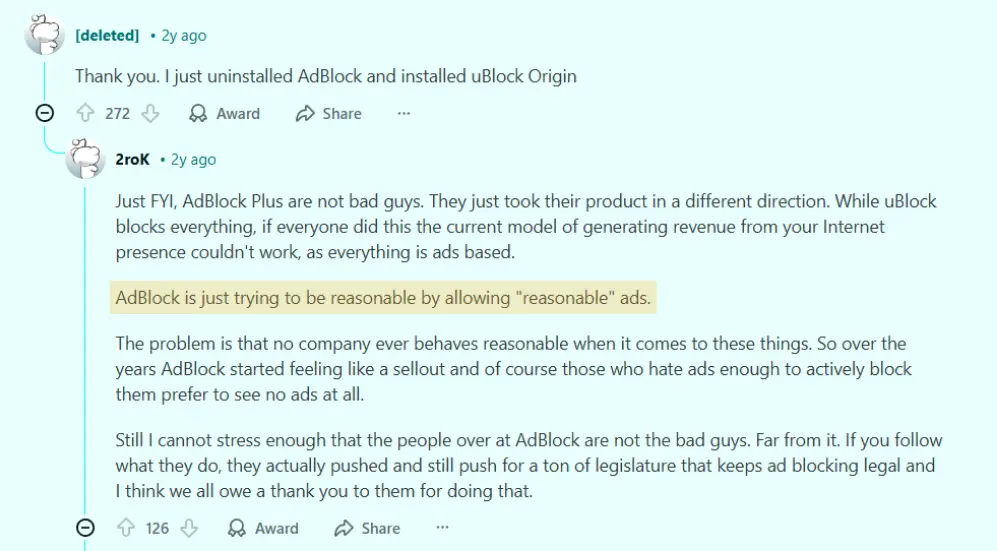
AdBlock Plus is another option that works fine, though I prefer uBlock Origin because it uses less memory and CPU power. AdBlock Plus also has a controversial “acceptable ads” program that allows certain advertisers through by default, which is something I don’t agree with.
Without an ad blocker, dozens of companies track everything you do across the web, building detailed profiles about your interests, habits, purchases, and behavior. That data gets sold, combined with information from other sources, and used in ways you never agreed to and that you probably wouldn’t like if you knew the full extent.
Rule 5: Use a Privacy-Focused Browser
Your browser is how you access most of the internet, and the default browsers that come with your computer are designed mainly to serve their parent company’s business interests rather than protecting your privacy. Google rolled out device fingerprinting in Chrome in February 2025, which makes tracking even more pervasive than before.
Brave is what I recommend for most people because it’s built on the same Chromium foundation as Google Chrome (so all your extensions work and websites display correctly), but it blocks trackers and ads by default and doesn’t send your browsing activity back to Google. Switching from Chrome to Brave is easy because everything looks and works the same way, just with better privacy settings from the start.
A few changes to make Brave even better:
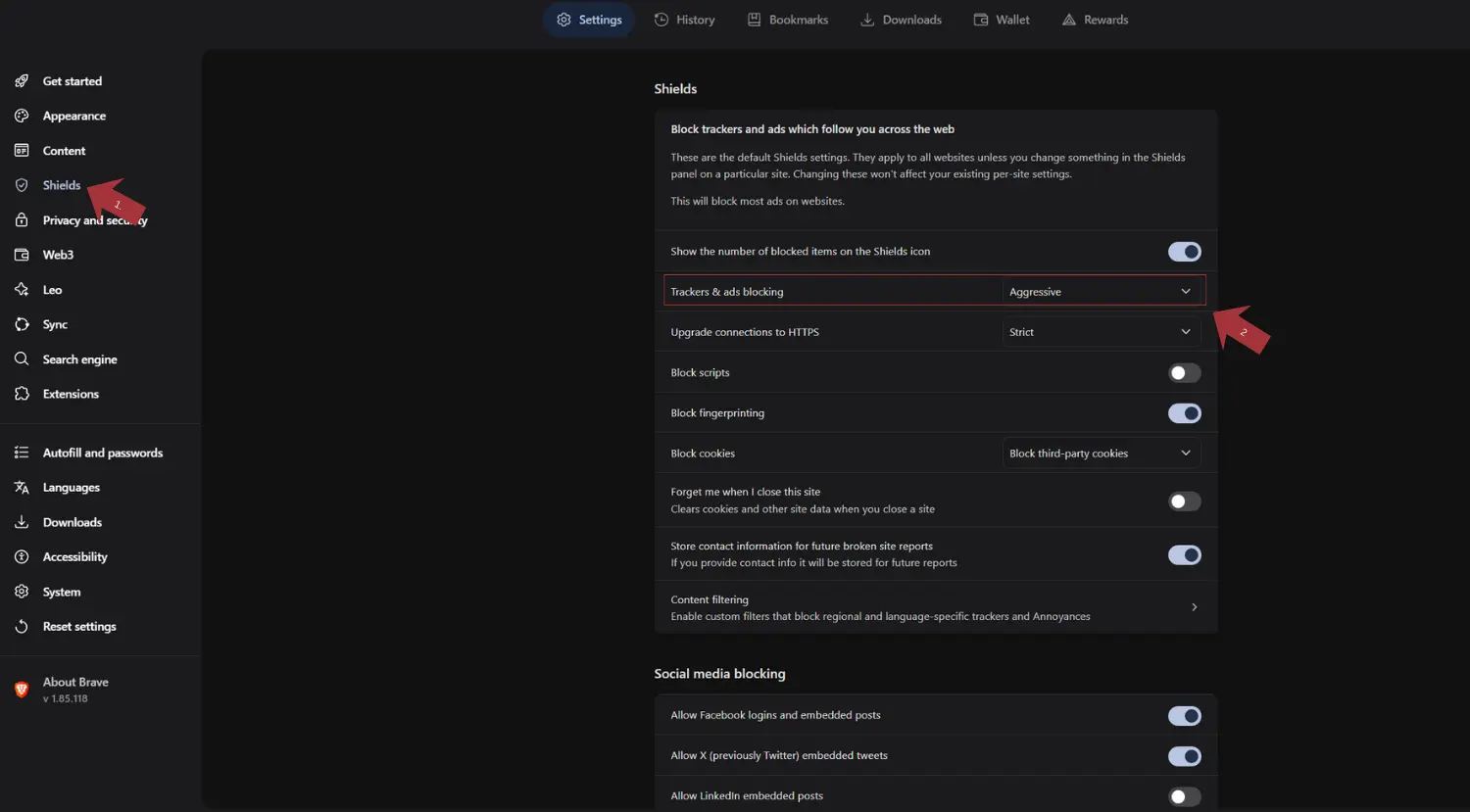
Go to Settings, then Shields, and set “Trackers & ads blocking” to Aggressive. This catches more trackers but might sometimes break websites, so you can lower it for specific sites when needed.
Firefox is another excellent choice, particularly if you want to avoid anything tied to Google’s code. It is truly independent and already has strong privacy features built in. Turn on Enhanced Tracking Protection in strict mode for maximum protection. Some privacy advocates have raised concerns about Mozilla’s recent direction toward advertising technology, but Firefox with the right settings still offers solid privacy protection.
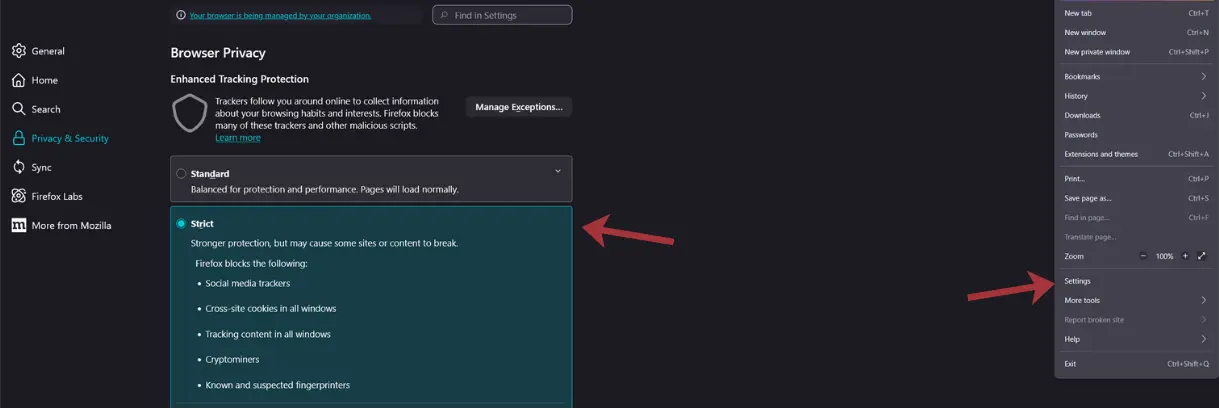
Both Brave and Firefox are much better than Chrome, Edge, or Safari when it comes to privacy. The specific choice between them matters less than actually switching away from the default browsers that are designed to collect your data.
For sensitive research where you need stronger anonymity, consider using the Tor Browser. It routes your traffic through multiple servers, making it very difficult for anyone to trace your browsing activity back to you. Tor is slower than regular browsers because of this routing, so it is not practical for everyday use, but it is valuable when privacy matters most.
Bookmark your important websites. This is a small habit that protects against typosquatting, where attackers register domains with common misspellings (like amaz0n.com instead of amazon.com) to steal your credentials. If you always use a bookmark to visit your bank, email, or shopping sites, you cannot accidentally type a wrong URL.
Rule 6: Force HTTPS Everywhere
Any website you visit should use HTTPS (indicated by the lock icon in your browser’s address bar). HTTPS encrypts the connection between your browser and the website, preventing anyone on your network from seeing what you’re doing on that site.
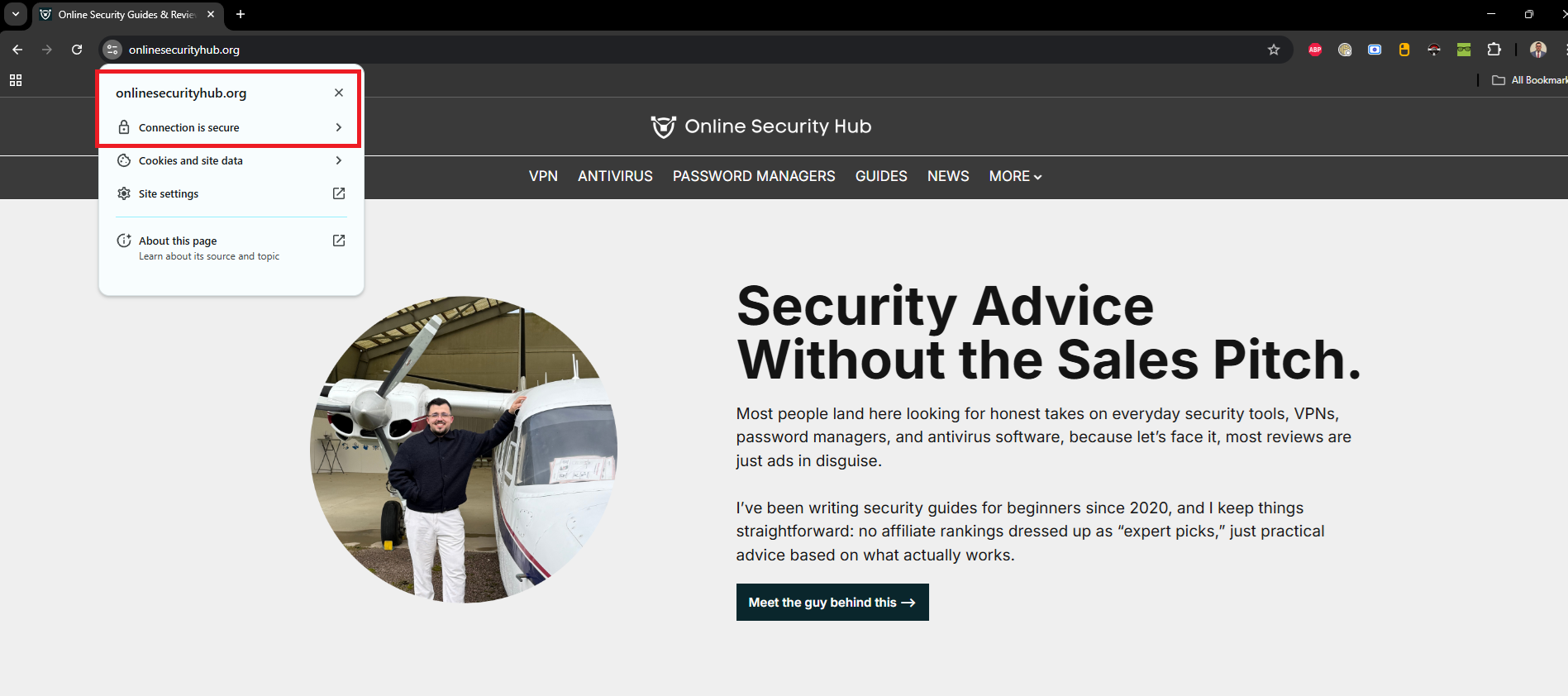
Modern browsers warn you when a site doesn’t use HTTPS, and you take that into accounting. If a site is asking for any personal information, login credentials, or payment details over an unencrypted HTTP connection, leave immediately. You can force your browser to always use HTTPS when available, as shown in my table below.
| Browser | Steps |
|---|---|
| Brave | Go to Settings → Shields → Upgrade connections to HTTPS, then select Strict |
| Firefox | Go to Settings → Privacy & Security, scroll to HTTPS-Only Mode, and select Enable HTTPS-Only Mode in all windows |
| Chrome | Go to Settings → Privacy and security → Security, then enable Always use secure connections |
| Safari | If you are using Safari 15 or later (which 99.9% of you are), then HTTPS is upgraded by default with no settings changes needed. |
| Microsoft Edge | Go to Settings → Privacy, search, and services → Security, then enable Always use secure connections |
| Opera | Go to Settings → Advanced → Privacy & security → Security, then enable Upgrade insecure requests |
| DuckDuckGo Browser | HTTPS is enforced automatically by default. |
Turning on HTTPS-only mode in your browser adds an extra layer of protection by refusing to connect to websites over insecure connections, which protects you from accidentally visiting malicious or compromised sites that don’t use encryption.
Rule 7: Protect Your Identity Online
The internet remembers everything for a very long time, and information you share casually today can appear in unexpected ways years later. A hiring manager searching your name, a stalker figuring out your location from social media posts, an identity thief building a profile from publicly available information. Below are a few of my suggestions for improving your online anonymity.
Never Use Your Legal Name Unless Actually Required. Create a clear separation between your real identity and your online presence. You need to use your legal name for online banking, government services, e-commerce that ships physical products, and any transactions involving legal or financial matters. Everything else can use a nickname or a username that does not connect to your real identity.
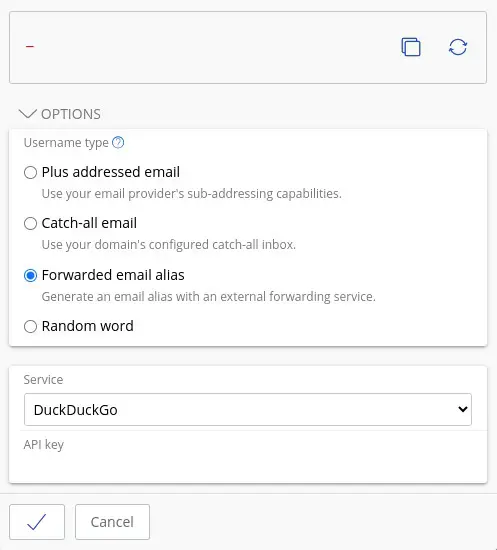
Have Multiple Email Addresses for Different Purposes. I have one temporary email for online signups, newsletters, services I am testing, and anything that might result in spam or eventually get compromised. When this email ends up in a breach database (which it will), it does not affect my important accounts.
Modern password managers like Proton and Bitwarden include email alias features that make this even easier. These tools can generate unique email aliases that forward to your real inbox, so you can use a different email address for every website without actually creating new accounts. If one alias starts getting spam or appears in a breach, you can simply delete that specific alias without affecting anything else.
Apple’s iCloud also offers a similar feature called Hide My Email, which creates random email addresses that forward to your iCloud inbox. Each address can be deleted independently if it gets compromised or starts receiving spam. This separation limits the damage when any single email address gets compromised or ends up on spam lists. It also makes it harder for data brokers to build complete profiles by connecting your different online activities across websites.
Never Mix Work and Personal. Keep your work and personal digital lives as separate as possible. Do not check personal email on work devices, do not do work on personal devices if you can avoid it, and do not use work credentials for personal services or vice versa. The reason is that if your personal accounts are compromised, the attacker does not automatically gain access to your work systems. If you leave your job under difficult circumstances, your employer does not have access to your personal communications.
If you cannot keep devices completely separate, at least use a different browser profile. Chrome, Firefox, and Brave all allow multiple profiles that keep bookmarks, passwords, history, and cookies isolated from each other.
Review Your Social Media Visibility Settings. It is worth understanding that what social media platforms call “privacy settings” are really visibility settings. They control what other users can see about you, but they do not limit what the platform itself collects and uses. Facebook shared private messages that were used for prosecuting people who needed to access medical care, which should make clear that “private” on a social media platform does not mean private in any real sense.
Still, adjusting these settings is important because they protect you from stalking, harassment, and social engineering. Lock down who can see your posts, your friends list, your contact information, and your profile details. Do this for every platform you use, and check the settings again every few months because platforms change their interfaces and sometimes reset options after updates.
Rule 8: Keep Your Operating System Updated and Secure
There’s no such thing as a perfectly secure operating system, and anyone who tells you otherwise is trying to sell you something. Security comes from your behavior and habits, not from any magic software. That said, some operating systems respect your privacy more than others, and the difference is meaningful.
Windows 10 and 11 collect enormous amounts of data about what you do on your computer and send it back to Microsoft. You can turn off some of this in settings, but not all of it, and Microsoft has a history of re-enabling data-collection features after updates. macOS is better but still sends various usage data back to Apple.
If you’re still running Windows 10, you need to upgrade or switch to another OS immediately. Windows 10 reached end of life in October 2025, which means it no longer receives security updates. Running an operating system without security patches is extremely dangerous because attackers can exploit known vulnerabilities that will never be fixed.
For Technical Users: Linux. If you are comfortable with computers and willing to learn something new, Ubuntu or Linux Mint are excellent choices that respect your privacy by default. Both are free, well-supported, and run most software you need for remote work. Linux does not collect information about your activities, and it does not require signing in with an account that tracks everything you do. You own your computer and control what it does, which is increasingly rare in 2026.
For Everyone Else: Improve What You Have.
On Windows: Go to Settings, then Privacy & Security, and carefully turn off everything you do not need. Disable advertising ID, location access for apps that do not need it, diagnostic data collection, and all the “improve your experience” options that are really about collecting data.
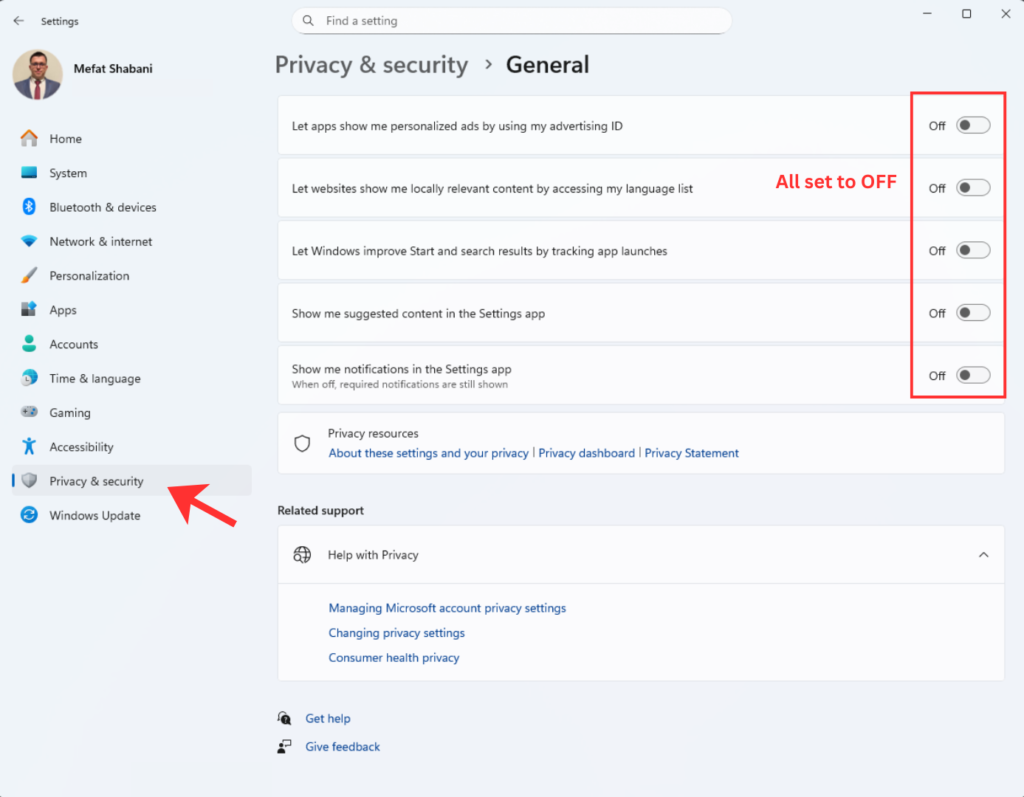
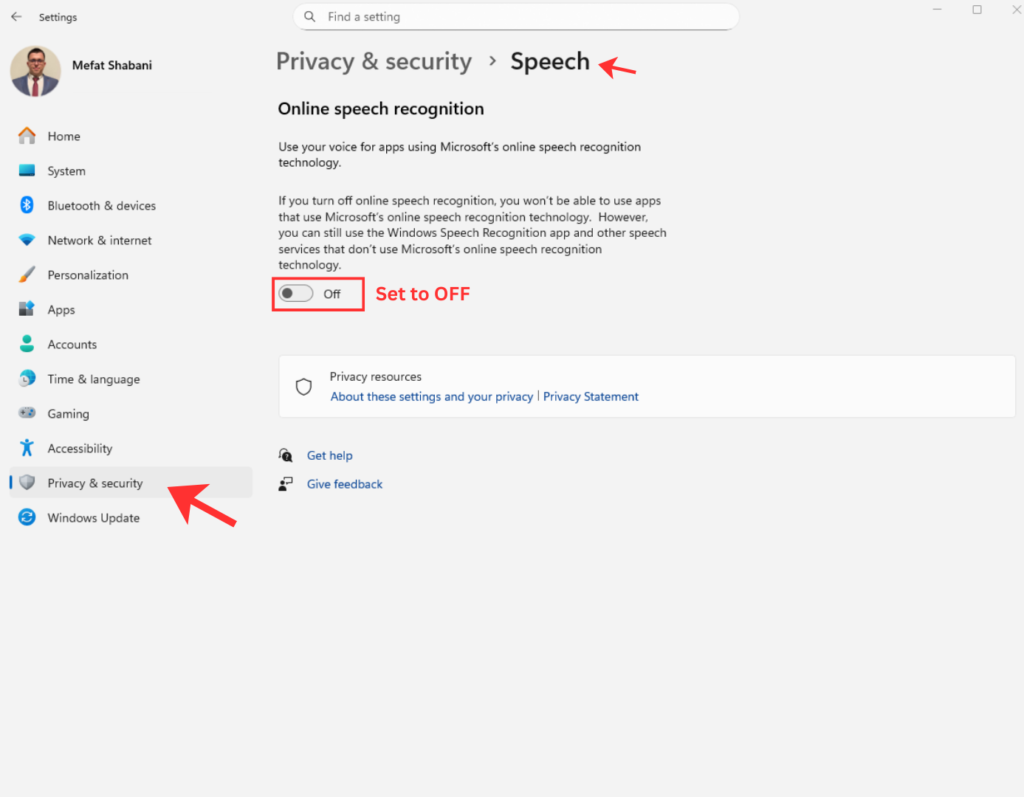
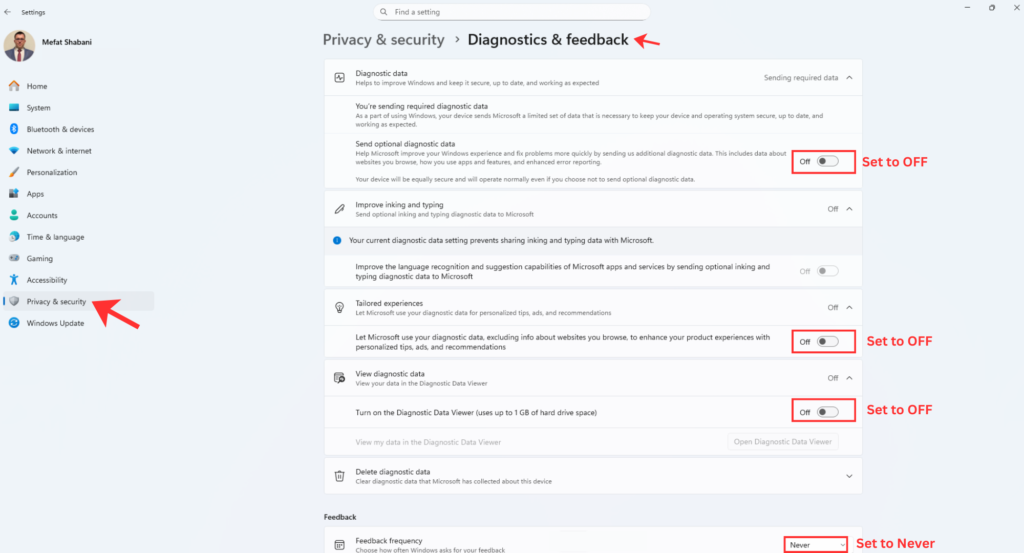
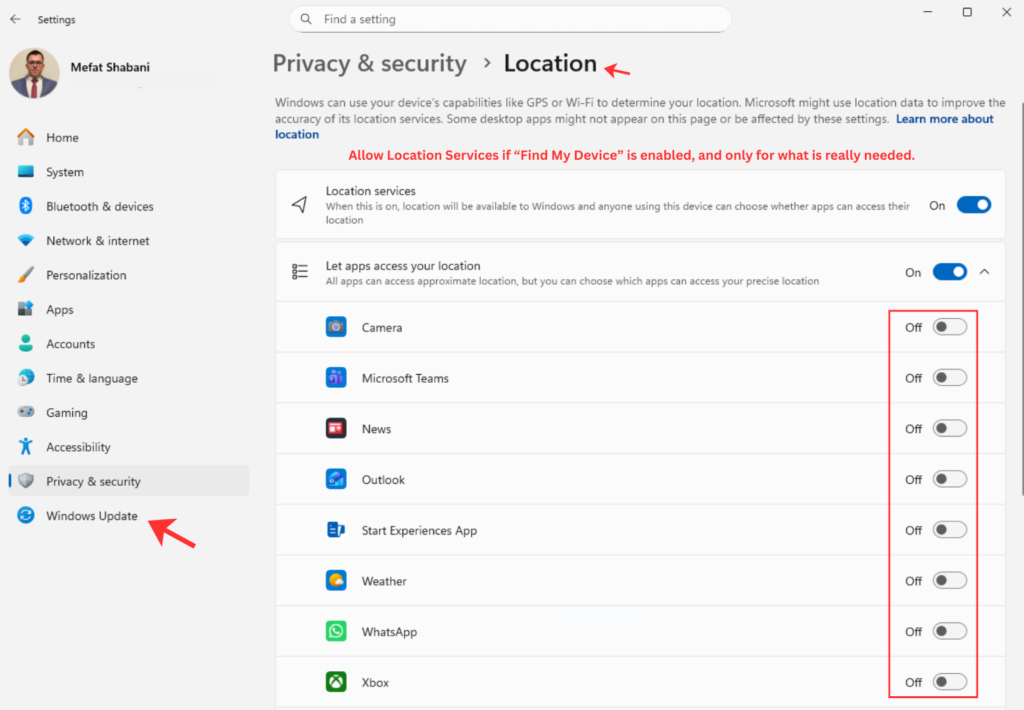
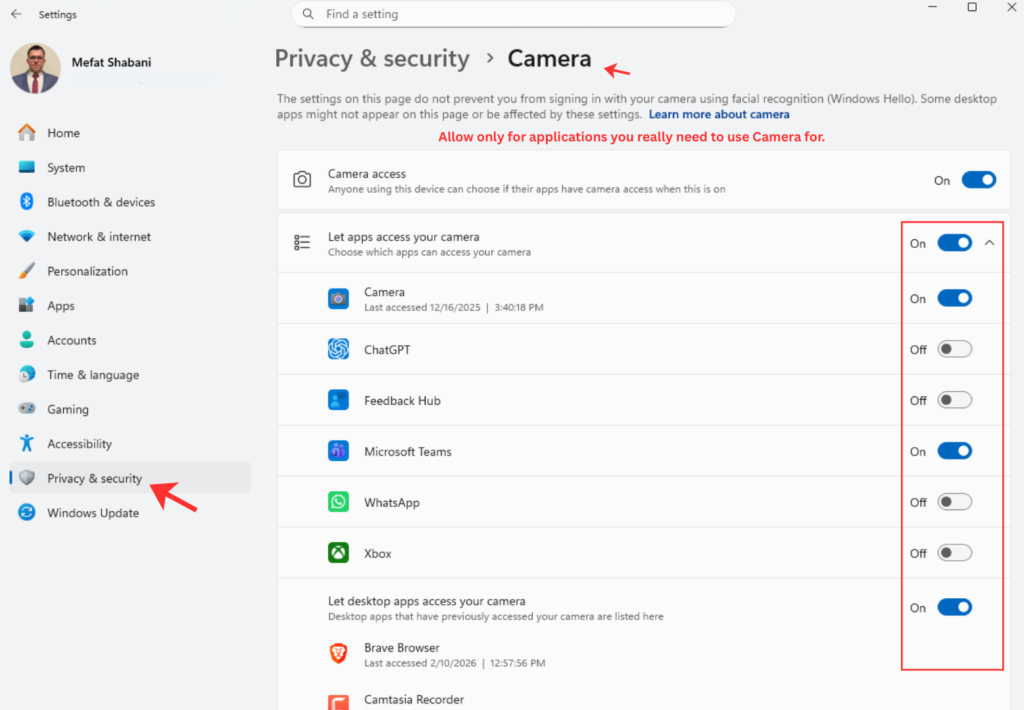
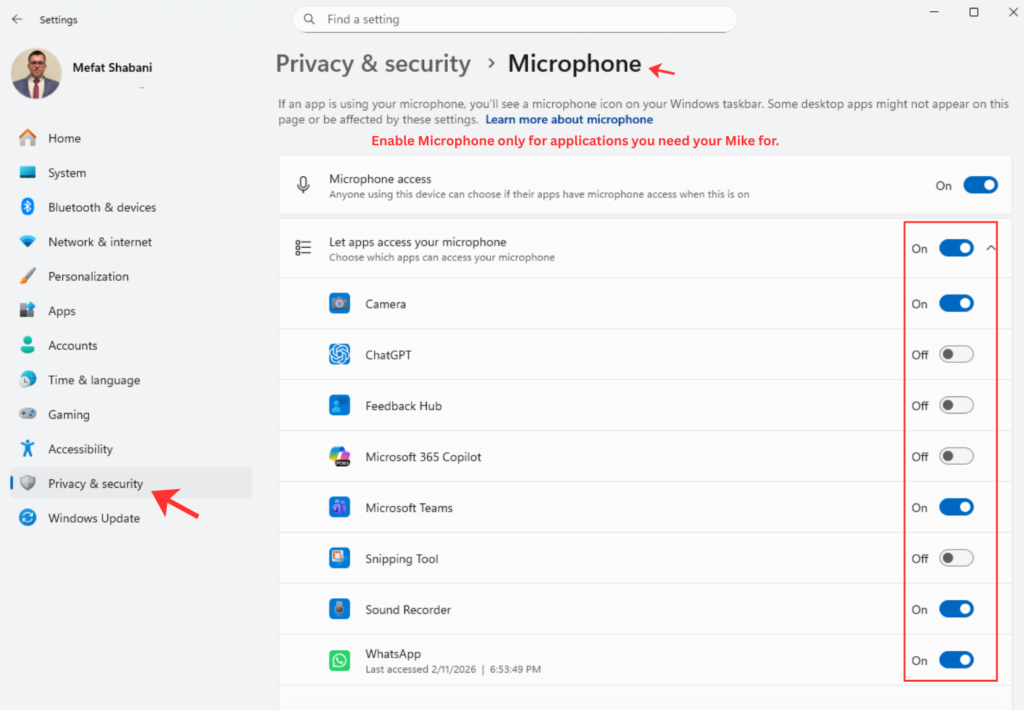
On macOS: System Preferences, then Security & Privacy and Privacy both have options worth checking. Turn off analytics sharing, limit which apps can access your location, and review app permissions regularly.
Keep your software updated. This applies to your operating system, your browser, and every application you use. Software updates often include security patches that fix newly discovered vulnerabilities, and attackers actively scan for systems running outdated software because they know exactly which holes to exploit. Turn on automatic updates wherever possible, and when your system tells you an update is ready, install it. This is the single highest-value security habit most people neglect.
The goal is not perfection because perfection does not exist, but is reducing the amount of data you give away and making yourself a harder target than the average person.
Rule 9: Encrypt Everything You Reasonably Can
Encryption transforms readable data into scrambled nonsense that’s useless without the decryption key. If someone steals your laptop, accesses your cloud storage, or intercepts your communications, encryption means they get gibberish instead of your sensitive information.
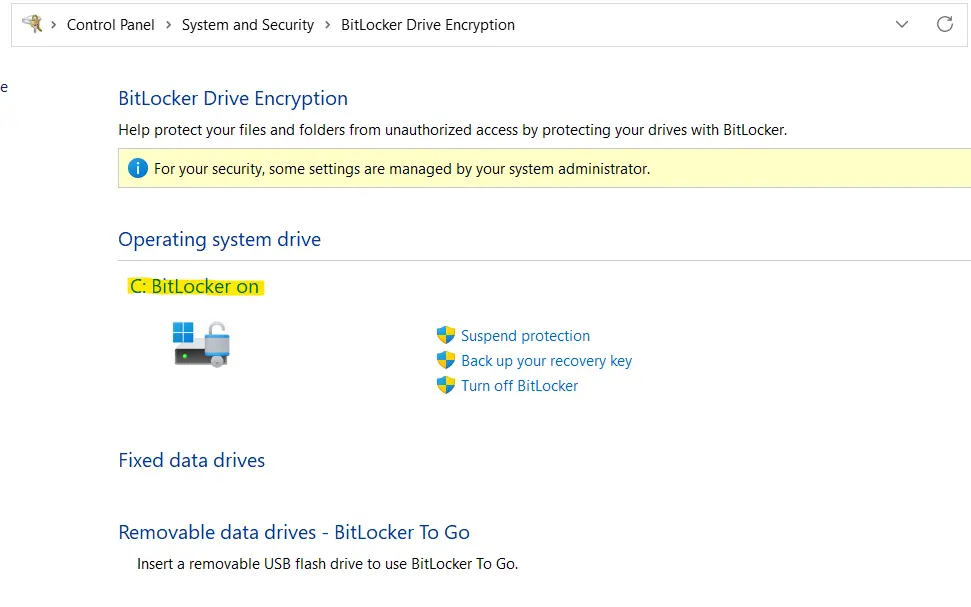
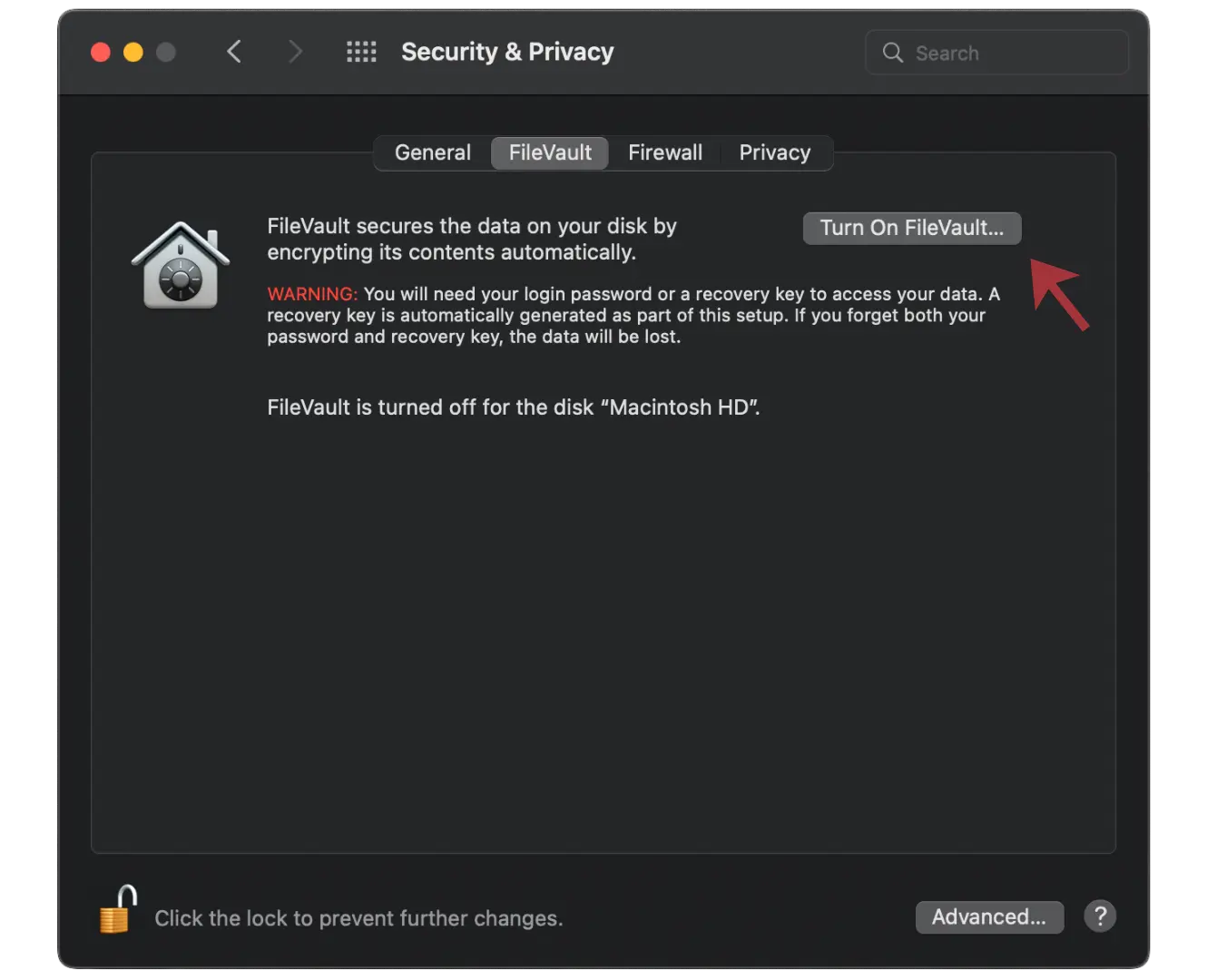
Both Windows (BitLocker) and macOS (FileVault) have built-in full disk encryption that’s straightforward to enable and has minimal performance impact on modern hardware. Enable it. A stolen or lost laptop without disk encryption gives anyone with basic technical skills access to everything on it. With encryption enabled, they get a useless brick.
Windows: Search for “BitLocker” in the Start menu and follow the prompts. Save your recovery key somewhere safe (not on the same computer you’re encrypting).
macOS: System Preferences → Security & Privacy → FileVault → Turn On FileVault. Again, save your recovery key.
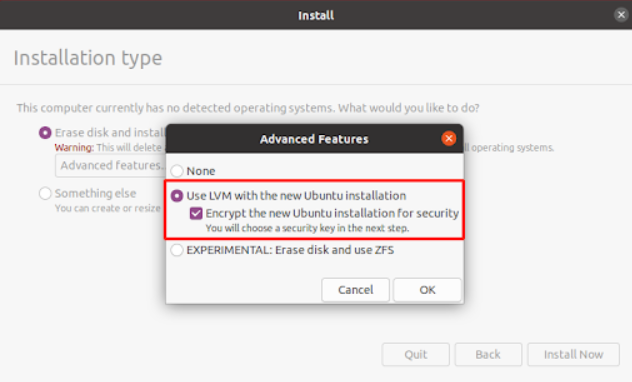
Linux: Most modern Linux installers offer full disk encryption (LUKS) during the installation process. Select it when prompted and choose a strong passphrase.
It is worth noting that full disk encryption protects your data when the device is powered off or locked. Once you are logged in and working, the data is decrypted and accessible to any software running on your machine. This means encryption does not protect against malware that runs while you are using the computer, which is why the other rules in this guide matter too.
If you use external USB drives for backups or file transfers, encrypt those as well. A lost or stolen unencrypted USB drive with your files on it is the same risk as a lost unencrypted laptop.
Rule 10: Protect Yourself Against Ransomware
Ransomware stopped being an exotic threat that happens to other people and became mainstream criminal infrastructure. Attackers get initial access (usually through phishing or exploited vulnerabilities), encrypt everything they can access, and then demand payment for the decryption keys. The payment is typically demanded in cryptocurrency, making it difficult to trace and recover.
Your defense is simple in concept: backups that ransomware cannot reach. If you have good backups, ransomware means restoring from backup and losing some time. If you do not have good backups, you either pay (with no guarantee of actually getting working decryption) or accept permanent data loss. Many victims who pay the ransom never receive working decryption keys, or receive keys that only partially decrypt their files.
Ransomware stopped being an exotic threat that happens to other people and became mainstream criminal infrastructure. Attackers get initial access (usually through phishing or exploited vulnerabilities), encrypt everything they can access, and then demand payment for the decryption keys. The payment is typically demanded in cryptocurrency, making it difficult to trace and recover.
Your defense is simple in concept: backups that ransomware cannot reach. If you have good backups, ransomware means restoring from backup and losing some time. If you do not have good backups, you either pay (with no guarantee of actually getting working decryption) or accept permanent data loss. Many victims who pay the ransom never receive working decryption keys, or receive keys that only partially decrypt their files.
The 3-2-1 backup strategy still works and is the industry standard for a reason:
- Three copies of important data. The original plus two backups means you can lose one backup and still have redundancy.
- Two different storage types. Cloud plus local external drive, or two different physical drives. This protects you if one storage method fails completely.
- One copy offline or offsite. Something ransomware cannot encrypt because it was not connected to your computer when the attack happened. An external drive you disconnect after backing up, or cloud storage with proper versioning, both work for this purpose.
Cloud storage with versioning helps because you can roll back to versions from before the encryption happened. Services like Google Drive, Dropbox, and OneDrive keep previous versions of files for at least 30 days, which gives you time to notice an infection and recover clean copies. But do not rely on cloud sync alone as your only backup because ransomware that encrypts your files will sync those encrypted versions to the cloud and can overwrite your good copies if you do not catch it quickly enough.
Test your backups regularly by actually restoring a file or folder to verify the process works. Backups you have never tested are backups you cannot trust when you actually need them.
Rule 11: Use a VPN on Every Network You Do Not Control
A VPN encrypts your internet traffic and routes it through a remote server, preventing anyone on your local network from seeing what you’re doing online. This is essential on public WiFi (coffee shops, airports, hotels) where you have no idea who else is on the network or what they might be doing.
Public WiFi networks are particularly dangerous because they’re often completely open or use shared passwords that everyone knows. An attacker on the same network can intercept unencrypted traffic, perform man-in-the-middle attacks, or set up fake networks with names like “Free Airport WiFi” to trick people into connecting. Once you connect to a malicious network, the attacker can monitor everything you do unless your traffic is encrypted.
VPNs are not magic privacy shields that make you anonymous or protect you from all threats. They don’t stop phishing, they don’t prevent malware, and the VPN provider itself can see your traffic (so choose one you trust). But for protecting against local network snooping and your ISP selling your browsing history, they’re valuable tools.
Your internet service provider (ISP) can see every website you visit and can sell that information to advertisers or hand it over to authorities without a warrant in many countries. A VPN hides your browsing activity from your ISP by encrypting all traffic before it leaves your device, so your ISP only sees that you’re connected to a VPN server, not which websites you’re visiting.
Avoid free VPNs because they make money by selling your data or showing you ads, which completely defeats the purpose. Paid options like NordVPN, ProtonVPN, or Mullvad cost a few euros per month and are actually designed to protect your privacy rather than exploit it. I’ve been using NordVPN for years and it works reliably without slowing down my connection significantly.
Use a VPN whenever you’re on WiFi you don’t control. Consider using it at home too if you don’t trust your ISP (and you probably shouldn’t trust your ISP, because most ISPs track and monetize your browsing data whenever legally allowed).
Rule 12: Think Before Opening an Email
Phishing still works, and it works well enough that attackers continue to invest in it as their primary entry point. It scales easily, it is cheap to execute, and it exploits something humans do constantly without much thought: clicking on things in emails.
The quality of phishing has improved dramatically over the past two years. AI-generated phishing increased by over 4,000% since 2022, and these emails no longer contain the obvious grammatical errors and awkward phrasing that used to be reliable warning signs. They are personalized, they reference real events and real people, and they create urgency that makes you want to act before thinking.
Modern phishing attacks often include details that seem legitimate because attackers gather information from your social media profiles, data breaches, and public records. An email might mention your recent purchase, your colleague’s name, or a project you are working on, which makes it feel genuine even when it is completely fake. This targeted approach is called spearphishing, and it is significantly harder to detect than generic mass phishing campaigns.
How to Spot Phishing (Even the Good Attacks)
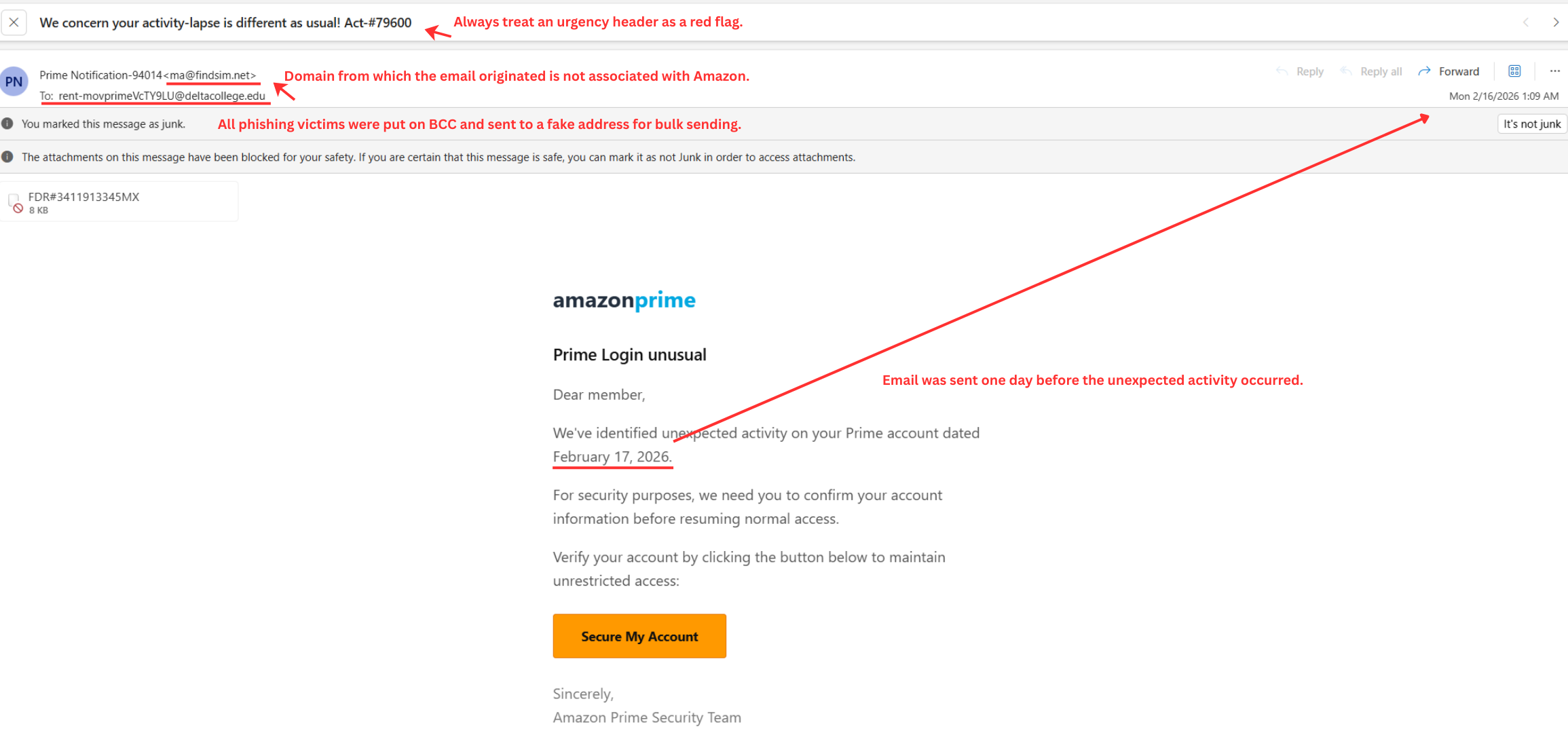
Treat urgency as a red flag, not a reason to act quickly. Phishing attacks almost always include pressure to act immediately because attackers know that careful evaluation is their enemy. If an email is pushing urgency, that is exactly when you should slow down and verify through other channels.
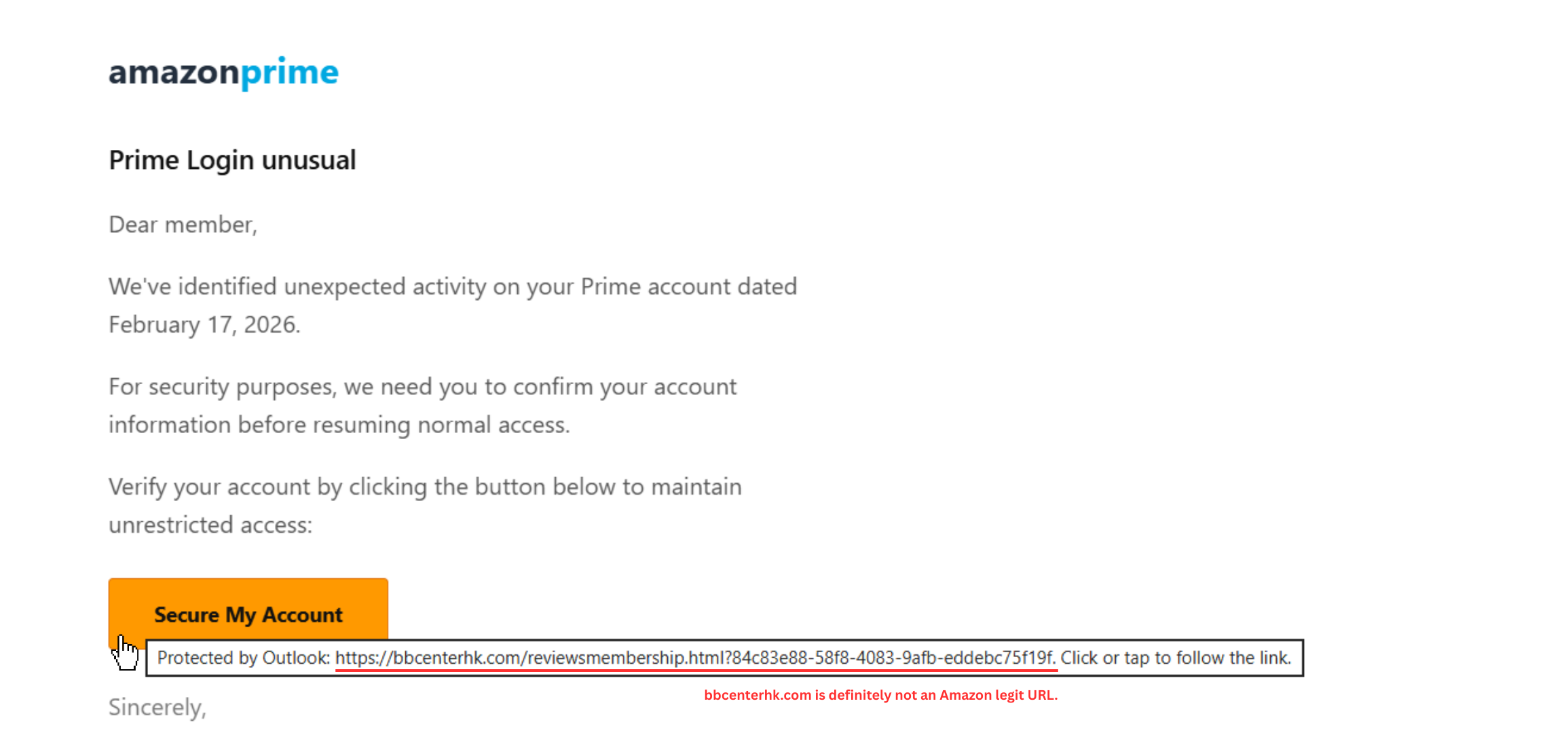
Hover over links before clicking to see where they actually lead. If the URL does not match what the text claims, or if the domain has subtle misspellings (arnazon.com instead of amazon.com), do not click it. Modern browsers display the actual destination when you hover over a link. On mobile devices, long-press the link to preview the URL before opening it. If you see the image below, bbcenterhk.com is definitely not an Amazon-associated URL.
Focus on the request, not the email branding. Banks do not ask for passwords by email. Vendors do not suddenly need new payment details via email without verification. The presence of a company’s real logo does not mean the email actually came from that company, because logos are easy to copy.
Look at the sender’s email address carefully, not just the display name. An email might show “John Smith from IT Department” but the actual email address could be [email protected]. Email display names can be set to anything, while the actual email address is harder to fake convincingly.
Verify requests through separate channels. If your “boss” emails asking for an urgent wire transfer, call your actual boss using a phone number you already have (not one provided in the suspicious email). If your “bank” emails about suspicious activity, go directly to your bank’s website by typing the URL yourself, not by clicking any link in the email.
Voice cloning is also a real threat now. Attackers can generate convincing audio that sounds like your boss, a colleague, or a family member using just a few seconds of recorded voice from social media or company videos. If someone calls asking for urgent action involving money or credentials, verify through a different channel before acting.
Rule 13: Secure Your Phone
Your phone is probably the most sensitive device you own. It contains your email, your banking apps, your authenticator codes, your photos, your messages, your location history, and access to most of your online accounts. Treating phone security as an afterthought is a mistake that can be very expensive.
Use a strong passcode. A 6-digit PIN is the minimum, but a longer alphanumeric passcode is better. Avoid patterns that are easy to guess (123456, your birth year, repeated digits). If you use biometric unlock (fingerprint or face recognition), understand that in many countries law enforcement can compel you to unlock your phone with biometrics but cannot force you to reveal a passcode. Consider this when crossing borders or traveling.
Keep your phone’s operating system and apps updated. Phone manufacturers release security patches regularly, and running an outdated phone OS is the same risk as running Windows 10 after its end of life. If your phone no longer receives security updates from the manufacturer, it is time to replace it.
Review app permissions regularly. Many apps request access to your camera, microphone, contacts, location, and storage when they do not need all of these to function. A flashlight app should not need access to your contacts or microphone. Go through your app permissions and revoke anything that does not make sense for what the app actually does. On both Android and iOS, you can check which apps have access to which permissions in your phone’s settings.
Turn off WiFi, Bluetooth, and location services when you are not using them. Your phone constantly broadcasts signals that can be used to track your movements. Retailers use Bluetooth and WiFi signals to track customers through stores. Location data collected by apps has been sold to data brokers, law enforcement, and advertisers. Turning these off when you leave home and enabling them only when needed reduces this exposure significantly.
Delete apps you are not using. Every installed app is a potential attack vector, and apps you forgot about can still collect data in the background. Go through your phone periodically and remove anything you have not used in the past month. Deleting an app does not delete the account associated with it, so you can always reinstall if needed.
Turn off push notifications for sensitive apps. Push notifications can display message content, sender information, and other details on your lock screen where anyone nearby can read them. Disabling push notifications for banking, email, and messaging apps prevents this information from being visible to others.
Enable remote wipe. Both iOS (Find My iPhone) and Android (Find My Device) allow you to remotely erase your phone if it is lost or stolen. Set this up before you need it, not after.
Rule 14: Use Encrypted Messaging for Sensitive Conversations
Regular SMS text messages are not encrypted, and your mobile carrier can read, store, and share them. In many countries, carriers retain text message content and metadata for months or years and hand it over to law enforcement without requiring much justification.
Install Signal and use it for any conversation that contains sensitive information. Signal uses strong encryption that prevents anyone, including Signal themselves, from reading your messages. It is free, open source, works on all major platforms, and has a desktop version you can use on your computer.
For everyday conversations where security is less critical, WhatsApp also provides encryption, though it is owned by Meta and collects metadata about who you talk to and when. Signal collects almost no metadata at all, which makes it the better choice when privacy matters.
The important thing to understand about encrypted messaging is that both people in the conversation need to be using the same app. If you send a Signal message to someone who uses Signal, the message is encrypted. If you send a regular SMS to someone, it is not. Encourage the people you communicate with regularly to install Signal, and use it as the default for sensitive topics.
Rule 15: Lock Down Your Home Network
Your home WiFi router is the gateway between all your devices and the internet, and most people never change a single setting on it after the initial setup. This creates unnecessary risk because default router settings are widely known and often insecure.
Change the default admin password. Every router comes with a factory login (often “admin/admin” or “admin/password”) that anyone can look up online. If an attacker gets on your network, the first thing they will try is the default admin credentials. Change this to something strong and store it in your password manager.
Disable remote management. Most routers have an option to allow administration from the internet, and this should be turned off. You should only be able to manage your router from devices on your local network.
Enable automatic firmware updates. Router manufacturers release security patches, and many older routers have known vulnerabilities that attackers actively exploit. If your router supports automatic updates, enable them. If it does not, check for updates manually every few months.
Use WPA3 encryption if your router supports it, or WPA2 at minimum. Older encryption protocols like WEP are trivially easy to crack and should never be used.
Create a guest network. Most modern routers allow you to set up a separate WiFi network for guests and IoT devices. This keeps your main network (where your computers and phones live) isolated from devices you trust less, like smart speakers, cameras, or visitors’ phones.
Rule 16: Be Careful with QR Codes
QR codes have become common for restaurant menus, parking payments, event check-ins, and many other everyday uses. This widespread adoption has created a new opportunity for scammers who place fake QR codes over legitimate ones in public places.
In the UK, scammers used fake QR codes on parking meters to redirect people to phishing sites that collected payment card details. Similar attacks have been reported across Europe and the FBI and FTC have both issued warnings about QR code fraud.
The problem with QR codes is that you cannot see where they lead until you scan them, and by then it may be too late. A sticker placed over a legitimate QR code at a restaurant or payment terminal can redirect you to a convincing fake website.
My approach is simple: treat QR codes with the same suspicion you would treat a link in an email from someone you do not know. If you can type the URL manually instead, do that. If you do scan a QR code, check the URL that appears before you enter any information or credentials. If the domain looks unusual or does not match what you expect, close the page immediately.
Rule 17: Dispose of Old Devices Properly
When you sell, recycle, or throw away an old phone, laptop, or external drive, the data on it does not disappear just because you deleted your files or did a factory reset. Standard deletion only removes the pointers to the data, not the data itself, and anyone with basic recovery tools can get it back.
Before getting rid of any device:
For phones: Do a full factory reset, and on Android devices, encrypt the phone first (if it is not already encrypted by default) before resetting. This ensures that even if someone recovers data from the storage, it will be encrypted and unreadable.
For laptops and computers: If the drive was encrypted with BitLocker, FileVault, or LUKS, a factory reset or fresh OS install should be sufficient because the encryption key is destroyed. If the drive was not encrypted, use a secure deletion tool like BleachBit (Linux and Windows) or write random data to the entire drive before disposing of it.
For external drives and USB sticks: Format them completely and, if possible, write random data over the entire drive. A quick format is not enough.
Before you get rid of any device, make sure you have:
- Transferred your 2FA authenticator to your new device
- Removed the device from any cloud accounts (iCloud, Google, Microsoft)
- Backed up anything you need
- Signed out of all accounts on the device
Rule 18: Know the Common Scams Beyond Email
Phishing gets the most attention, but criminals use many other methods to steal money and information. Understanding the common patterns helps you recognize them regardless of the delivery method.
Romance scams target people on dating sites and social media. The attacker builds a relationship over weeks or months, creates emotional dependency, and then starts asking for money for emergencies, travel, or investments. These scams are cruel and effective, particularly targeting people who have recently lost a partner. If someone you have never met in person is asking for money, that is the signal to stop and verify everything through independent channels.
Investment scams often work by giving you a small, real return on your first investment to build trust, and then stealing a much larger amount on the second or third transaction. Unsolicited investment opportunities that come to you (rather than ones you sought out yourself) should be treated with extreme skepticism.
Tech support scams involve someone calling or messaging, claiming to be from Microsoft, Apple, or your ISP, saying they have detected a problem with your device. They ask you to install remote access software or share your screen, which gives them full control of your computer. Legitimate tech companies do not call you unsolicited to fix problems.
The pattern across all scams is the same: manufactured urgency, an appeal to emotion (fear, greed, loneliness, helpfulness), and pressure to act before you have time to think. The best defense is to slow down, verify through independent channels, and remember that if an unsolicited offer sounds too good to be true, it almost certainly is.
It is always acceptable to ask for the caller’s name, company name, website, phone number, and physical address. A legitimate business will give you these details without hesitation. A scammer will push back, create more urgency, or hang up.
Real Phishing Scenarios and What to Actually Do
These situations happen to real people, and having thought through responses before they occur saves critical time when minutes matter.
When “Your Boss” Emails Asking for Urgent Wire Transfer or Credentials
Do not process the request through email no matter how urgent it seems. Call your actual boss using a phone number you already have (not one provided in the suspicious email) to verify whether the request is legitimate. CEO fraud and business email compromise are extremely common, AI makes the emails more convincing than ever, and the urgency framing is specifically designed to prevent the verification that would expose the fraud.
When Your Computer Suddenly Feels Slow or Acts Strange
Disconnect from the internet and contact IT or a trusted technical person for assessment. Do not dismiss unusual behavior as “just a slow day” because malware often causes performance changes, unexpected popups, programs opening by themselves, or other symptoms that users rationalize away until the damage is done. Early detection makes recovery much easier and cheaper.
Common signs of malware include: the device running significantly slower than usual, frequent crashes, unexpected pop-ups appearing, messages sent from your accounts that you did not write, or apps and files appearing that you did not download.
When You Click a Phishing Link by Accident
If you entered any credentials on the page you landed on, change those passwords immediately from a different device and turn on 2FA if you have not already. If you downloaded anything, run a full malware scan and contact IT for assessment. If you only clicked but did not enter credentials or download anything, monitor your accounts for unusual activity and stay alert but do not panic. Simply clicking a link usually is not enough to compromise your system if your browser and operating system are updated.
When Someone Calls Claiming to Be IT and Asks for Your Password
Hang up immediately because legitimate IT staff do not ask for your password over the phone. Contact IT through official channels that you initiate (not callback numbers the caller provided) to report the attempt and verify whether there is any actual issue that needs attention. Real IT departments have ways to help you without ever needing to know your password.
The Quick Reference Checklist
Here is everything in one place, prioritized by impact:
Do these immediately:
- Install a password manager and start generating unique passwords for every account
- Enable 2FA on email, password manager, and financial accounts
- Install uBlock Origin in your browser
- Switch to Brave or Firefox
- Update your operating system and all your software
Do these soon:
- Enable disk encryption (BitLocker on Windows, FileVault on macOS, LUKS on Linux)
- Install Signal and use it for sensitive conversations
- Set up separate email addresses for different purposes
- Review your browser and operating system privacy settings
- Verify HTTPS-only mode is enabled in your browser
- Change your router’s default admin password and disable remote management
- Review and tighten social media visibility settings
- Review app permissions on your phone
Ongoing habits:
- Never reuse passwords anywhere
- Never use your legal name where it is not required
- Keep work and personal digital lives separate
- Stay skeptical of urgent requests in emails, calls, or messages
- Keep everything updated, particularly your operating system and browser
- Use a VPN on any network you do not control
- Delete apps and data you no longer need
- Treat QR codes with the same caution as email links
- Turn your phone off and on again once a week
Remember: there is no finish line for security. The goal is not to become invulnerable because that is impossible. The goal is to make yourself a harder target than the average person, to limit the damage when something eventually goes wrong, and to build habits that protect you without requiring constant attention.
Most attacks succeed because they target the easiest victims. By following these practices, you are no longer the easiest victim, and attackers will move on to someone who has not taken these basic steps. Security does not require perfection, it requires being more difficult to compromise than the person next to you.
If you have any questions, feel free to drop me a comment.
Thanks,
Mefat