

Getting NordVPN tuned just right can turn a good VPN into a great one, especially on a home network where you want the best security, maximum speed, and zero leaks. Below you will find my go-to configuration for NordVPN in 2026, covering every setting you need.
NordVPN continues to perform well with fast speeds, solid security, and regular feature updates. The NordLynx protocol, an always-on Kill Switch, DNS leak protection, and Threat Protection Pro (powered by CrowdStrike) make it a reliable choice. After years of testing ExpressVPN, ProtonVPN, Mullvad, and others, it remains my preferred pick.
How NordVPN Stacks Up Against Competitors
| Feature | NordVPN | ExpressVPN | ProtonVPN | Mullvad |
|---|---|---|---|---|
| Protocol | NordLynx | Lightway | WireGuard | WireGuard |
| Post-Quantum Encryption | Yes | No | No | No |
| Kill Switch | App + System | App only | System | System |
| DNS Leak Protection | Yes | Yes | Yes | Yes |
| Obfuscated Servers | Yes | Yes | No | Yes |
| Threat Protection | Yes | No | No | No |
| Split Tunneling | Yes | Yes | No | Yes |
| Ad/Tracker Blocking | Yes | No | Yes | Yes |
| Meshnet | Yes | No | No | No |
| Anonymous Payment | Yes | Yes | Yes | Yes |
| Warrant Canary | Yes | Yes | Yes | Yes |
| No-Logs Audits | 6 audits | 3 audits | 2 audits | 1 audit |
| Jurisdiction | Panama | BVI | Switzerland | Sweden |
| Smart DNS Support | Yes | Yes | No | No |
| Router Support | Yes | Yes | Yes | Yes |
| Simultaneous Connections | 10 devices | 8 devices | 10 devices | Unlimited |
| Server Count | 9,000+ (127 countries) | 100+ | 12,600+ (117 countries) | 600+ (38 countries) |
| Streaming | Netflix, Prime | Netflix, Prime | Netflix | Limited |
| Documentation | Detailed | Detailed | Moderate | Minimal |
| New Features | Frequent | Frequent | Occasional | Rare |
| Trustpilot | 4.4 stars | 4.5 stars | 4.2 stars | 4.6 stars |
| Price/Year (2-year plan) | ~$3.39/mo | ~$6.67/mo | ~$4.49/mo | $5.00/mo |
My current setup includes:
- NordLynx (WireGuard) for the fastest connections
- Always-on Kill Switch to block all traffic if the VPN drops
- DNS leak protection so your queries stay private
- Obfuscated servers and Onion over VPN for strict censorship or P2P
- Auto-connect rules per network (Wi-Fi, Ethernet)
NordVPN Dashboard
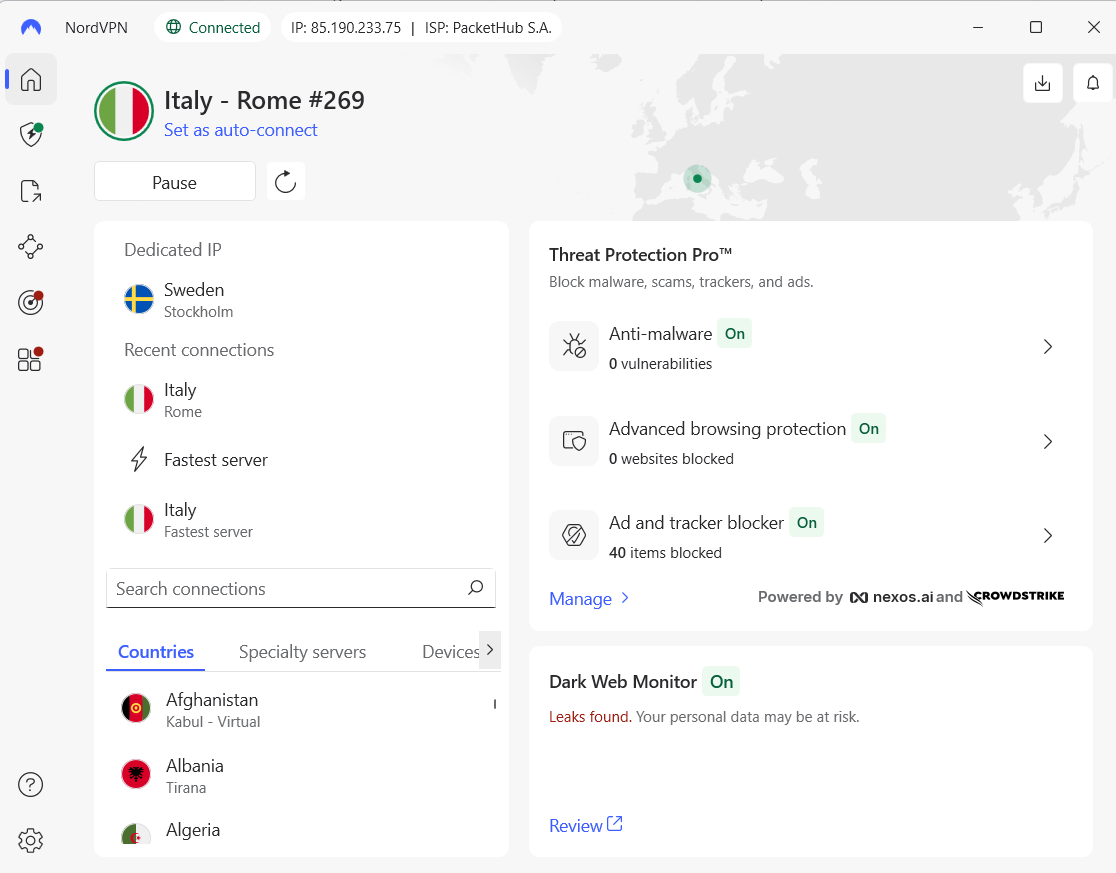
The main NordVPN window shows a world map with your connection status front and center. Here is what you will see and how to use it:
Connected Banner at the top displays your current server (e.g., “Sweden – Stockholm #955”), your IP address, and ISP. If you use a Dedicated IP, it will show that as well.
Pause Button lets you temporarily stop the VPN without quitting the app. You can pause for 5, 15, 30, or 60 minutes, and even up to 24 hours. This is handy when a site blocks VPN connections or when you need to troubleshoot.
Refresh Icon reconnects you to the fastest available server in the same country.
Recent Connections lists your last-used servers. Click one to reconnect instantly.
Search Bar under “Search connections” lets you type a country, city name, or even a specific server number to jump straight to that server. In the 2026 update, NordVPN unified the search so you can also find Meshnet devices and specialty servers from the same field.
Dedicated IP section appears if you have this add-on. It shows your fixed IP servers for quick access.
Threat Protection Pro panel on the right side prompts you to activate the antivirus and browsing protection tools if they are not already running.
Dark Web Monitor at the bottom shows your monitoring status and alerts you if leaks are found for your email addresses.
Specialty Servers Explained
| Specialty Server | What It Does |
|---|---|
| Dedicated IP | Assigns you a fixed IP address that only you use. Useful for services (remote servers, gaming, secure logins) that block shared VPN IPs. Dedicated IP is an additional service from NordVPN that costs around $3.69/month on a 2-year plan. Learn more |
| Double VPN | Routes your traffic through two separate NordVPN servers in different countries. Adds an extra layer of encryption at the cost of some speed. Learn more |
| Obfuscated Servers | Masks VPN traffic as regular HTTPS to bypass strict firewalls and DPI (deep packet inspection). Ideal for censored networks or restrictive public Wi-Fi. Learn more |
| Onion Over VPN | Sends your traffic through a NordVPN server, then into the Tor network. Gives you the anonymity of Tor plus the VPN’s encryption. Learn more |
| P2P | Optimized for file-sharing and torrenting. Balances speed and security, with servers configured to handle P2P traffic efficiently. Learn more |
NordVPN Settings
General
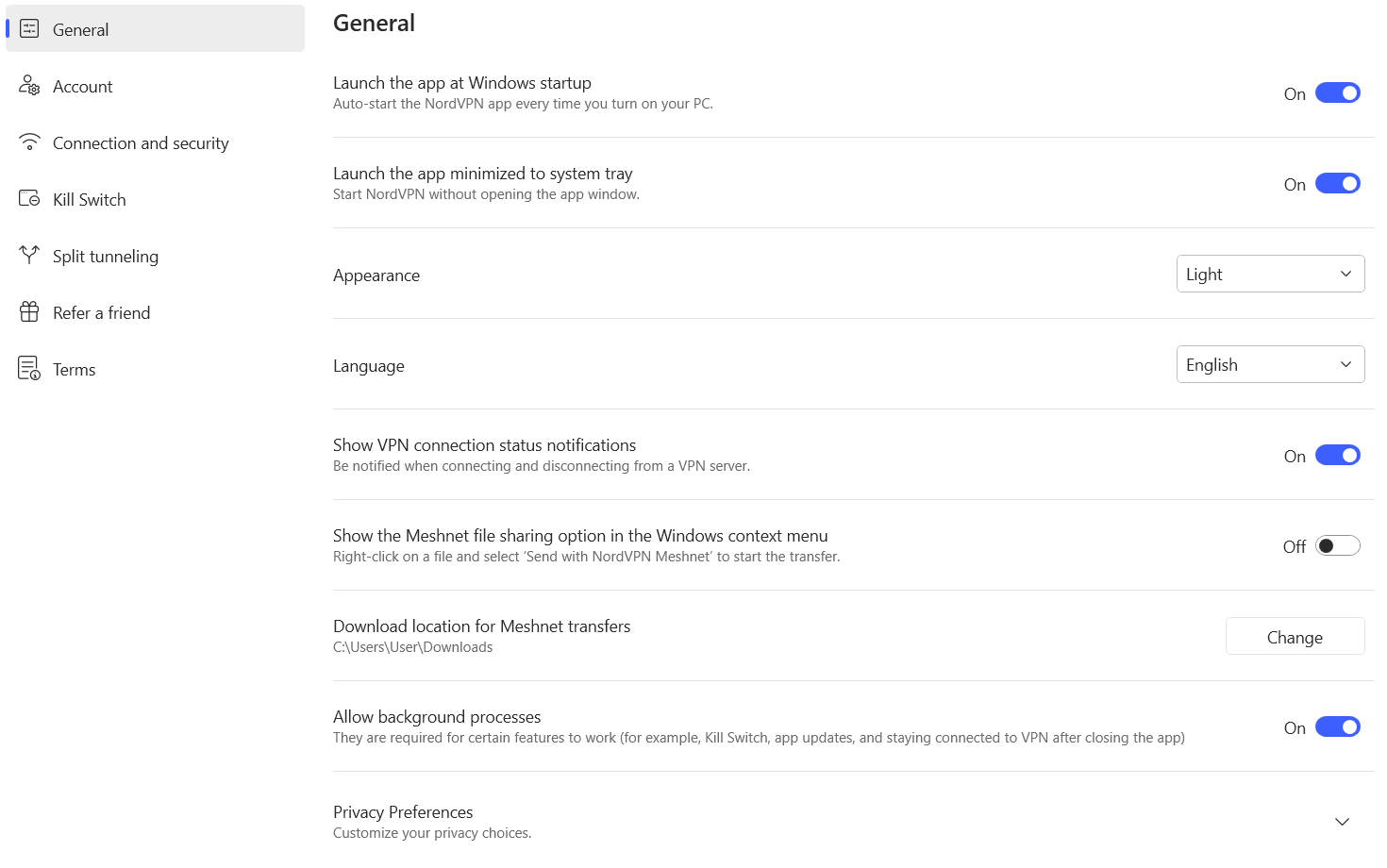
Launch the app at Windows startup: ON – NordVPN will start automatically when you turn on your PC, so you are always protected without opening the app manually. There is no reason to leave this off unless you prefer to connect manually each time.
Launch the app minimized to system tray: ON – NordVPN opens in the background and stays out of the way, keeping your desktop clean while it runs silently.
Appearance: Dark or Light, up to you. Purely a preference.
Language: English – the app menus and notifications appear in English. Choose another language if you need to, purely a preference.
Show VPN connection status notifications: ON – very important. You get a brief pop-up whenever you connect or disconnect, so you always know your protection status. I recommend keeping this on for all users, regardless of technical level.
Show the Meshnet file sharing option in the Windows context menu: OFF – this adds a “Send with NordVPN Meshnet” option when you right-click files in Windows Explorer. Turn it off if you do not use Meshnet for file transfers. Turn it on if you frequently send files between your devices using Meshnet.
Download location for Meshnet transfers: By default, files you receive over Meshnet are saved to your Downloads folder. Change it if you prefer another folder, like OneDrive or Dropbox.
Allow background processes: ON – required for features like the Kill Switch, automatic updates, and keeping your VPN connection alive after you close the main window. Without this, the VPN will disconnect when you close the app.
Account
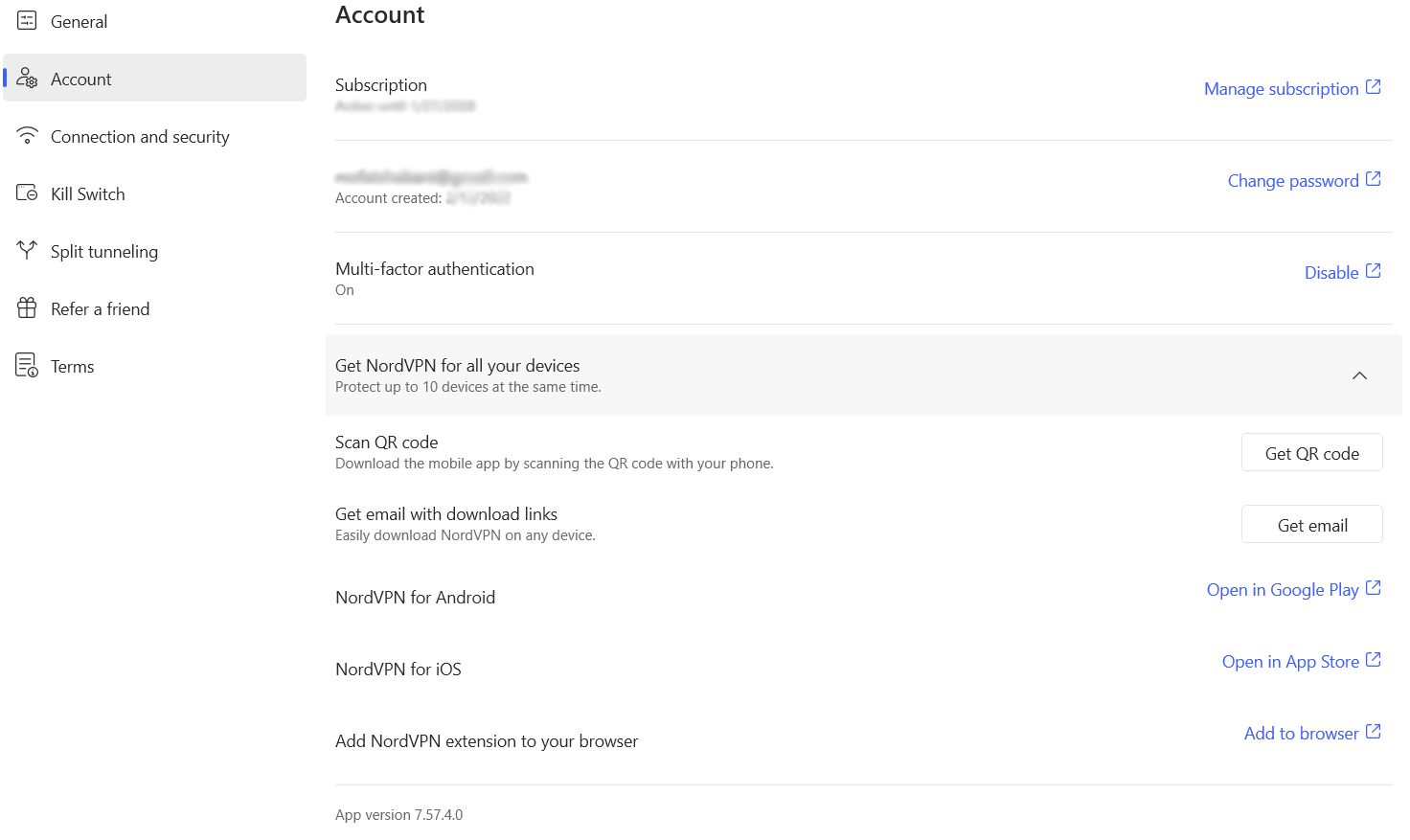
Subscription: Shows your active plan and expiration date. You can manage your subscription through the Nord Account dashboard online.
Multi-factor authentication: ON – this is critical. Enable MFA on your NordVPN account to prevent unauthorized access. NordVPN supports authenticator apps for this. If someone gets your password, MFA stops them from logging in.
Simultaneous connections: NordVPN allows up to 10 devices at the same time. If you have more devices, consider setting up NordVPN on your router instead. Router setup guide
Connection and Security
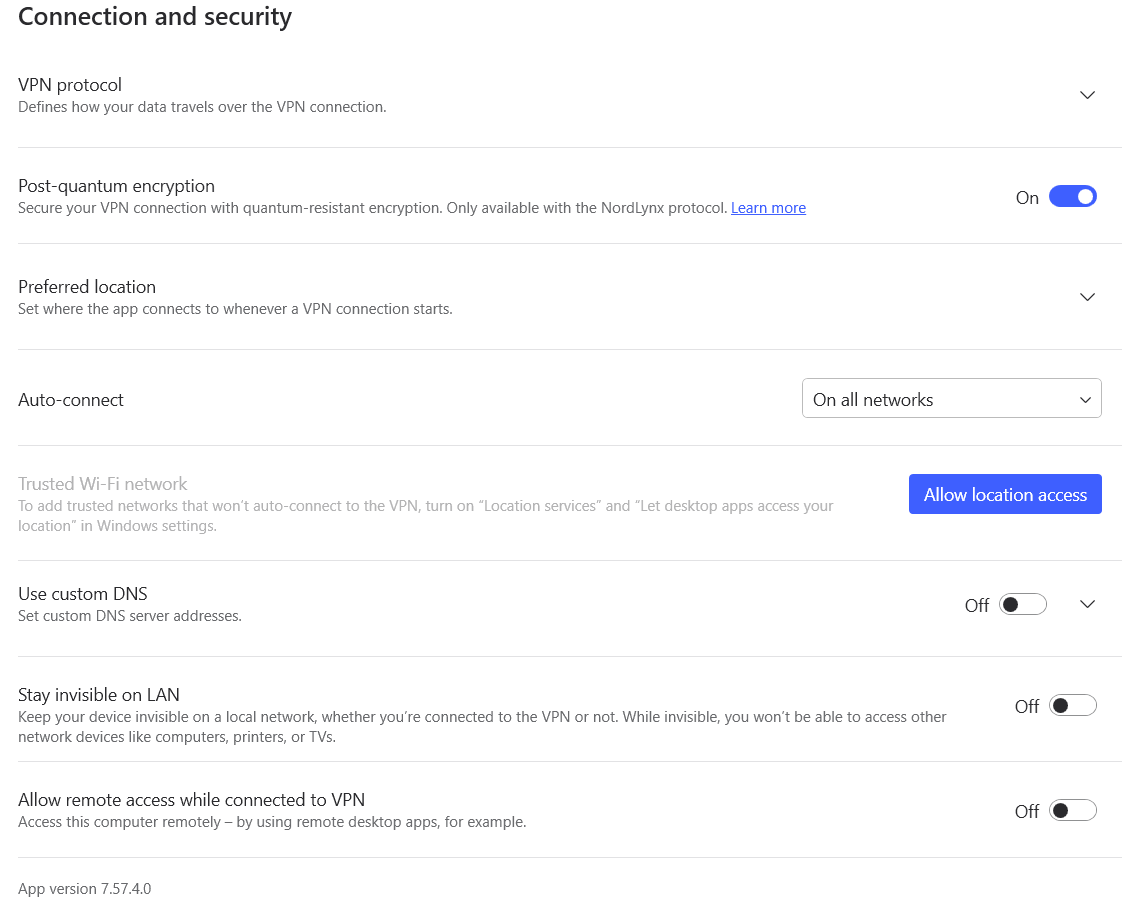
VPN Protocol: NordLynx – this is a custom implementation of the WireGuard protocol. It uses a streamlined code base for faster connections and higher throughput, wrapped in NordVPN’s double-NAT system so no long-term keys are stored on the server. It delivers quicker handshake times, lower latency, and stronger privacy than older protocols. This is the ideal choice for streaming, gaming, and secure browsing at home.
NordVPN now offers four protocol options plus an automatic mode:
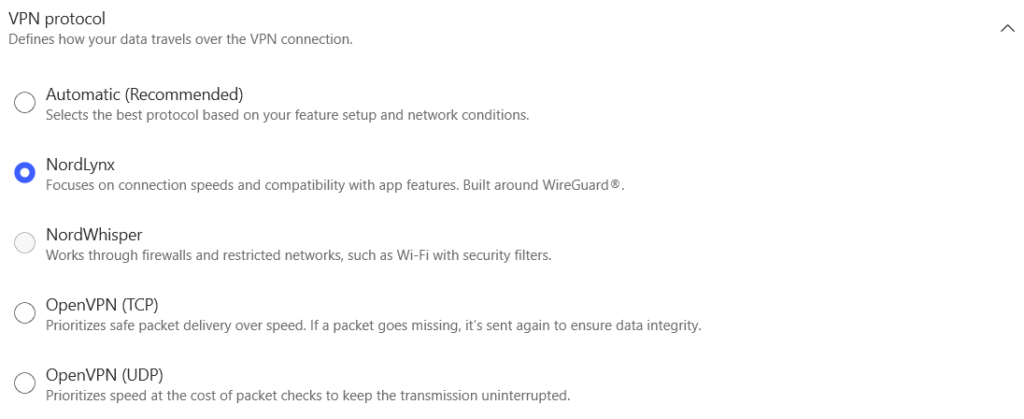
| Protocol | Best For | Speed | Security |
|---|---|---|---|
| Automatic | Lets NordVPN pick the best protocol for your network conditions. Good for most users who do not want to think about it. | Varies | High |
| NordLynx | Daily use, streaming, gaming. Fastest option for unrestricted networks. | Fastest | High |
| NordWhisper | Restrictive networks (hotels, airports, offices, countries with censorship). Mimics regular web traffic to bypass VPN blocks. Slower than NordLynx. Learn more | Slower | High |
| OpenVPN (TCP) | When reliability matters more than speed. Good for unstable connections. | Moderate | High |
| OpenVPN (UDP) | When you want more speed than TCP but still need OpenVPN compatibility. | Moderate-Fast | High |
Post-Quantum Encryption: ON – this adds a quantum-resistant layer to your VPN tunnel. It combines classical encryption with post-quantum key exchange algorithms to keep your session secure even if future quantum computers become powerful enough to break current ciphers. This protects the initial handshake and ensures long-term confidentiality of your data. Learn more about post-quantum encryption
Important limitation: Post-quantum encryption currently works only with the NordLynx protocol and will not activate when you use a Dedicated IP or Obfuscated servers. Enabling it will also turn off Meshnet because the features are not compatible. If you rely on Meshnet or Dedicated IP, you will need to choose between those features and post-quantum encryption. For most home users, I recommend keeping post-quantum encryption on and using Meshnet separately when needed.
Preferred location: Set where the app connects to whenever a VPN connection starts. The default is “Fastest server,” which now uses AI-assisted recommendations powered by nexos.ai. Instead of only picking the closest server, it considers multiple factors like server load and your network conditions. You can also set a specific country or server group if you always want to connect to a particular location.
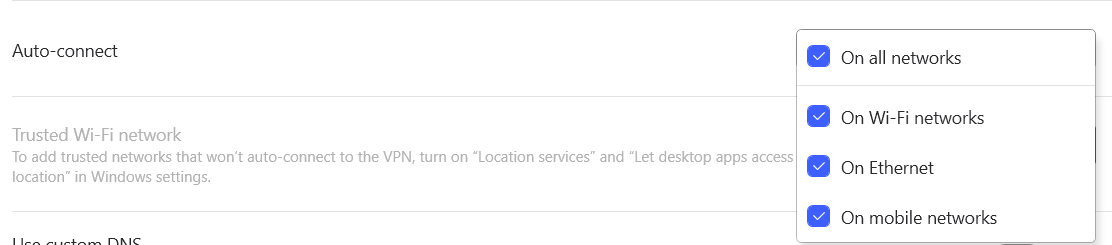
Auto-connect: This controls when NordVPN automatically connects. Options include “On Wi-Fi networks” “On Ethernet” or “On mobile networks” I recommend setting this to “On all Networks” so the VPN activates every time you start the app. If you trust your home Ethernet but not Wi-Fi networks, set it to “On Wi-Fi” only.
Trusted Wi-Fi Network: Off/None – I do not recommend adding any networks here. If you mark a network as trusted, NordVPN will skip connecting on that network, and all your traffic will go unprotected. Your ISP will see everything. Keep this empty for the best security.
Use custom DNS: Off – NordVPN’s built-in DNS works well, prevents DNS leaks, and is fully integrated with the VPN tunnel. You could switch to AdGuard DNS or Cloudflare DNS if you know how to configure it, but unless you have a specific reason, keep this off.
Stay invisible on LAN: Depends on your setup. When enabled, this hides your device from other computers and devices on your local network. This means other devices on the same Wi-Fi or Ethernet cannot see or discover your machine.
Turn this ON if you are on public Wi-Fi (cafes, airports, hotels) for extra protection. Turn this OFF at home if you need to use printers, smart TVs, or other local devices. If you use Meshnet to connect to local devices, you can leave this off at home and enable it manually when on public networks.
Allow remote access while connected to VPN: Off – Turn this on only if you use remote access tools like AnyDesk, TeamViewer, or Windows Remote Desktop while the VPN is active. If you never use remote access software, leave it off to block all remote connections while the VPN runs.
Kill Switch
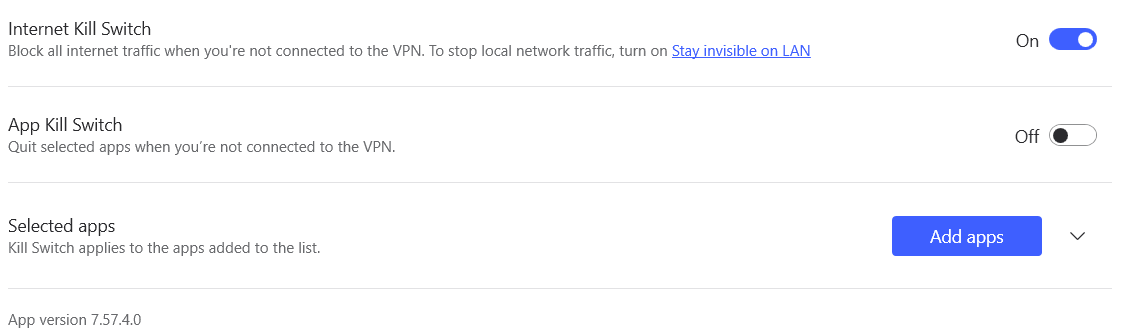
Kill Switch blocks all internet traffic if the VPN disconnects. This ensures no data ever leaks outside the encrypted tunnel.
Internet Kill Switch: ON – this is one of the most important settings in NordVPN. It blocks all internet access if the VPN connection drops, even if you manually disconnect. A warning pop-up reminds you that your internet will stay disabled until you reconnect NordVPN or turn the Kill Switch off.
App Kill Switch: Off – when enabled, NordVPN will quit specific apps if the VPN disconnects. This is useful if you want certain apps (like a torrent client or a browser) to close automatically when the tunnel drops. For most users, the Internet Kill Switch is enough. Use App Kill Switch only if you have specific apps that must never run without VPN protection.
Split Tunneling
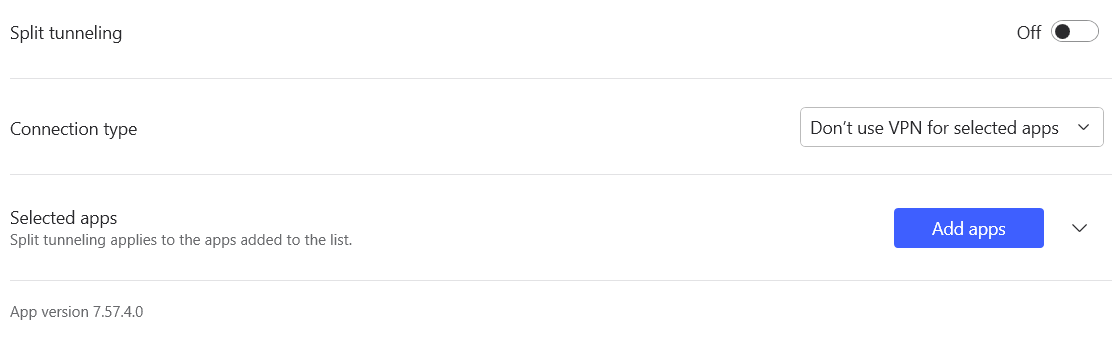
Split Tunneling: Off – I recommend keeping this off unless you have a clear reason to bypass NordVPN for certain apps. When split tunneling is off, all your apps and traffic go through the VPN tunnel.
If you do need it, there are two modes:
- Don’t use VPN for selected apps – all apps run through NordVPN except those you add to the bypass list. This is the easiest to manage. When an app is on the bypass list, its traffic goes straight over your ISP connection, exposing your real IP and location to that app. Use it only for apps that require your actual IP or need to connect to local devices (for example, a smart home app or a banking app that blocks VPN connections).
- Use VPN for selected apps – only the apps you choose go through NordVPN, everything else uses your regular connection. This can be useful if you want only a browser or a specific sensitive app protected while the rest of your traffic stays on your regular connection.
For most users: keep split tunneling off. If you need it, use the “Don’t use VPN for selected apps” mode and add only the apps that break with VPN.
Threat Protection Pro
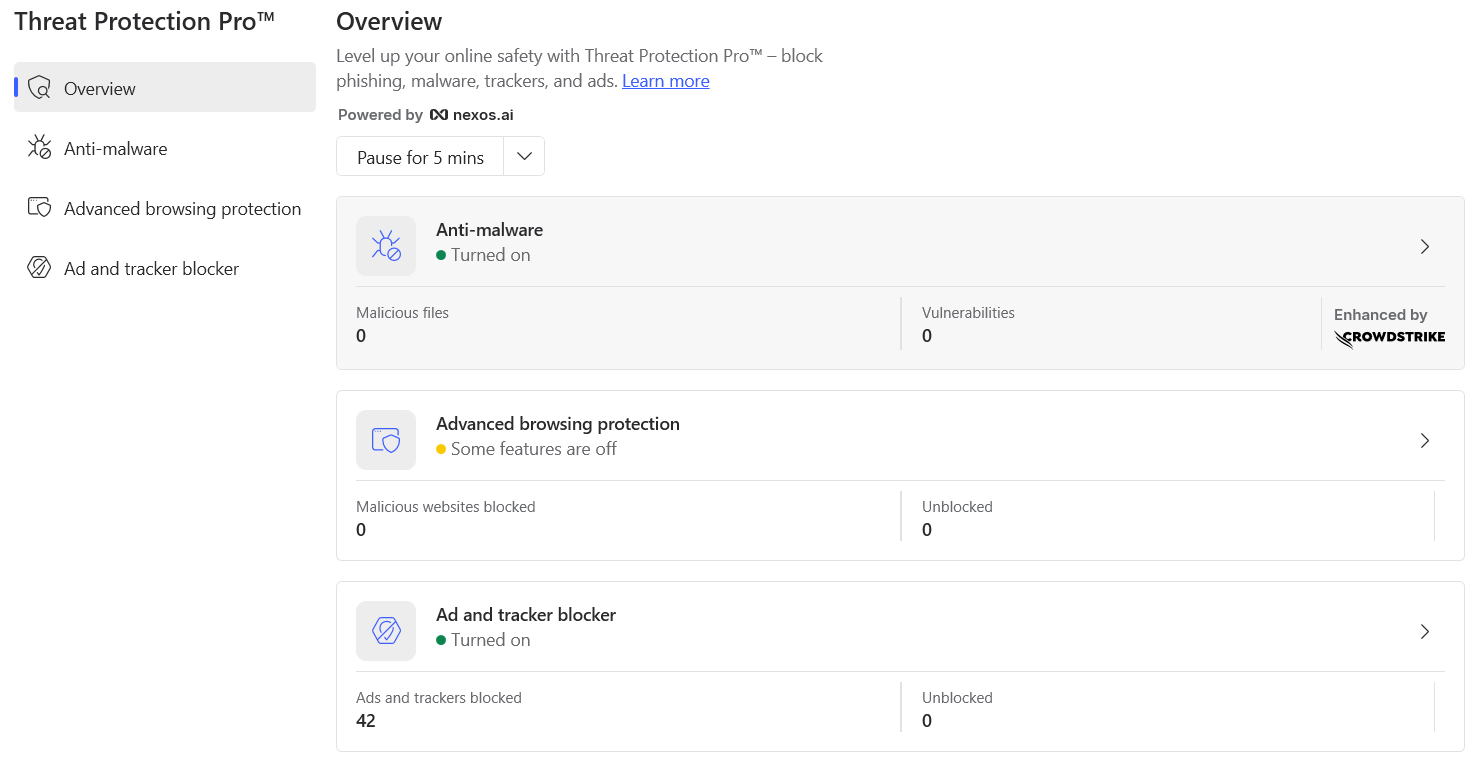
Threat Protection Pro gives you a single view of NordVPN’s built-in security layers. In the 2026 version, it is powered by nexos.ai and enhanced by CrowdStrike for anti-malware detection.
At the top, a dropdown lets you pause protection, and you can unpause at any time. This is handy when a website or app does not load properly because of the protection.
You will see three main sections:
- Anti-malware shows whether file scanning is on, how many threats it has caught, and its vulnerability scanning status. Enhanced by CrowdStrike for better threat detection.
- Advanced browsing protection reports on blocked malicious websites and shows which features are enabled or disabled. In 2026, this section includes several new tools beyond the basics.
- Ad and tracker blocker counts ads and trackers stopped at the DNS level, keeping your browsing faster and cleaner.
Plan availability: Threat Protection Pro (with anti-malware, advanced browsing protection, and all features described below) requires the Plus plan or higher and is available on Windows and macOS only. Check plans.
Anti-Malware

Malware scanner: ON – automatically checks every file you download and deletes anything that contains malware. By clicking the tab you can see the total files scanned. In 2026, this is enhanced by CrowdStrike’s threat intelligence for better detection rates.
Vulnerability scanner: ON – inspects installed apps for known security flaws that attackers could exploit. This gives you a heads-up when your software needs updating.
Malware Scanner Settings
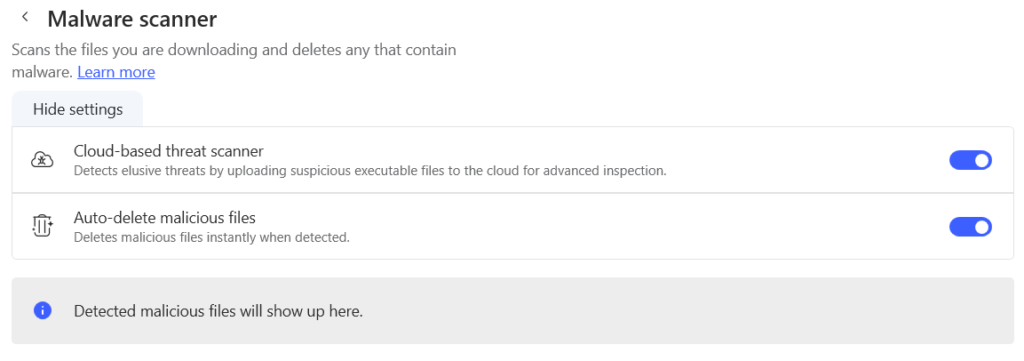

Cloud-based threat scanner: ON – This is a newer feature that uploads suspicious executable files to the cloud for advanced inspection. It catches more advanced threats that the local scanner might miss. ON if you frequently download files from the internet. If you are privacy-conscious about files being uploaded to NordVPN’s cloud for scanning, you can leave it off, but for most users, the added protection is worth it.
Auto-delete malicious files: ON – deletes malicious files instantly when detected. Keep this on so threats are removed automatically without you having to take action.
Advanced Browsing Protection
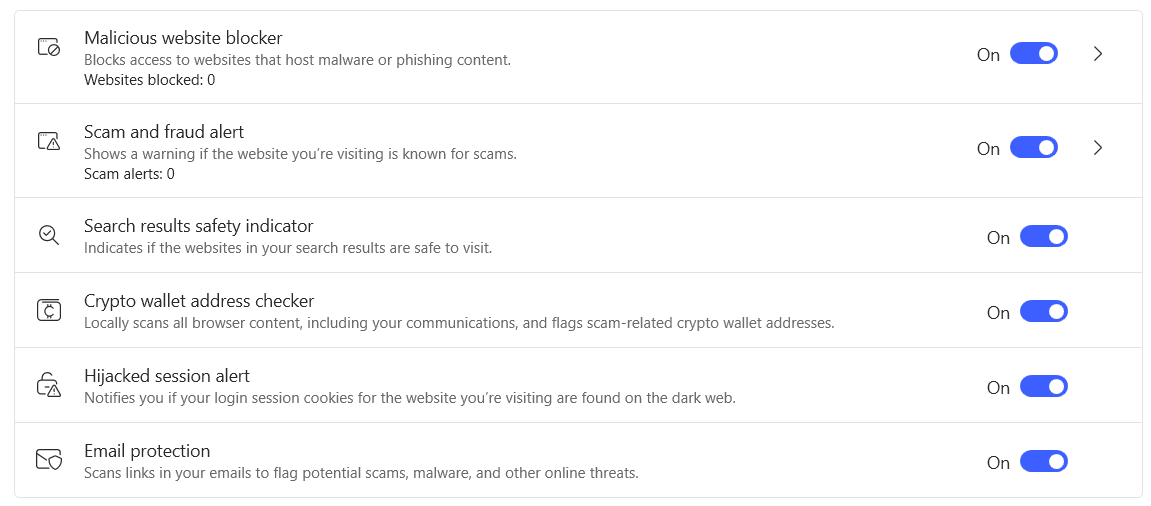
Malicious website blocker: ON – stops you from loading sites known to host malware or phishing content.
Scam and fraud alert: ON – warns you if you land on a site flagged for scams, so you can back out before entering any data.
Search results safety indicator: ON – flags unsafe links right in your search results, giving you a heads-up before you click.
Crypto wallet address checker: ON (new in 2025/2026) – locally scans browser content, including your communications, and flags scam-related crypto wallet addresses. If someone sends you a wallet address that is linked to known scams, NordVPN will warn you. Even if you do not use cryptocurrency, keeping this on adds no performance overhead and protects you if you ever interact with crypto content.
Hijacked session alert: ON (new in 2025/2026) – this uses patented technology to notify you if your login session cookies for the website you are visiting are found on the dark web. If attackers have stolen your session cookies, they could log into your accounts without needing your password. This is a powerful feature that I strongly recommend keeping on for everyone.
Email protection: ON – this scans links in your browser’s inboxes and flags unsafe ones. When you hover over a suspicious link, a warning icon appears. This is useful if you receive a lot of emails and want an extra layer of phishing protection in your browser. Turn it ON if you use Gmail, Outlook or Yahoo in your browser. If you use a desktop email client like Outlook or Thunderbird, this feature will not help since it works at the browser level only.
Ad and Tracker Blocker
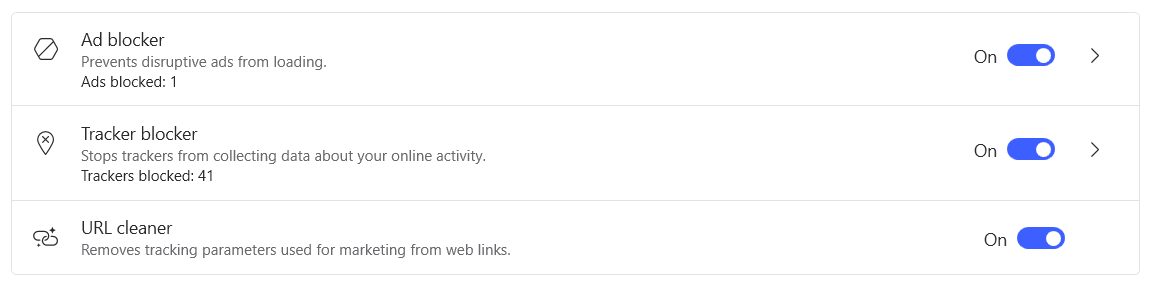
Ad blocker: ON – stops disruptive ads from loading. You will notice faster page loads and cleaner browsing.
Tracker blocker: ON – prevents analytics and tracking scripts from collecting your data. It shows how many trackers have been blocked.
URL cleaner: ON – strips marketing parameters (like UTM tags and tracking IDs) from links, so sites cannot track you through URL tags. This is a small but effective privacy win.
Meshnet
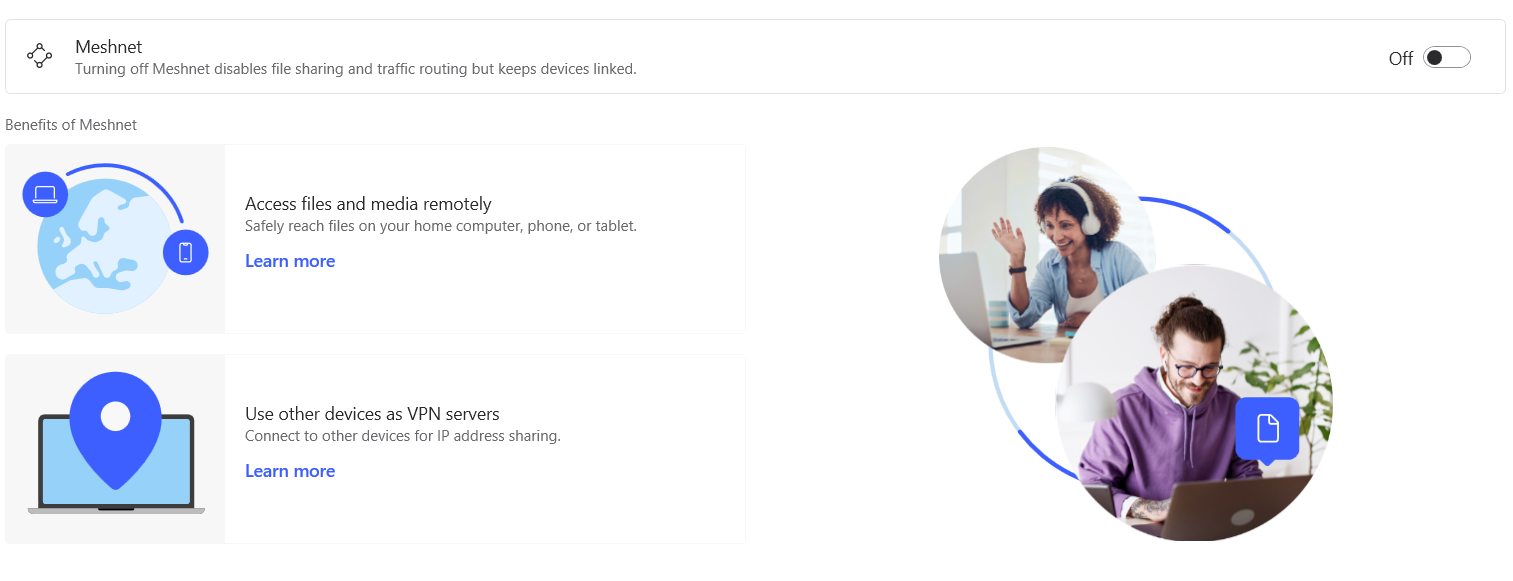
Meshnet is a feature that lets you connect your devices into a secure private network, regardless of where they are located. Think of it as a virtual local area network (LAN) that works across the internet. All connections between devices are encrypted end-to-end using NordLynx (WireGuard), so your data travels securely without touching any central server.
Meshnet is free for everyone, even without a paid NordVPN subscription. NordVPN confirmed in late 2025 that Meshnet will stay as a permanent feature after the community spoke up about its value.
How Meshnet Works?
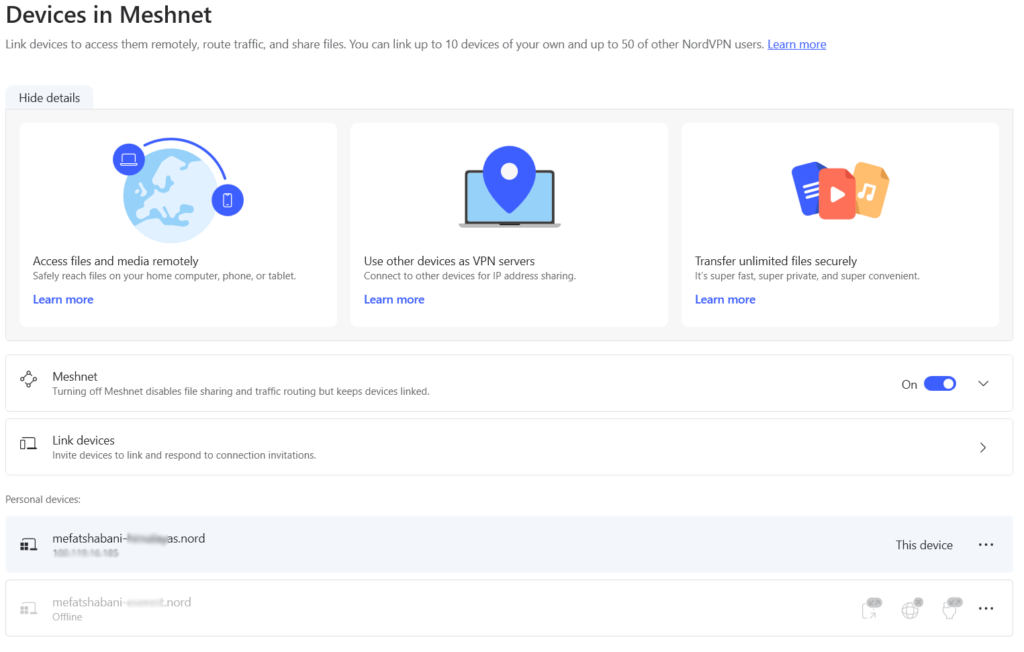
When you enable Meshnet, each of your devices gets a unique Meshnet address (like “your-device-name.nord“). You can link up to 10 of your own devices and up to 50 devices from other NordVPN users. Once linked, devices can communicate directly with each other through encrypted tunnels, bypassing the need for cloud storage or third-party file-sharing services.
What Can You Do With Meshnet?
- Access files remotely – reach files on your home PC, laptop, or phone from anywhere. For example, if you are traveling and need a document from your home computer, Meshnet lets you access it directly without uploading anything to the cloud. You can even run a Jellyfin media server and access it remotely through Meshnet without port forwarding.
- Transfer files securely – send files of any size directly between devices. Unlike email or messaging apps, there are no file size limits and no compression. Your photos and videos arrive at full quality. You can transfer up to 1,000 files at a time.
- Use your home IP while traveling – route your internet traffic through your home device. This makes websites see your home IP address instead of your travel location. Useful when services block you for logging in from an unusual location.
- LAN gaming – create a virtual LAN for multiplayer games with friends in different cities. No complicated port forwarding or server setup needed.
- Remote collaboration – teams can work together on a shared private network with end-to-end encryption, useful for software development, testing web applications, or exchanging sensitive documents.
- Run your own DNS server – set up a private DNS server on one device and access it from all your Meshnet-connected devices for better privacy control.
Is Meshnet Needed?
For most casual users, Meshnet is a nice-to-have rather than a must-have. If you just want VPN protection for browsing, streaming, and general security, you do not need it.
However, Meshnet becomes very useful if you work remotely and need access to files on your home computer, if you want to share large files without cloud services, if you game with friends across different locations, or if you want to appear to be browsing from your home location while traveling.
Dark Web Monitor
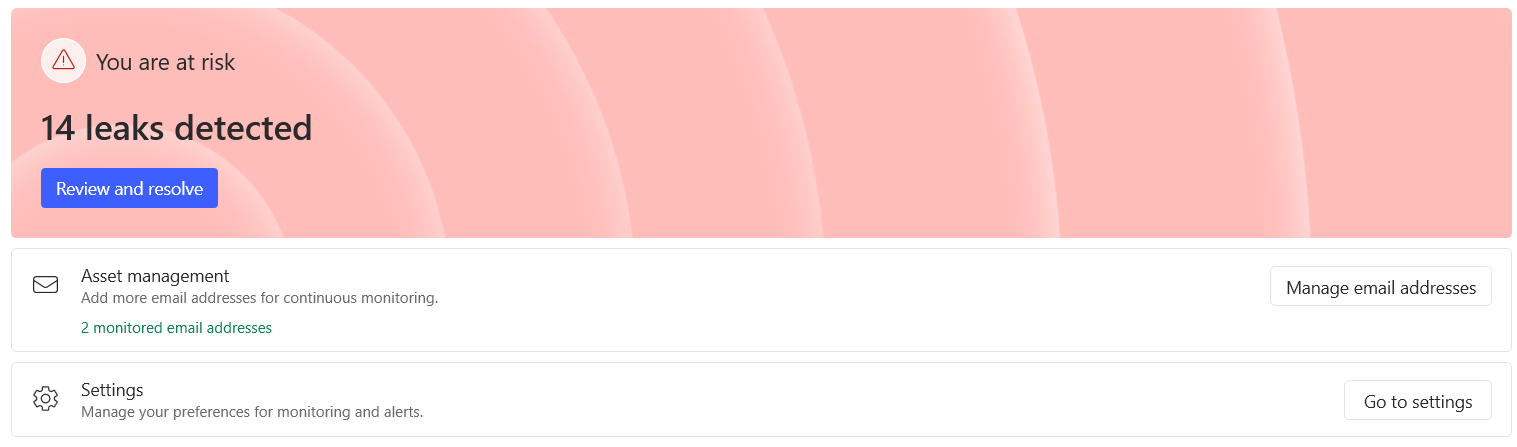
Dark Web Monitor continuously scans the dark web for leaked personal data linked to your email addresses. When breached databases or stolen credentials appear on dark web marketplaces, this feature alerts you so you can take action before criminals use your data.
What Is Included in Each Plan?
NordVPN offers two versions of Dark Web Monitor:
- Dark Web Monitor (standard) is included in all NordVPN plans (Basic, Plus, Complete, and Prime). It monitors up to 5 email addresses for data leaks.
- Dark Web Monitor Pro is included in the Complete and Prime plans only. It monitors up to 8 email addresses, up to 2 credit card numbers, up to 2 national ID (Social Security) numbers, and 1 phone number. Credit card and national ID numbers are hashed for privacy before monitoring. Learn more
If your plan does not include Dark Web Monitor Pro, you can still monitor up to 5 email addresses. If you have credit card numbers or more than 5 emails added, only the first 5 emails will be actively monitored.
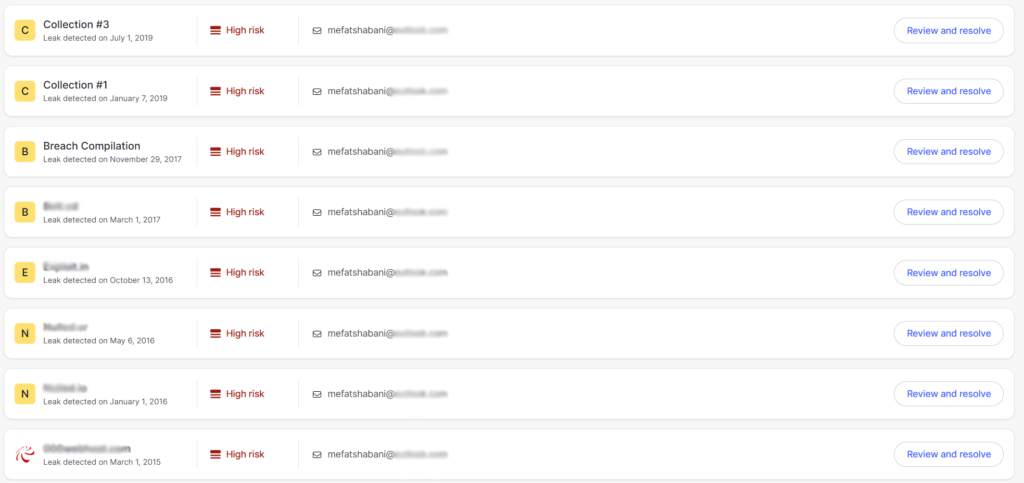
How It Works?
When Dark Web Monitor finds a leak, it shows you the breach name, date, risk level, affected email address, and what data was exposed (passwords, IP addresses, usernames, and more). You can click “Review and resolve” to see the full details and get recommendations for each breach.
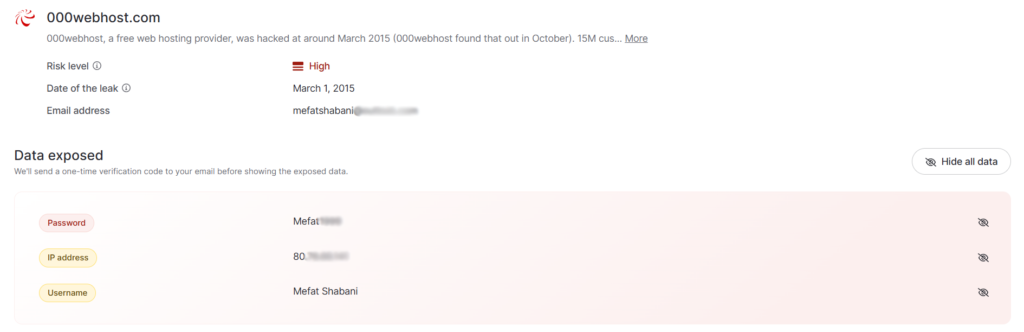
For example, in my own account, Dark Web Monitor detected 14 leaks across multiple breaches going back to 2015. For each one, it shows the exposed data and recommends actions like changing passwords and enabling multi-factor authentication on affected accounts.
Dark Web Monitor Settings
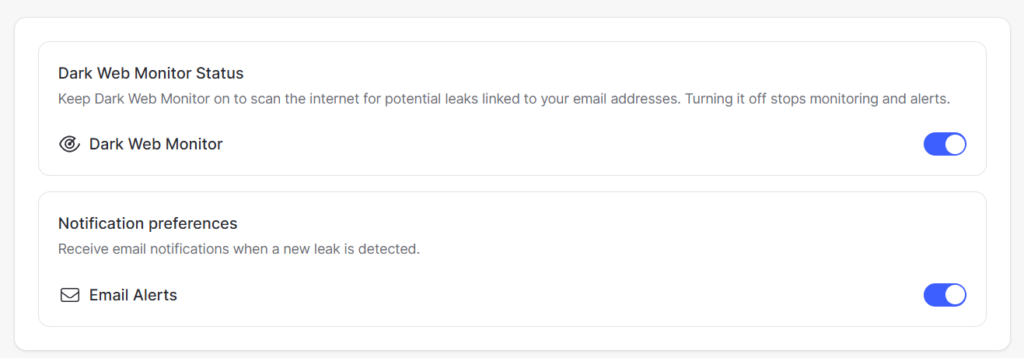
Dark Web Monitor: ON – keep this enabled to continuously scan for leaks.
Email Alerts: ON – receive email notifications when a new leak is detected. This way you do not need to open the NordVPN app to check.
Plus plan offers the best value for most users. You get Threat Protection Pro, NordPass, and all VPN features. If you want Dark Web Monitor Pro and encrypted cloud storage, go for Complete. The Prime plan is US-only and adds identity theft insurance.
All plans come with a 30-day money-back guarantee, so you can try the service risk-free. Get NordVPN
Did I Miss Anything?
I am always looking to improve my tutorials and will listen to any suggestions you have in the comments.
Cheers,
Mefat