




The Problem
Password manager reviews are loaded with affiliate spam. Search “best password manager” and you’ll find brand ambassadors and moderators pushing the same tools repeatedly. Lars Lofgren documented how Reddit moderators insert affiliate links into top comments, then sell their aged accounts to marketers. During his review, he found 5 different affiliate spammers in a single product recommendation thread. Password manager threads follow the same pattern, with the same usernames recommending NordPass or LastPass across r/privacy, r/cybersecurity, and r/software with links that redirect through affiliate networks.
The Answer
I tested 15 password managers over six years of working in cybersecurity, and fully remote. This spreadsheet tells you what you really want to know: tracked breach histories, analyzed TrustPilot complaints, compared real pricing (not promotional rates), performance, and documented which features actually matter for someone setting up their first password manager.
Password Managers
Recommendations
1.
Keeper
(What I Use)
I switched to Keeper in 2021 after testing Bitwarden, 1Password, and LastPass. Keeper isn’t the cheapest option out there, but it’s where the company puts its money that matters. Most password manager reviews tend to recommend NordPass, Dashlane, or 1Password, as these companies typically pay affiliate commissions of 30-40%. Keeper accepts only a small percentage of affiliate applicants and keeps their commission rates low. They focus their budget on software development rather than marketing, which is why you rarely see them topping affiliate-heavy “best of” lists.
The built-in TOTP authenticator and perfect auto form filling is why I stayed. When I log into a site with 2FA enabled, Keeper fills my password AND the 6-digit code automatically or PassKey if needed. Keeper is one of the first password managers to implement passkey storage. This enables users to securely access their Keeper Vault with passkeys protected by biometrics or PINs across multiple platforms. The browser extension scans 2FA QR codes directly from your desktop instead of requiring your phone.
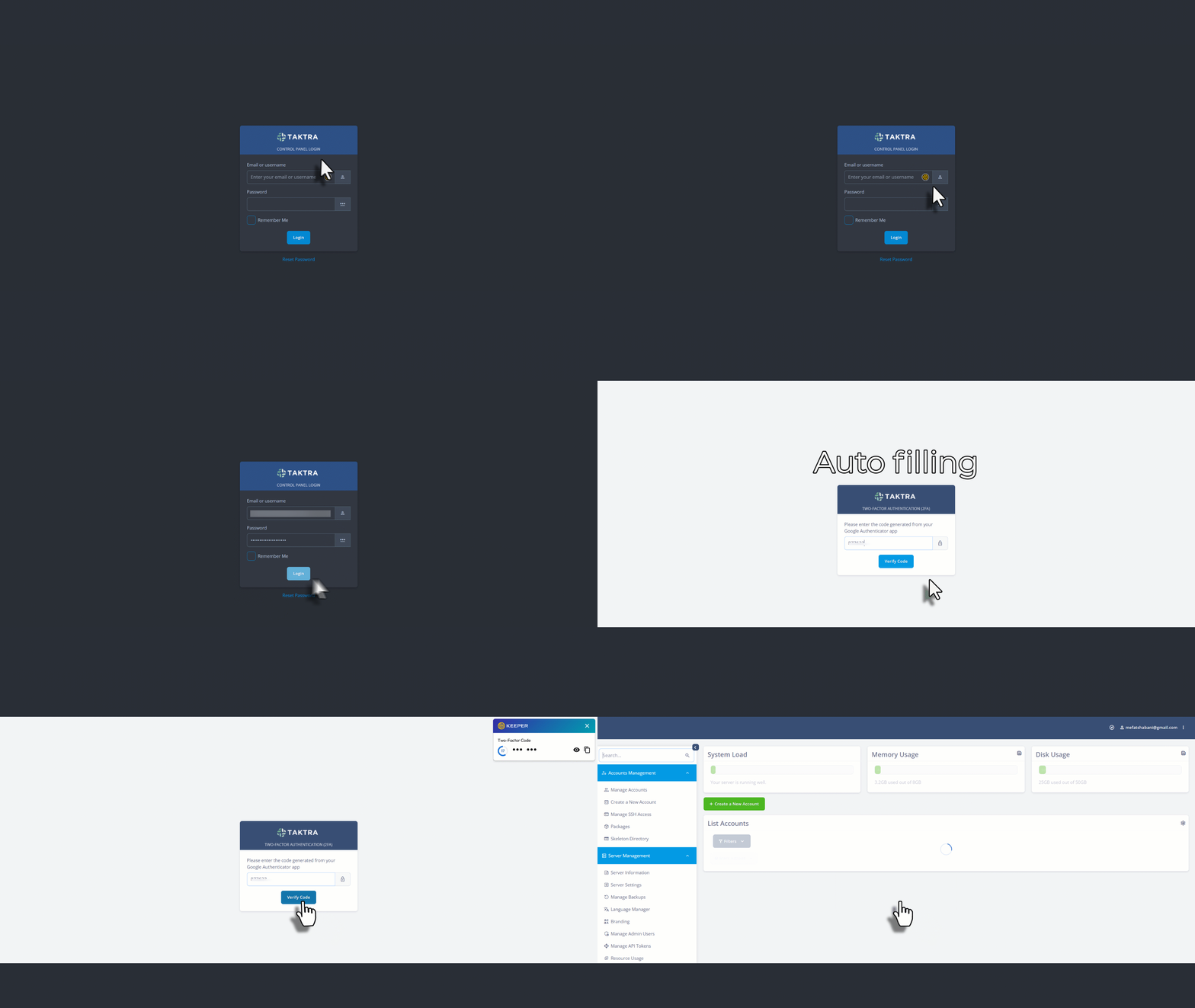
Keeper also expanded their infrastructure to the EU, which matters for GDPR compliance. Previously, they were US-only, but now European users can have their data stored in EU data centers where GDPR is strictly enforced.

2.
Bitwarden
(the most generous free tier)
Bitwarden changed my mind about free password managers, where the free version gives you unlimited passwords on unlimited devices, which is just an unbeatable deal. I imported 291 passwords from NordPass in about 40 seconds.
For some people interface might look a bit outdated, but it is 100% functional. What I do like about this particular company is that they are fully open source. That means security researchers or anyone worldwide can inspect the code for vulnerabilities. This transparency builds trust for me, considering that Bitwarden publishes regular third-party audits from Cure53, so you do not have to take their word for it.
For remote workers managing both personal and work accounts, Bitwarden handles the separation well. You can create folders and collections to keep things organized without paying extra. The search function works quickly, even with hundreds of entries. I have tested it with over 200 passwords and experienced no noticeable slowdown, also the password generator is solid, where you can customize length, character types, and even generate passphrases instead of random strings.
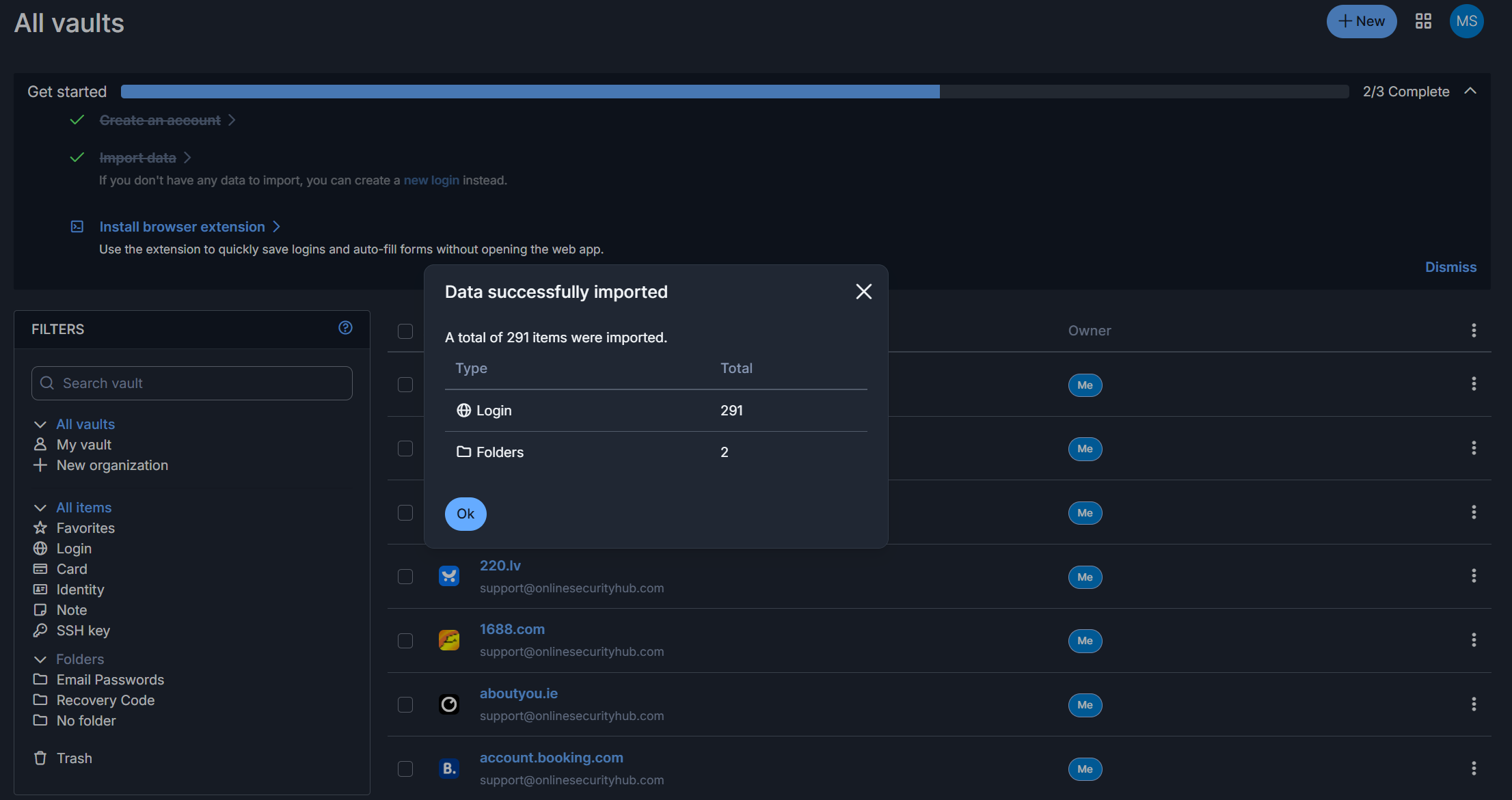
Bitwarden is based in the United States, which means it falls under US jurisdiction and potential government data requests. However, for EU users concerned about GDPR compliance, Bitwarden maintains data processing agreements and allows you to choose server regions.
3.
1Password
(Love their Travel Mode feature)
1Password has a cleaner UI than Bitwarden and feels more polished overall. Bitwarden can sometimes feel buggy and unfinished, which is why some people prefer 1Password, despite its higher price.
The only feature that is unique here is the Travel Mode concept. It temporarily removes sensitive vaults from your devices when crossing borders. If customs asks to unlock your phone, they won’t see your confidential data or work credentials. I find it a pretty useful feature for frequent travelers. But that’s pretty much where my enthusiasm ends, nothing more that can compare with Keeper.
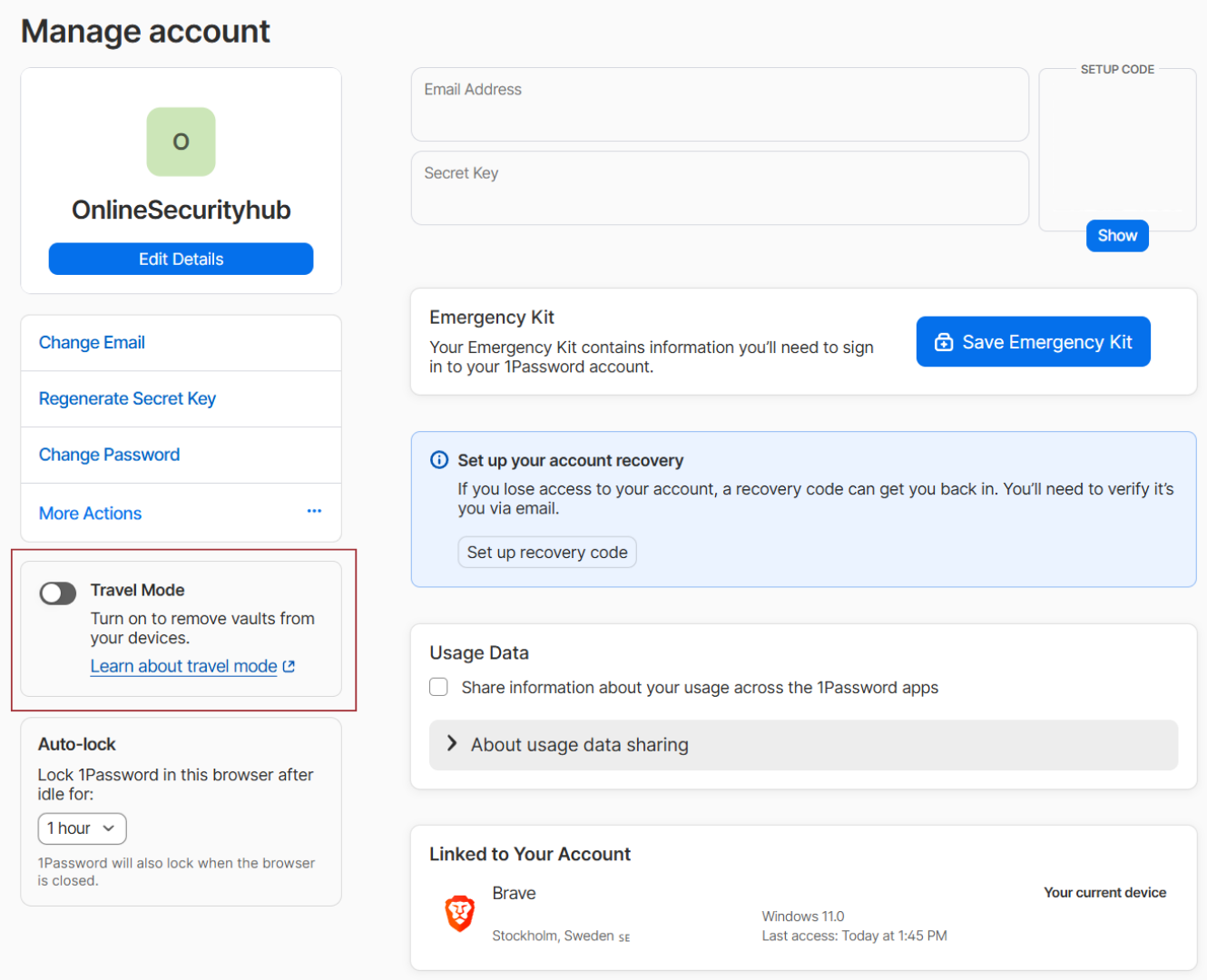
The email alias feature is disappointing. 1Password only integrates with Fastmail for generating aliases, which limits its usefulness if you’re not already a Fastmail customer. Compare that to Proton Pass, which gives you unlimited aliases with any email setup. Keeper doesn’t have email aliases yet, but there might be plans for it.
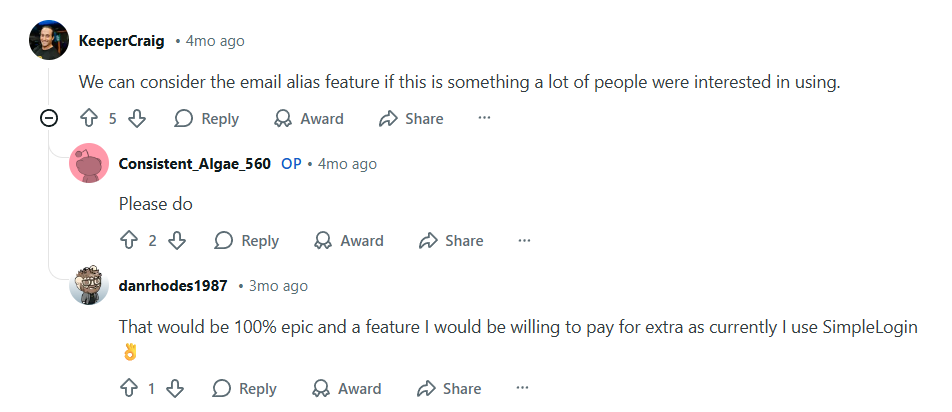
Neither 1Password nor Bitwarden are beyond Keeper for my use case. 1Password isn’t absolutely better than Bitwarden on paid plans either. The UI is nicer, sure, but you’re paying more for polish rather than functionality. I still prefer Keeper for the built-in TOTP and autofill reliability.

4.
Proton Pass
Proton Pass is made by the same company behind ProtonMail and ProtonVPN. Swiss jurisdiction means stronger privacy protection than US-based alternatives.
The standout feature is unlimited hide-my-email aliases. Generate a unique email for every signup, and if that site gets breached or sells your data, disable the alias. They also offer a Pass + SimpleLogin Lifetime deal for $199 that never expires, which is a solid value if email aliases are your priority.
An updated July 2025 Cure53 audit found a low-severity issue where locked vaults kept passwords in memory for up to 30 minutes on Firefox. Proton fixed it immediately, but worth knowing. They’ve improved a lot over the past year or two, and I hope they continue getting better, but I ran into a real problem during testing.
Some websites totally refuse to work with Proton Pass, financial websites (or eCommerce) mainly, which is frustrating because those are exactly the logins you want autofill working on. Keeper works with those same sites without issues. Even on websites where neither manager sees the login fields, Keeper provides a button to fill in the credentials anyway. Proton Pass doesn’t have this fallback option. Keeper also lets you create extra sections and custom fields that Proton Pass lacks.
If you don’t need email aliases and are willing to pay for a subscription, the other password managers are actually better for daily use. But if privacy and aliases are your main concern, Proton Pass is worth considering.

5.
RoboForm
RoboForm has been around since 1999. RoboForm handles complex forms better than most of the password managers I’ve tested expect Keeper. Government forms, insurance applications, multi-field checkouts with separate shipping and billing addresses, it fills them accurately where 1Password, NordPass, Bitwarden, and others have issues with. If you regularly fill out long forms (tax documents, medical paperwork, visa applications, job applications), RoboForm is worth considering despite the dated look.
RoboForm had some security concerns back in 2014, where data was encrypted and decrypted server-side, their client-side JavaScript had biases in the RNG, their TLS config was vulnerable to POODLE after the vulnerability was announced, and SSL Labs gave them a “C” rating. Not great.
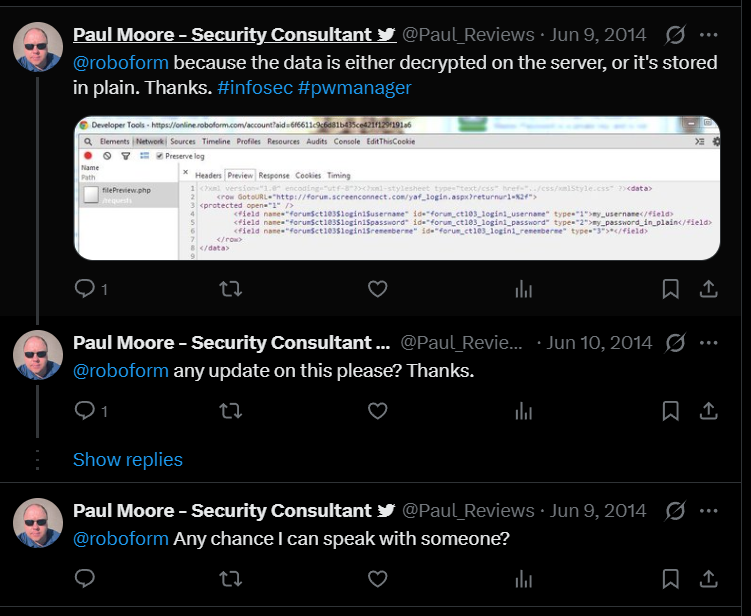
But that was 2014, now they’ve changed their architecture and no longer do server-side decryption. The security model is now in line with other modern password managers. I mention the history because transparency matters, and it shows they responded to criticism rather than ignoring it.

6.
NordPass
(Heavily promoted by affiliates)
NordPass is heavily promoted by affiliates because Nord pays generous commissions. That explains why you see it recommended everywhere, but after testing it myself, I can’t recommend it. The load times are painfully slow on both the app and the extension. I got stuck on loading screens for 2 to 3 minutes at a time.
The autofill feature is a mess, and it constantly mixes up autofill with autogenerate on new password fields. It tries to save random things like contact email fields on forms that have nothing to do with login, and it almost never autofills when you actually need it.
More than once, I accepted a suggested unique password when creating a new account, and NordPass didn’t save it. That means extra work with “Forgot Password” and starting over. No built-in 2FA authenticator on the premium personal plan. In 2026, that’s embarrassing when Keeper, Bitwarden, and RoboForm all include it. If you get it free through a paid Revolut plan, maybe it’s worth tolerating. Otherwise, spend your money on Keeper or use Bitwarden for free.

7.
LastPass
($35M+ Traced, $250M+ Estimated Losses)
If you like password managers that got hacked and still steal your crypto in 2025, you’ll love LastPass. In 2022, hackers breached LastPass and stole encrypted vault backups from roughly 30 million users. That was 3 years ago. People are still losing money today.
Verified theft amounts:
- $35 million traced by TRM Labs through late 2025
- $150 million stolen from Ripple co-founder Chris Larsen (FBI-confirmed LastPass link)
- $250 million estimated total by Security Alliance (as of May 2024)
- $4.4 million stolen in October 2023
- $5.36 million stolen in December 2024
The UK Information Commissioner’s Office fined LastPass £1.2 million ($1.6 million) for inadequate security. TRM Labs traced the stolen funds to Russian exchanges, including Cryptex (sanctioned by US Treasury in 2024 for receiving $51.2 million in ransomware proceeds). LastPass still hasn’t warned customers that credentials stored in Secure Notes may be at risk.
If you ever stored cryptocurrency seed phrases, private keys, or sensitive credentials in LastPass before August 2022, move your funds immediately. Then switch password managers.
8.
Dashlane
(Expensive, No Free Plan)
Dashlane discontinued its free plan in September 2025. You are now paying a minimum of $4,99 per month just to use it.
The family plan costs $7.49 per month, compared to 1Password’s $4.99 per month for the same five users. That premium is difficult to justify when competitors offer similar functionality for less.
Dashlane does include a VPN, which is relatively unique. However, if you already use NordVPN, ExpressVPN, or any other VPN service, you are paying for a feature you do not need.
The interface is polished, and autofill works well, but so does 1Password at a lower price point. Unless you specifically want the bundled VPN, there is no strong reason to choose Dashlane over alternatives.

9.
Apple Passwords
(Ecosystem Lock-In)
Apple’s built-in password manager works if you own nothing but Apple devices, but most people don’t. iCloud Keychain sync issues are legendary at this point, if you go through Reddit and Apple Community forums, you will see that they are filled with people whose passwords randomly stop syncing between devices, passwords reverting to old versions, or the Windows iCloud app refusing to approve authorization for weeks. Users report having to change their Apple ID password and re-authenticate every device just to get sync working again.
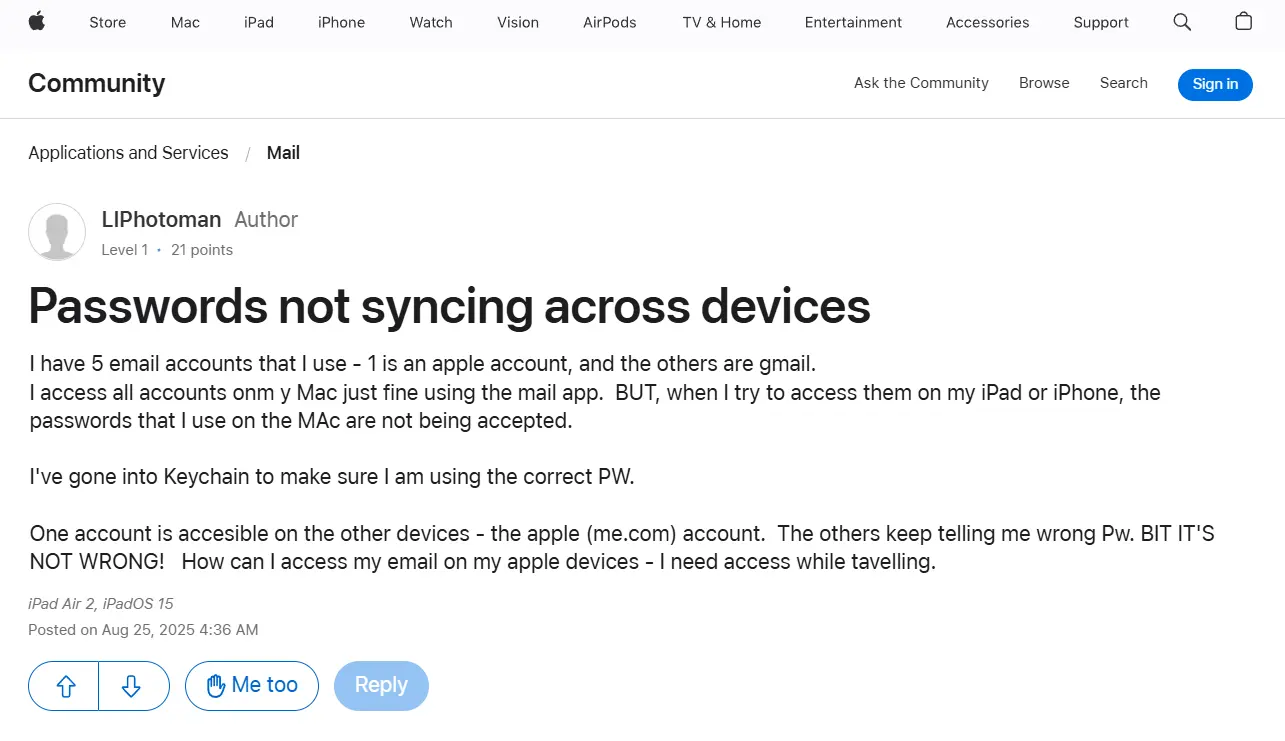
Apple Passwords does not have a master password, so that means your vault is protected by your device passcode or biometric authentication.
Exporting passwords when you want to leave is a painful process as well. The only export option is an unencrypted CSV file, and the process feels deliberately buried. macOS Sequoia made things worse when Apple moved Keychain Access out of the Applications folder into a hidden system folder, removed it from Docks, and removed the ability to create new secure notes entirely.
There is no TOTP storage, no dark web monitoring and no family sharing with non-Apple users. Most importantly, no secure sharing outside the ecosystem.

10.
Google Password Manager
(Privacy Concerns)
Google already knows your search history, email contents, location history, YouTube watch history, Chrome browsing data, and everything you do across their ecosystem. Adding your bank logins, medical portal credentials, and financial accounts to that profile is a risk I won’t take.
I think we all agree and understand clearly that Google’s business model is advertising, where data analysis is how the company makes most of the money. The password manager is free because you’re the product, I don’t trust that my credentials aren’t being used somehow to build advertising profiles, even if Google claims they’re encrypted.
The transparency issues are real with this provider, where TechRepublic’s 2025 review noted that Google Password Manager’s encryption methods are not thoroughly detailed for users, and because it’s not open source, there’s no way to verify security claims independently. Unlike dedicated password managers with zero-knowledge architecture, Google can technically decrypt your data under legal requests.
Same as with Apple Passwords, there is no secure password sharing, no built-in TOTP storage, very limited dark web monitoring on the free tier, and your Google account is a single point of failure for everything.

11.
Enpass
(Slower Security Response)
Enpass sells itself on privacy and local storage with no forced subscription. Sounds appealing until you look at how they handle browser extension security and response times. Browser extensions are the main attack vector for password managers. UI redressing, iframe manipulation, and clickjacking. These aren’t theoretical risks, and they’ve been documented for over a decade. The issue with Enpass is how slowly they patch these known vulnerabilities compared to competitors like Bitwarden or 1Password.
At DEF CON 33 in August 2025, security researcher Marek Tóth demonstrated how Enpass browser extensions could be exploited using DOM-based clickjacking attacks. A single click on a malicious website could leak your stored credentials, 2FA codes, and credit card details without you realizing anything happened. The attack works by overlaying invisible HTML elements over password manager interfaces, where you think you’re clicking a cookie banner or CAPTCHA, but you’re actually clicking hidden autofill controls that export your data to attackers.
Enpass was listed as vulnerable in the initial disclosure, and to their credit, they’ve been working on fixes, where the Socket security research firm noted Enpass was actively patching the issues. But as of the latest reports, protections weren’t consistent across all platforms and browser versions.
The problem isn’t just Enpass, but this research tested 11 password managers and found all of them vulnerable to at least one attack vector. Enpass’s response and patch timeline put it in a gray area where I can’t recommend it over alternatives that responded faster. Keeper, NordPass, Proton Pass, RoboForm, and Dashlane all patched before the public disclosure. That’s the response time I expect from security software.
12.
Sticky Password
Sticky Password has been around since before most people knew what a password manager was. It offers local storage, optional cloud sync, and a lifetime license. If you despise subscriptions, that might catch your attention.
For me, everything else is stuck in 2015, where the interface feels dated, autofill behavior is clunky, vault search is slow, and mobile apps lag. It has no TOTP authenticator built in, no emergency accessn, and no passkey support. Look at the changelog and find the last meaningful feature update, you’ll be scrolling for a while.
Sticky Password hasn’t had a major breach, but that’s the absolute minimum bar, you need active development and innovation, not just stability and maintenance mode.

13.
KeePass
KeePass itself is a legitimate open-source password manager with strong cryptography. The software isn’t the problem, but the distribution is. Attackers have bundled trojanized KeePass installers with malware and pushed them through unofficial download sites and ads. If you grab it from anywhere other than the official KeePass page and don’t verify file integrity, you’re gambling with your system.
For technical users who verify checksums and only download from official sources, KeePass is fine. For everyone else, the risk is unnecessarily high when user-friendly alternatives with automatic updates exist. Bitwarden’s free tier is simply better and risk-free.
14.
Norton Password Manager
(Bundleware With Limitations)
Norton Password Manager is bundled with Norton 360 subscriptions but is also available free as a standalone product. It does basic password management acceptably, that’s all. Bitwarden’s free tier is simply better.
Norton Password Manager has no built-in TOTP authenticator, no secure password sharing, no emergency access. Import options are limited compared to dedicated password managers with even free competitors such as Bitwarden.

15.
Zoho Vault
(Built For Business, Clunky For Personal)
Zoho Vault is designed for organizations using Zoho’s ecosystem where for companies, it integrates well and offers strong team management features. For personal use, it is overkill in all the wrong ways.
The interface is business-focused with settings and tabs that are irrelevant for individual users. Emergency access is only available on business plans, and Autofill is limited beyond credentials.



Nice article.